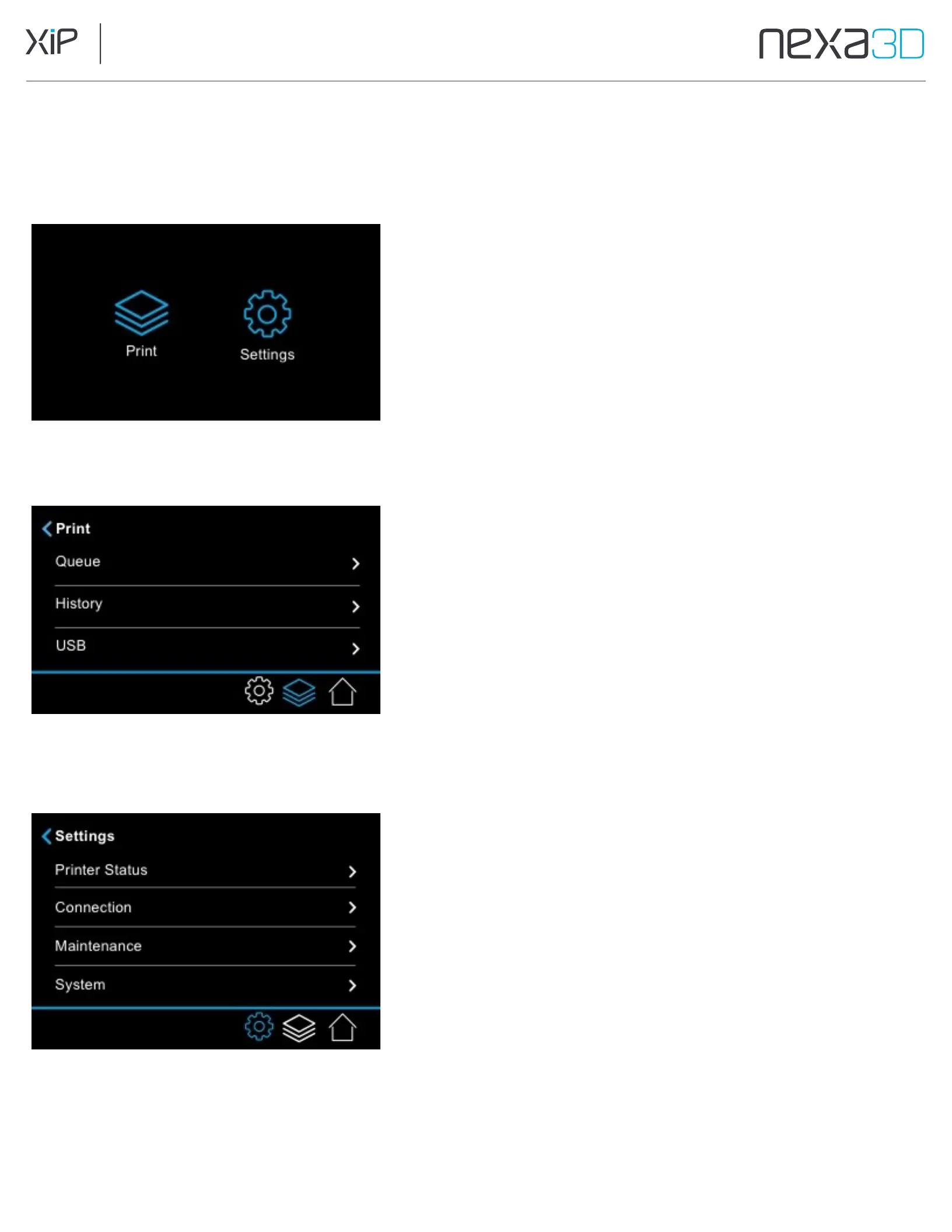
3.3 The Touchscreen User Interface
The
interactive
touchscreen
makes
it
easy
to
manage
your
printer
and
the
printing
process.
The touchscreen displays Print information,
Settings, and error messages.
The
Print
screen, available by selecting the stack of layers icon,
lets
you select a print job from:
Queue:
The XiP job queue.
History: A history of the jobs you’ve printed in the past.
USB:
A job loaded on a USB key.
Once a print is started, the screen displays the progress of the print.
The
Settings
screen, available by selecting the gear icon, contains:
Printer Status: Check the type of resin in the cartridge, the life of the
membrane and approximately how many layers remain, and the status of
the resin vat. If the resin vat is locked, you can tap the Resin Vat icon to
unlock the magnetic clamps.
Connection:
Configure
or
disconnect
Wi-Fi
and
Ethernet
connections.
Maintenance:
System processes to help you level the build plate or
clean
the resin vat.
System: Reboot your printer, update your printer’s firmware, register
your printer, repeat the initial onboarding process, and learn more
about your printer (serial number, version) and how to contact support.



 To Next Page