4.
After the print job is complete, a message requests whether the print was
successful or not.
If the print was successful, tap Yes. If the print failed, tap No and the printer
will
request whether you want to
Clean the Resin Vat After a Failed Print
.
6.4 Pause,
Stop
or
Delete
a
Print
While a job is printing, you can tap
Pause
to temporarily stop the print. To resume the print, tap
Resume
.
To
completely stop a print in progress, tap Pause and then tap Abort Print.
To delete a print file, choose the file name from the queue and tap
Delete
Job
.
6.5 Build Plate Alignment
It is essential that the build plate is level. A build plate that is not level can lead to poor first layer
adhesion or damage to the LCD screen. The Build Plate leveling procedure must be performed after
each replacement of the LCD.
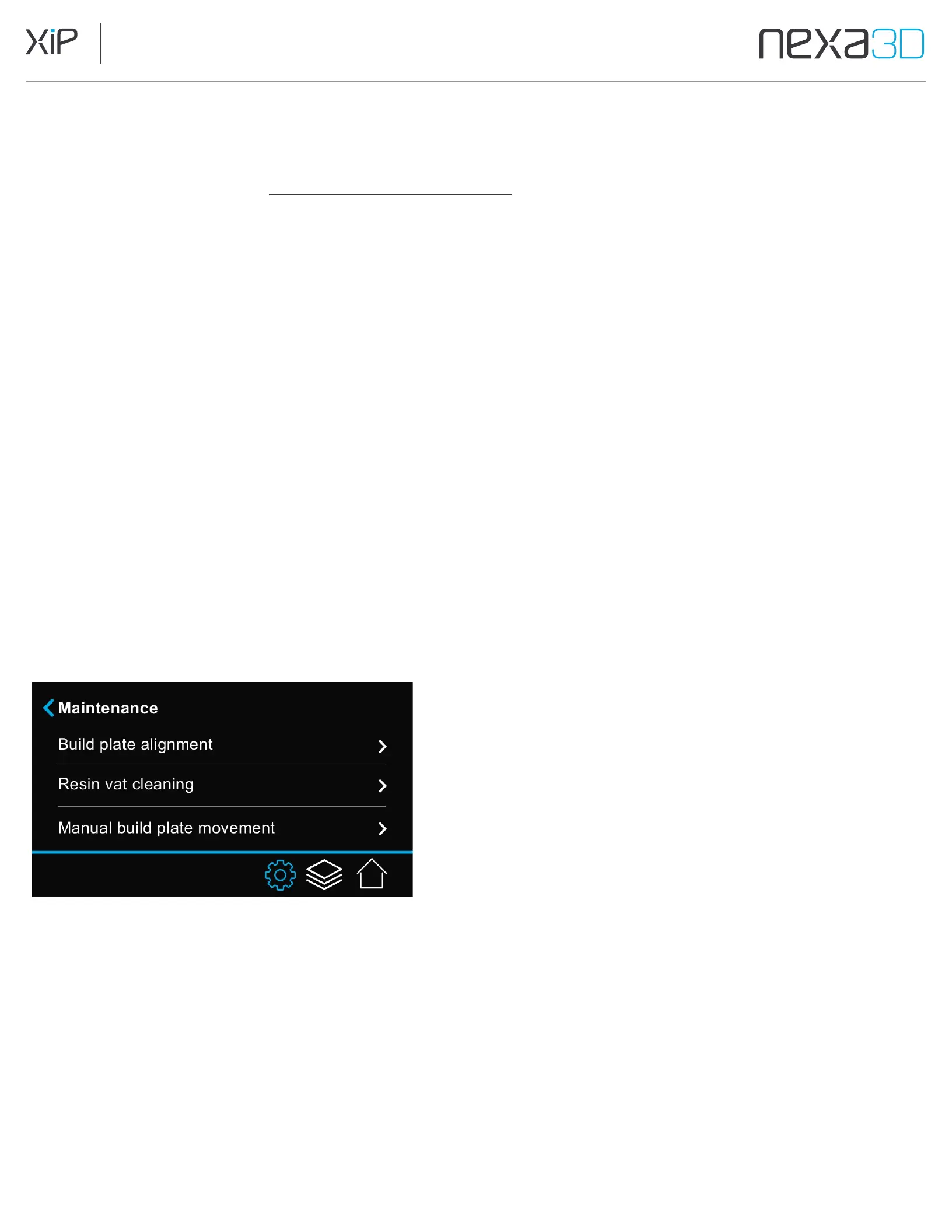
1.
Tap
Settings
>
Maintenance
>
Build
Plate
Alignment
.
2.
The touch screen interface guides you through the process of loosening the screws
and leveling the build plate.
3.
Tap
Continue
to return
to the
home screen
when the
procedure is
complete.
6.6 Change
the
Resin
Cartridge
Between
Prints
The vat frame can be reused with different resins, however membranes must be dedicated to one
type of material. They must be switched out when changing to a different resin.
Remove the Build Plate and Resin Cartridge before removing the Resin Vat to prevent dripping
resin onto the printer.



 To Next Page