Chapter 1 Installing the client 25
Configuring the Contivity VPN Client
Logging on through client connection
After the client installation is complete, use the following procedure to log on
through a Contivity VPN Client connection.
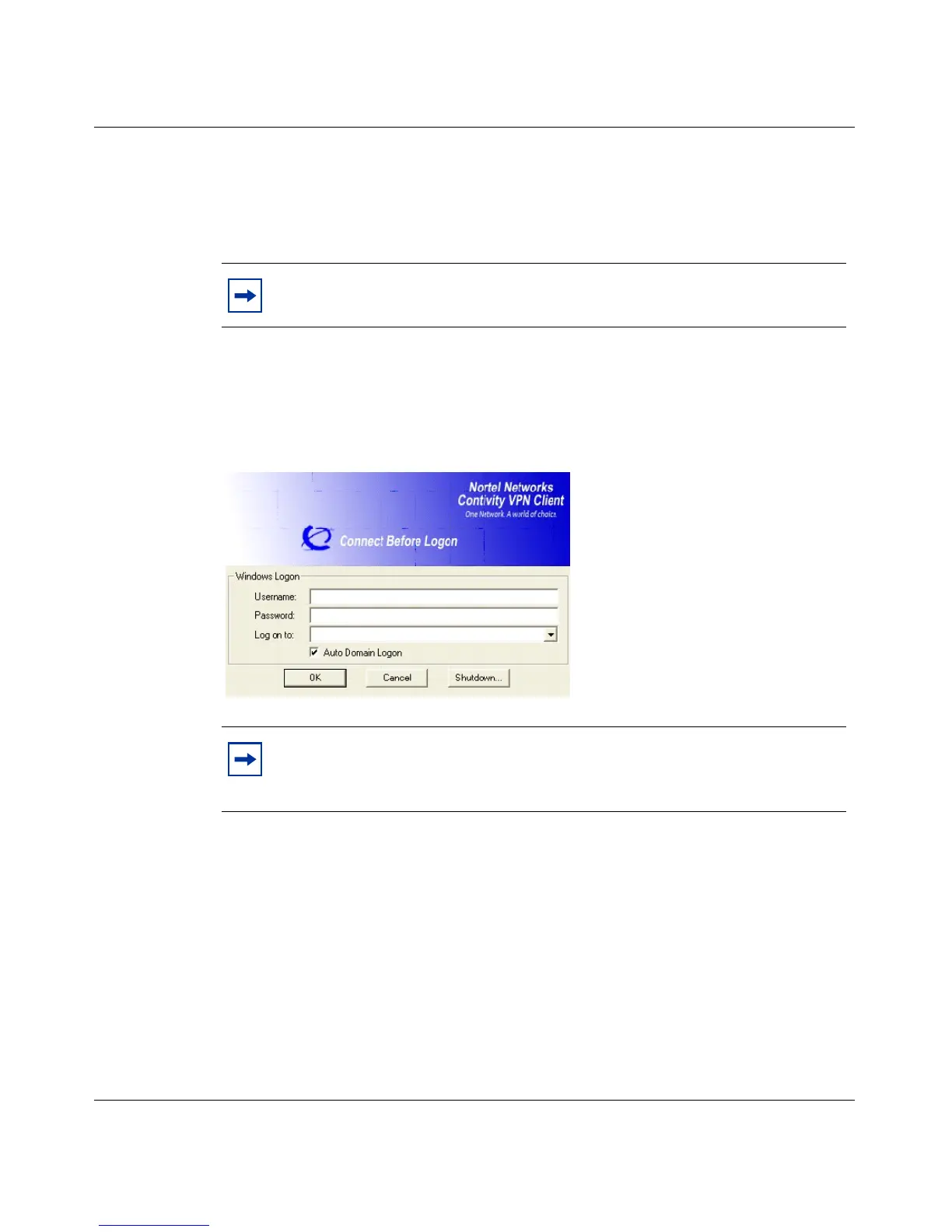
1 Press Control + Alt + Delete. The Contivity VPN Client GINA interface
appears. This is a Contivity GINA dialog (not the Windows GINA dialog).
(Figure 7)
Figure 7 Connect Before Logon screen
2 Enter your Windows credentials, which are used to perform a local system
logon. The Contivity VPN client is launched. (Figure 8 on page 26)
Note: Auto domain logon is the default.
Note: If you do not want to use the Connect Before Logon feature after
it is installed, click on Cancel and the Windows domain logon screen
will appear.



 To Next Page