TouchPoint Console Installation and Setup Guide 31
Chapter 4: Additional Local Configuration
Accessing the Administrative Options
After you complete all required screens in the Installation Wizard (see Installation Wizard on page 32), TPC reboots
automatically. To access the Administrative options, you must log in to TPC as Administrator.
1
On the Login screen, press Help > Admin Login.
The screen updates to indicate that you are attempting an Administrative login, rather than a User login.
2
Login with the Administrator user name and password. The user name is ‘eqadmin’ and the password is ‘eqadmin’.
Press Enter to validate your user credentials.
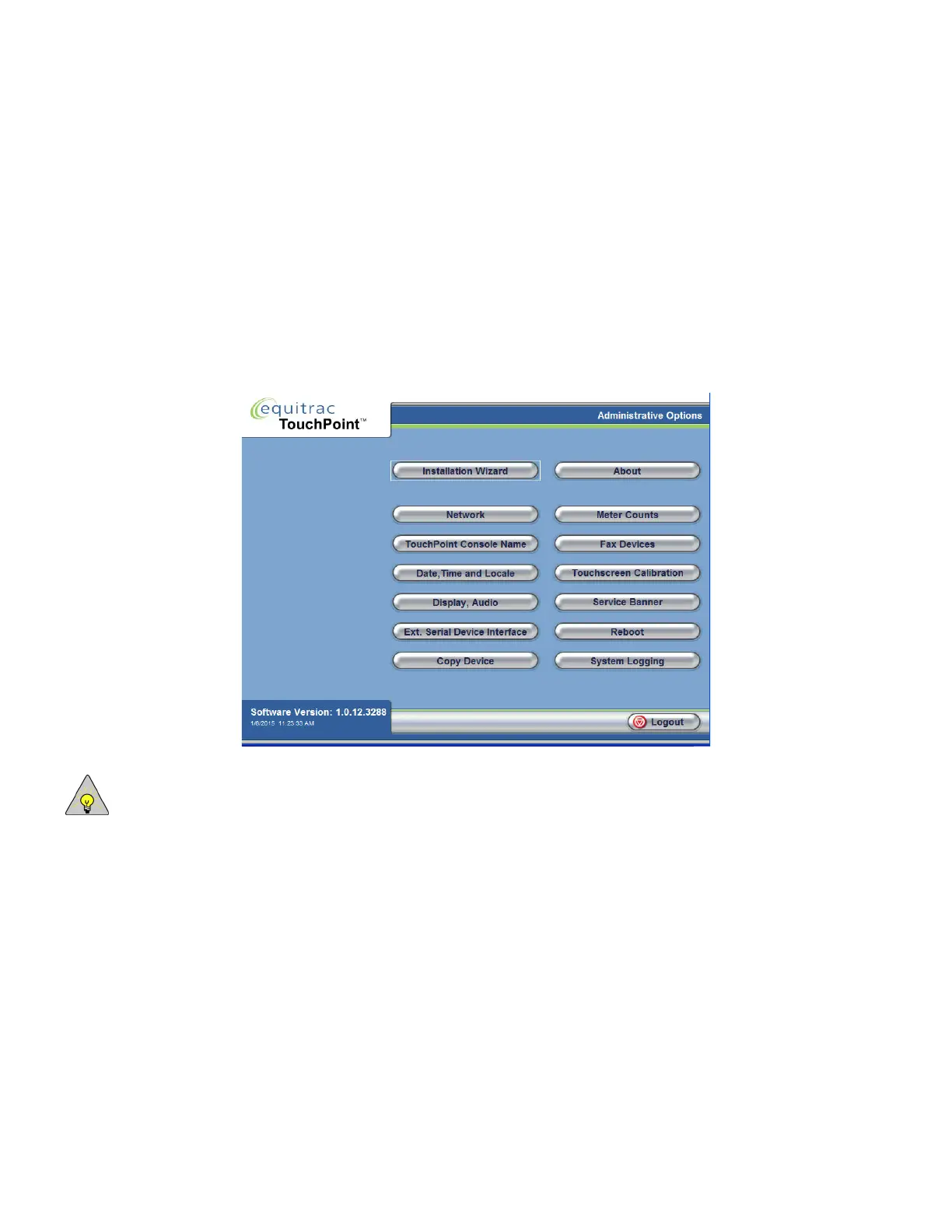
If your login is successful, you will see the main Administrative options screen, shown in the screen capture below.
NOTE: When you logout of the Administrative options, TPC automatically resets the login screen to show the User
login screen instead of the Administrator Login screen. Each time you want to access the Administrative options, you
must press Help > Admin Login first.



 To Next Page