Chapter 4: Additional Local Configuration
44 TouchPoint Console Installation and Setup Guide
Fax Device
Properly configuring the fax device requires determining which fax board is in the TPC hardware, and then
configuring it appropriately.
Fax board discovery
In order to know which type of setup is appropriate, you must first determine which fax board is installed in the TPC
in question. There are two methods to determine which fax board is installed:
1
Through its part number.
2
By using the FaxUpdate tool.
Part number
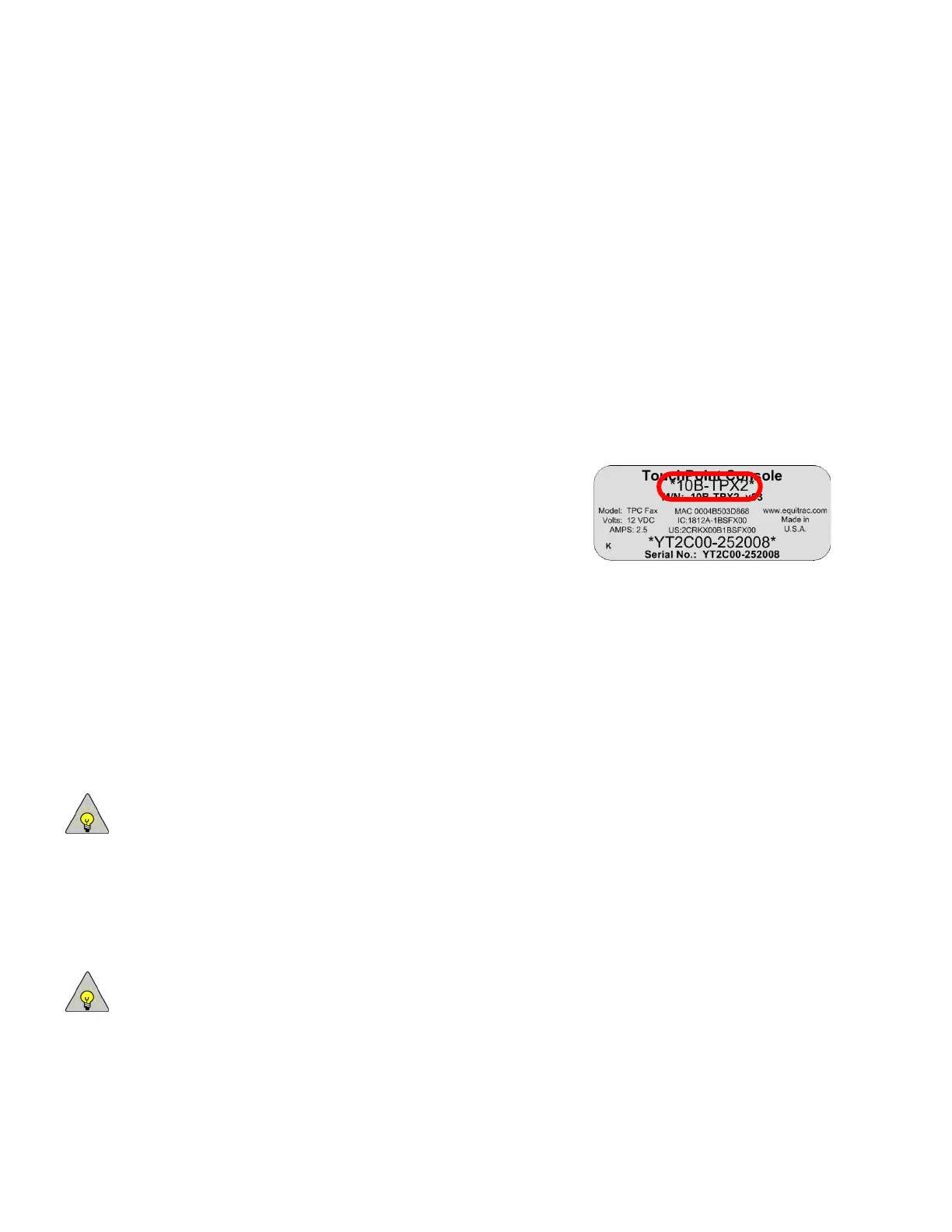
The part number on the sticker found at the rear of the TPC indicates
whether or not a new fax board is installed. TPCs bearing the part number
10B-TPX1 or 10B-TPX2 contain new fax boards. TPCs with part numbers
containing "TPC" rather than "TPX" have older fax boards.
FaxUpdate tool
If you are trying to determine a TPC’s fax board remotely, or to be absolutely sure whether a fax board is new, use the
FaxUpdate tool.
FaxUpdate is an executable that is available through the Equitrac Partner Portal. You must retrieve the tool, install it
remotely on the TPC, and then run it to determine which fax board is installed.
As part of the discovery process, the FaxUpdate tool also allows you to set the needed fax country code on TPCs
containing new fax boards whose country code is not the United States.
This process displays its information on the TPC. Therefore, if you are using FaxUpdate from a location where you
cannot physically check the TPC screen, you require the DRC3 TPC Client tool, which allows you to view the TPC
screen remotely.
NOTE: To set the Country code using this process, you must either perform the operation using DRC3, or the TPC
must be keyboard-equipped.
After you have retrieved a copy of the FaxUpdate tool and placed it into a folder accessible from your local machine,
and ensured that you have a copy of DRC3 running on your remote system:
1
Determine the IP address of the TPC you want to check/update.
2
Open Internet Explorer and enter the IP address into the address field, then press Enter. The WebAdmin for
Tou chPoi nt C onsole dialog for the TPC opens.
NOTE: You must use Internet Explorer for this process. Other browsers are not supported.
3
From the top menu items, select UPLOAD. You will be asked for security verification. Use DEV for username, and
EQU for password.



 To Next Page