Revision 1.03
5-2 ChannelMaster TX7 Transmitter
tions from the default screen with the
Quick Knob.
System navigation is via the rotary
"Quick Knob" switch (See Figure 5-
1) to the right of the LED display. Turn
the "Quick Knob" clockwise or counter-
clockwise to move the cursor through
the DEFAULT screen selections or the
menus. By pressing the "Quick Knob",
you are able to select or activate items.
The "Quick Knob" may also be referred
to as the “Enter” button or “the Wheel.”
5.1.1 Changing Characters
1. Begin by rotating the “Quick
Knob” until the desired screen
item is hightlighted. Press Enter
to select the item.
2. The left-most character position of
the name will then be highlighted.
Rotate the “Quick-Knob” until the
desired alpha-numeric character
appears.
3. Press the “Quick-Knob” to save
the character.
4. Move the cursor to the second
character by rotating the “Quick-
Knob”.
5. Press the “Quick-Knob” to select
the character.
6. Rotate the “Quick-Knob” until the
desired alpha-numeric character
appears.
7. Again, Press the “Quick-Knob” to
save the character.
8. Repeat Steps 2 thru 7 until either
the desired name is assigned or
all character positions are filled.
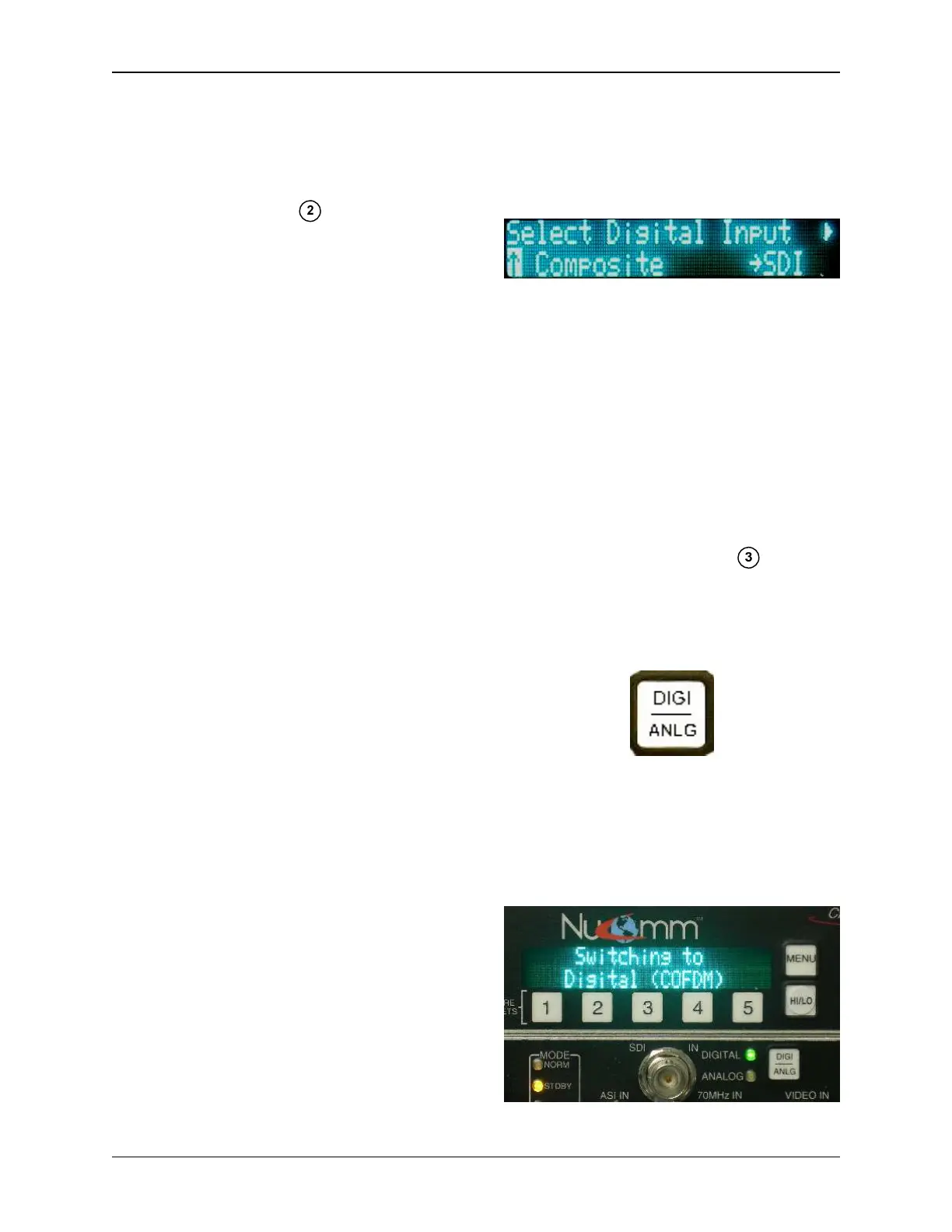
On certain screens (as with system set-
tings), an arrow is used to show the cur-
rent setting, as in the following where
"SDI" is currently set:
Note the highlighted arrow at the bot-
tom left of the screen. This highlight-
ing is the "cursor", and indicates an item
that is ready to be selected.
Note: After one minute of inactivity the
display reverts to the DEFAULT screen,
and any un-activated selections are dis-
carded.
5.2 Front Panel Buttons
Modulation Mode
The ChannelMaster modulation mode is
set to ANALOG or DIGITAL using the
“DIGI/ANLG” Button.
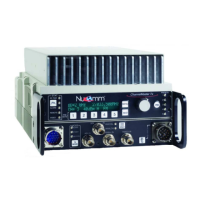
Pressing the “DIGI/ANLG” Button tog-
gles the ChannelMaster between Digital
and Analog modulation modes. An LED
and a confirmation message indicate
that the mode change is being made.
Switching to Digital Mode


 To Next Page