SAMM User Manual
61
GeoDAS
1. Launch GeoDAS and connect to your
sonar as usual.
2. Be sure to configure NMEA inputs, GGA,
HDT, and ZDA.
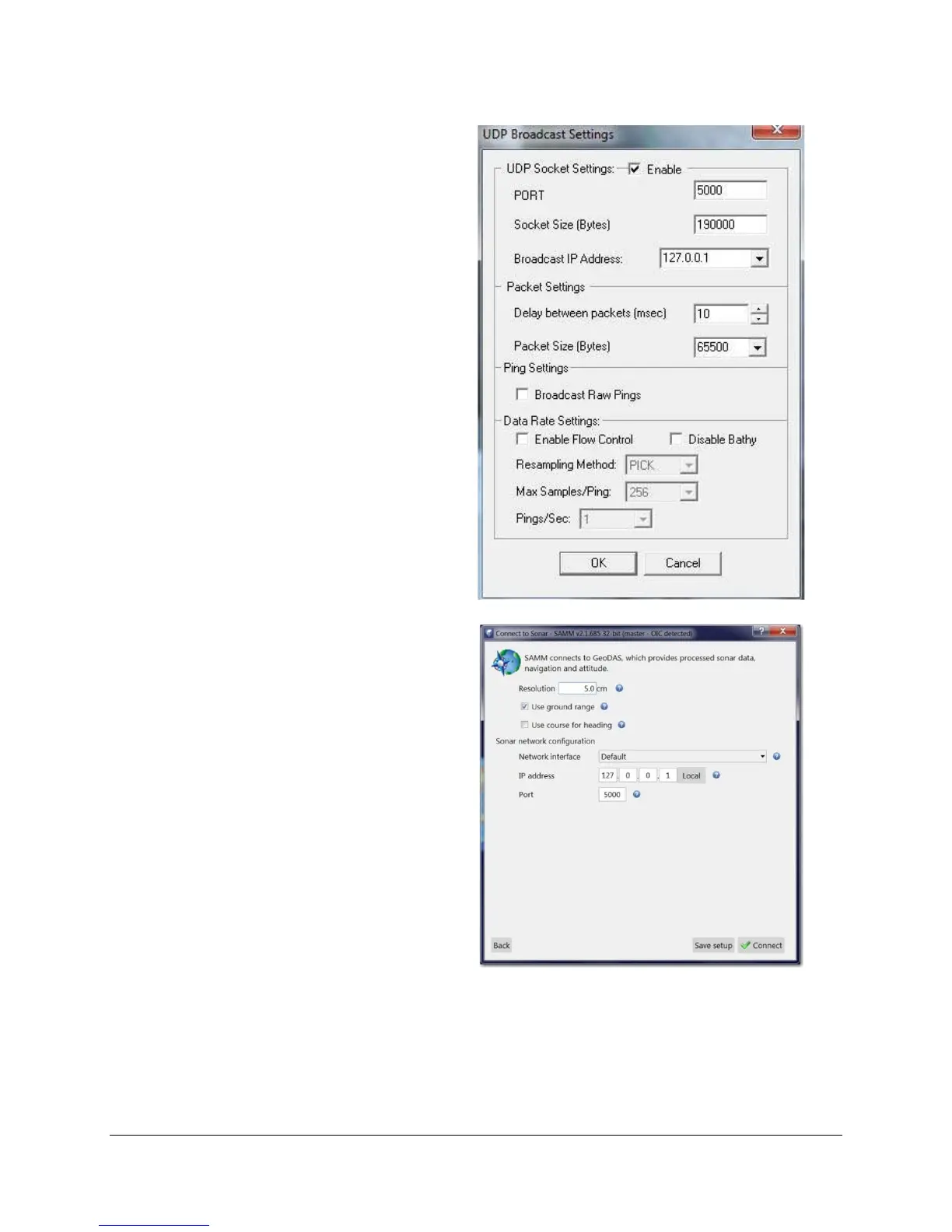
3. Set up UDP Broadcasting (Figure 55).
Check Enable. Set the port to 5000, and
select the appropriate broadcast IP
address. If SAMM and GeoDAS are
running on the same computer, choose
127.0.0.1, if they are on separate
computers, choose to broadcast on the
IP to which both computers are
connected. Click OK.
4. Launch SAMM.
5. Click the Add data icon.
6. Click Connect to...
7. Select GeoDAS from the supported
sensors list and click Load.
8. In the GeoDAS interface window (Figure
56), set processing parameters as
necessary.
Figure 55. GeoDAS UDP Broadcast Settings
9. If SAMM and GeoDAS are running on
the same computer, do not change the
IP address from 127.0.0.1. If GeoDAS is
running on a different computer than
SAMM, select an appropriate network
from the Network interface dropdown
and enter the IP address of the computer
running the Discover software in the IP
address field.
10. Do not change the port number from
5000 unless you change it in GeoDAS.
Then, enter the matching port number in
the Port field.
11. Click the Connect button.
12. Monitor the connection status in the
Device status popup and in the status
bar on the bottom left. Acquisition begins
automatically. SAMM flashes a warning if
it is not recording. Click the Record
toggle icon to switch recording on and
off.
Figure 56. SAMM Interface to GeoDAS



 To Next Page