EasyManua.ls Logo

Oki ML690 - User Manual

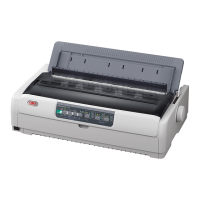
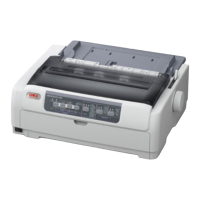
Oki ML690
99 pages
Print Icon
To Next Page IconTo Next Page
Loading...
User's Guide
59101601 my.okidata.com
RT322
ML690/ML691

Table of Contents

Other manuals for Oki ML690

Questions and Answers

  • M
    Matthew BrockAug 20, 2025
    What to do if my Oki Printer is not printing?
    • P
      paulnelsonAug 20, 2025
      If your Oki Printer isn't printing, it could be due to several reasons. First, the printer driver might not be installed correctly, so try reinstalling it. Alternatively, the printer might have simply stopped printing; in this case, press the SEL key. Finally, check if there is paper in the printer and load paper if necessary.
  • B
    brownsusanAug 22, 2025
    Why does print direction change suddenly to unidirectional on Oki ML690 Printer?
    • B
      Benjamin ChristensenAug 22, 2025
      If the print direction on your Oki Printer suddenly changes to unidirectional, it's likely because the printhead is overheating. When this happens, the printer automatically starts unidirectional split printing. The printer will return to its original operation once the printhead temperature drops sufficiently.
  • T
    Terry HudsonAug 25, 2025
    What to do if SEL indicator is illuminated but no printing takes place on Oki ML690?
    • E
      Erin MurrayAug 25, 2025
      If the SEL indicator is lit but your Oki Printer isn't printing, the interface cable may be disconnected. Reconnect the interface cable. Also, ensure that you are using the correct interface cable.
  • R
    raymond01Aug 26, 2025
    Why is the printhead moving but no printing takes place on my Oki ML690?
    • C
      carrie66Aug 26, 2025
      If the printhead on your Oki Printer is moving but no printing is occurring, it's likely that the ribbon cartridge has not been installed. Install the ribbon cartridge to resolve this issue.
  • M
    Michael FisherAug 28, 2025
    What to do if the print carriage does not operate on Oki Printer?
    • D
      Diana JohnsonAug 28, 2025
      If the print carriage on your Oki Printer isn't operating, there might be contamination on the carriage shaft. Clean any paper dust and contamination from the carriage with a dry cloth.
  • L
    Larry BartonAug 29, 2025
    Why are the characters too pale on my Oki ML690 printouts?
    • D
      Diane HarrisAug 30, 2025
      If the characters on your Oki Printer printouts are too pale, the Paper Thickness lever position might not match the paper you're using. Correct the Paper Thickness lever setting to match the paper.
  • R
    Robert CoxSep 1, 2025
    What to do if Oki ML690 is set to print at high speed?
    • E
      Elizabeth WoodSep 1, 2025
      If your Oki Printer is set to print at high speed, set the speed to normal.
  • J
    Jacqueline SilvaSep 3, 2025
    What to do if Oki ML690 ribbon has reached its end-of-life?
    • A
      Alexis MartinSep 3, 2025
      If the ribbon in your Oki Printer has reached its end-of-life, replace the ribbon with a new one.
  • M
    Michael BanksSep 5, 2025
    What to do if the ribbon cartridge is not installed correctly in Oki ML690?
    • B
      Brian GarciaSep 5, 2025
      If the ribbon cartridge is not installed correctly in your Oki Printer, reinstall the ribbon cartridge correctly.
  • F
    Frederick ChristensenSep 7, 2025
    What to do if the ribbon has been wound incorrectly in Oki Printer?
    • J
      John WagnerSep 7, 2025
      If the ribbon has been wound incorrectly in your Oki Printer, replace the ribbon cartridge with a new one.

Summary

Chapter 1: Introduction

Printer Features

Details about the printer's capabilities, design, and performance specifications.

Chapter 2: Paper Handling

Loading Continuous Forms Paper

Instructions for feeding continuous paper into the printer via rear, front, or bottom.

Tearing Off Continuous Forms Paper

Procedures for cleanly tearing off printed continuous forms along perforations.

Loading Cut Sheet Paper

Instructions for inserting single sheets of paper into the printer for printing.

Cut Sheet Paper, Top and Front Feed

Details on loading cut sheets using the top or front feed mechanisms.

Setting Top of Form (TOF)

Procedure for adjusting the starting print position on the paper using control panel keys.

Chapter 3: Print Settings

Print Quality

Options for adjusting print density, speed, and typeface for output quality.

Character Pitch

How to select character spacing (CPI) or proportional spacing for text layout.

Chapter 4: Menu Mode

Resetting the Menu to the Factory Defaults

Procedure to restore all printer menu settings to their original factory defaults.

Chapter 5: Maintenance

Replacing the Ribbon Cartridge

Detailed instructions for installing a new ribbon cartridge into the printer.

Continuous Feed Paper Jams

Steps to resolve paper jams when using continuous feed paper from the printer.

Cut Sheet Paper Jams

Procedures for clearing paper jams when using single sheets of paper from the printer.

Font Sample Test

How to print a test page showing all available printer fonts and their characteristics.

Rolling ASCII Test

Procedure to print a test page with all ASCII characters in a rolling pattern for character set verification.

Hexadecimal Dump Mode

How to enable a mode that prints received data in hex and ASCII formats for debugging.

Chapter 6: Troubleshooting

Responding to Alarm Conditions

Table explaining indicator light patterns and corresponding actions for printer alarm conditions.

Problems; Solutions

A comprehensive guide to diagnosing and resolving common printing problems and their causes.

Oki ML690 Specifications

General IconGeneral
Printer TypeDot Matrix Printer
Print Width136 columns
Number of Pins24
Maximum Resolution360 x 360 dpi
InterfaceParallel
EmulationIBM Proprinter
Paper HandlingTractor feed

Related product manuals