2
OPERATOR AND CUSTOMER DISPLAYS
The operator LCD display has a Menu system providing
access to all cash register functions. You can raise and
tilt the display to obtain the most comfortable viewing
position. The pop-up, single-line, customer display can
be raised and swivelled to obtain the most favorable
position for customer viewing. When sales transaction
data is not displayed, scrolling messages can be
programmed to appear according to the cash register
state (idle, off and so on).
SWITCHING THE OPERATOR DISPLAY ON
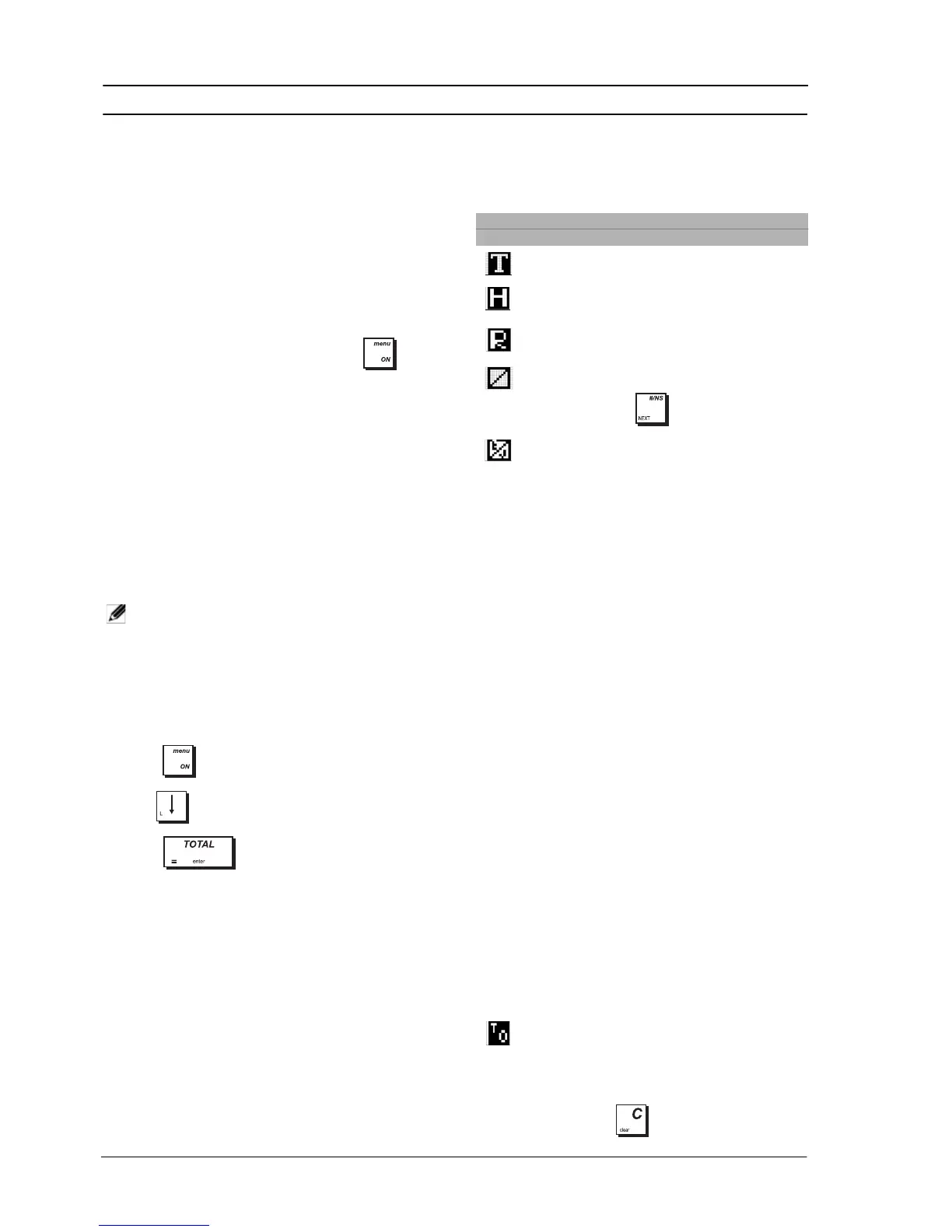
To switch on the operator display press the key
on the keypad. The Main menu is displayed from which
you can select:
•
Registration mode
- to enter sales transactions as a
clerk (also in training mode)
•
Manager mode
- to enter all sales transactions as a
Manager (also in training mode)
•
X1 & X2 Report mode
- to print X financial reports
•
Z1 & Z2 Report mode
- to print Z financial reports
•
Programming Mode
- to set up the cash register
and program sales functions
•
Off mode
- to switch off the menus and the operator
display.
See “Using the Menus” for how to navigate the menus.
NOTE: The first time you switch on the cash
register, it must be initialized (see “Quick
Start Programming”).
SWITCHING THE OPERATOR DISPLAY OFF
To switch off the operator display, first terminate any
sales transactions, then:
1. Press to display the Main menu.
2. Use to scroll to the option Off Mode.
3. Press .
The cash register is switched off. A scrolling message
appears on the customer display, if programmed.
SYMBOLS AND MESSAGES
The Operator Display (OD) and Customer Display (CD)
symbols and messages can be understood as follows
(refer to figures 6 and 7 respectively):
n/a = not applicable.
These symbols clear automatically when you start the
next entry or press the key.
REGISTRATION MODE
O.D. Ref. C.D. Meaning
(2) n/a
Training
mode
(4) n/a Hold mode - A transaction has
been temporarily put on hold.
(4) n/a
Recall mode - A transaction on Hold
has been recalled for completion.
(3) n/a
Receipts off - no receipts are issued
until is pressed again.
(3) n/a EJ nearly-full condition
(Clerk
Id.)
n/a If the Clerk System is active, the
clerk number/name is displayed
after logon at top left.
(
Dept
name
)
(
Dept
no.
)
Indicates dept number (CD) or
dept name (OD) entered.
Cash CA Indicates a sales transaction paid
by cash.
Check Ch Indicates a sales transaction paid
by check.
Credit Cr Indicates a sales transaction paid
by credit card.
Charge
Cr Indicates a sales transaction paid
by charge card.
- -
Displays a minus sign if the subtotal or
cash tendered total is a negative
number due to a return or refund
.
Change
C Indicates that amount displayed is
the change due to the customer.
Sub-
total
ST Indicates that the amount shown
is the subtotal of a transaction,
including sales tax if applicable.
To t a l Indicates the total due from the
sales transaction (OD, top-left)
(FC
name)
Indicates an amount registered in
a foreign currency (left-side CD).
n/a
(no.
)
Indicates amounts entered and
sales totals, max. 8-digits (right-
side CD).
(4) n/a Indicates that a Take-out tax rate
is applied to the transaction.




 To Next Page