ENGLISH
5
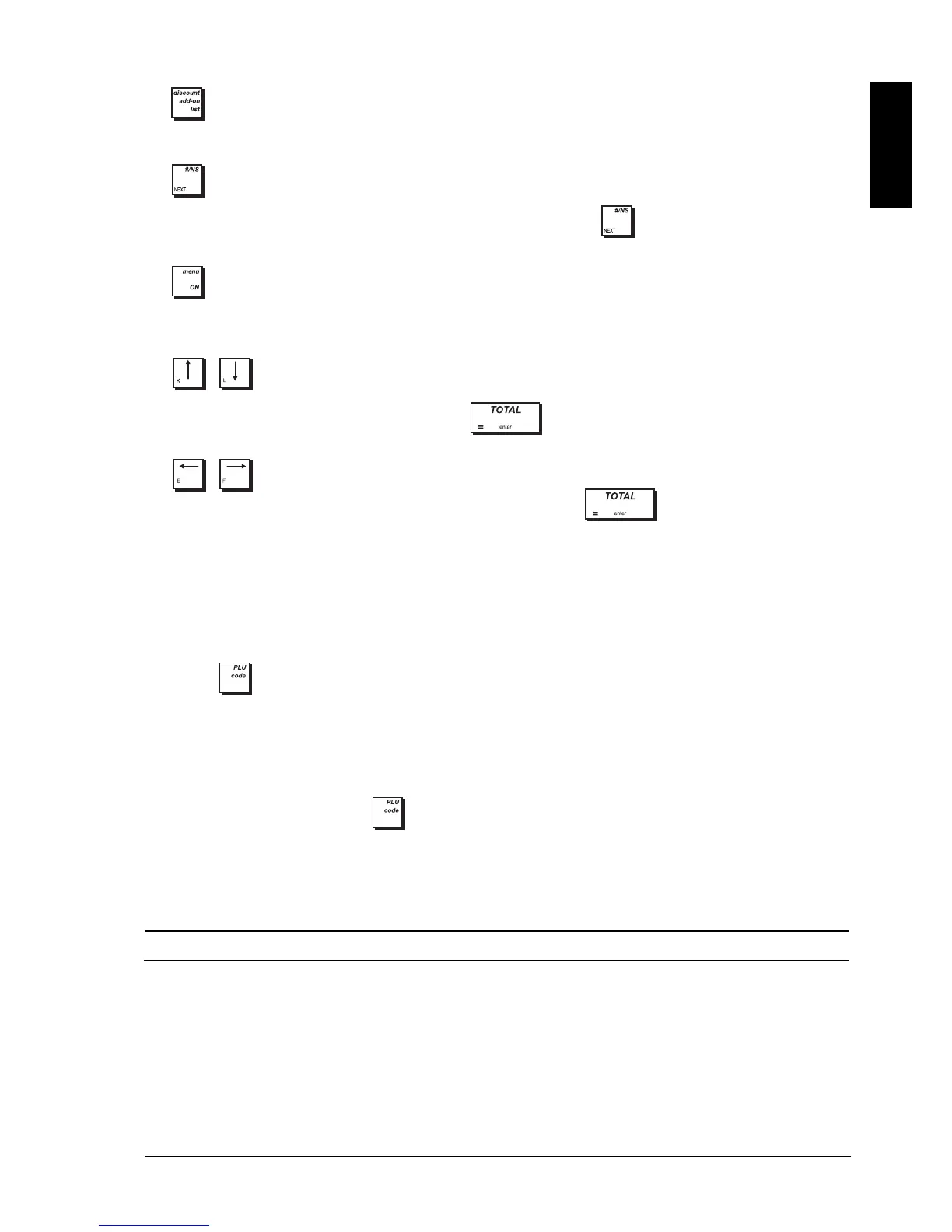
20. - Pop-up list (3) allowing direct/percent discounts and add-on operations: As the 1% +/- or 2% +/- key,
when appropriately programmed, applies a preset percentage reduction or add-on to the price of an item or to the
sales total. As the 1 +/- or 2 +/- key, subtracts or adds an amount from/to an item or sales total.
21. - Opens the cash drawer without registering any amount or when changing cash for a non-sales transaction.
When programming entities such as clerks, PLUs, depts and so on, press
to display the next item in numeric
sequence (for example, clerk01, clerk02 .. and so on).
22.
- When the operator display is off, this key switches it on. When the display is on, pressing this key displays the
Main menu
. The
Main menu
contains the
Off mode
option which you can use to switch the operator display off.
During a clerk transaction, allows you to switch to Manager mode to perform operations disabled for the clerk.
Pressing the key again afterwards, switches back to the clerk transaction.
23. , - In Programming mode, these keys can be used to move through the menu options and form fields
in the direction indicated on the key.
When the menu item required is highlighted, press to select it. When navigating forms, if line numbers
are present on the left, jump to the line you want by entering its number followed by either arrow key.
24. , - In Programming mode, when selecting data for preset value fields, use these keys to scroll through
the values available, highlight the value wanted, and then select with
.
UNMAPPED KEY FUNCTIONS
The functions below are n
ot provided by default on the keyboard but can easily be configured using the
Free Key Layout
option in “Advanced Settings”.
•
[ADD PLU] -
allows rapid programming of a new PLU, as follows:
1. Press the [ADD PLU] key. ADD PLU appears on the display.
2. Enter a free PLU code using the numeric keypad.
3. Press . The PLU code appears on the display.
4. Enter the item’s price using the numeric keypad.
5. Enter the department using the Department keys.
The PLU code is registered with the price and department you have specified. You can program any other data for
the PLU as described in “Programming Price Look-Ups (PLUs)”.
•
[PLU INQUIRY] -
allows you to perform an inquiry for a PLU code, and display its relative data, as follows:
1. Press the [PLU
INQUIRY
] key. PLU INQUIRY appears on the display.
2. Enter the PLU code, then press
. The data for the PLU code is displayed.
•
[CHAIN FUNCTION1]
to
[CHAIN FUNCTION5]
- a key sequence can be associated with a chain function to speed up
and simplify repetitive operations during a sales transaction, such as registering cash payments in common
denominations (£10, £20 and so on). See
Chain Functions
in “Advanced Settings” for how to program key
sequences.
USING THE MENUS
MAIN MENU
The first menu displayed is the Main menu which gives you access to all the principal cash register functions:
•
Registration mode
- to enter sales transactions as a clerk (also in training mode)
•
Manager mode
- to enter all sales transactions as a Manager (also in training mode)
•
X1 & X2 Report mode
- to print X financial reports
•
Z1 & Z2 Report mode
- to print Z financial reports
•
Programming Mode
- to set up the cash register and program sales functions
•
Off mode
- to switch off the menus and the operator display.




 To Next Page