12
Model 72 User Manual - OPEX Corporation
Down button. Both arrows will momentarily flash and you will hear a
warning beep. This momentary delay and audible warning will help prevent
the table height from changing if you should accidentally bump the buttons.
Note: If an interlock is tripped, the lift system will not function. The login
screen function monitors and reports open interlocks to the user who is
attempting to use the lift system.
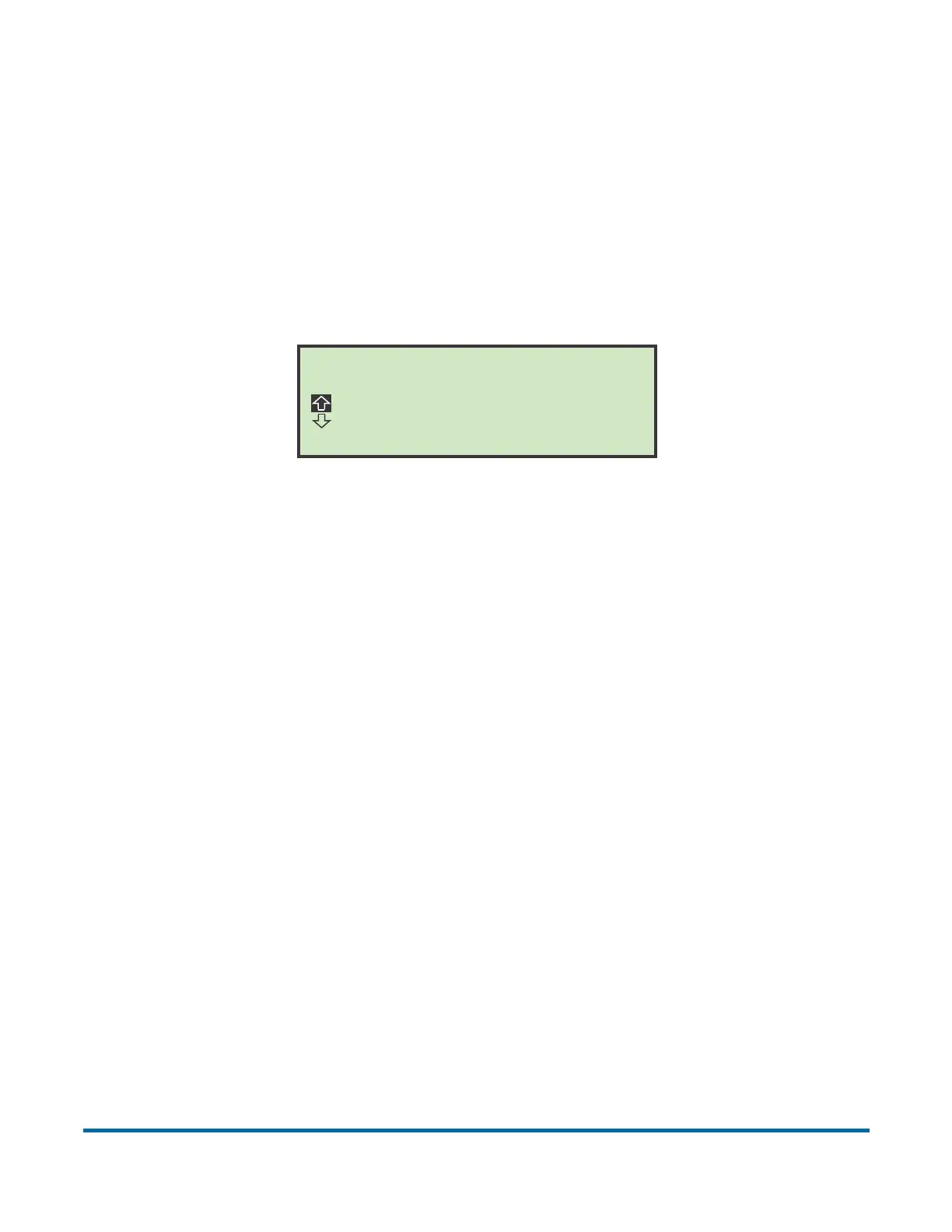
3 After the momentary delay, the individual on-screen Up or Down arrow will
highlight when the table is in motion (see Figure 2).
Figure 2: Lift system in motion (moving up)
Operation of the lift system is locked out while the machine is running. The
table will continue to move until the Up/Down button is released, the table
has reached the travel limit, or travel time has surpassed a non-adjustable
time limit (timed out).
Software options
The following purchasable software options are activated via a software key:
Printer - enables printer functionality (as described above).
ONS - Model 72 machines may be attached to a network and integrated using
OPEX Network Solution (ONS) software. This allows machine parameters, job
parameters, and operator information to be read from or written to the
Model 72 by a central PC. In addition, vital statistical information for multiple
Model 72s may be viewed on the ONS PC.
Diagnostics - allow an authorized OPEX Service Technician to troubleshoot
errors, calibrate components, and run tests on all input and outputs (motors
and sensors).
Tuesday, February 23, 2010 11:14 A.M.
MODEL 72
OPEX CORPORATION
Press ENTER to log in.



 To Next Page