16
Model 72 User Manual - OPEX Corporation
Navigation
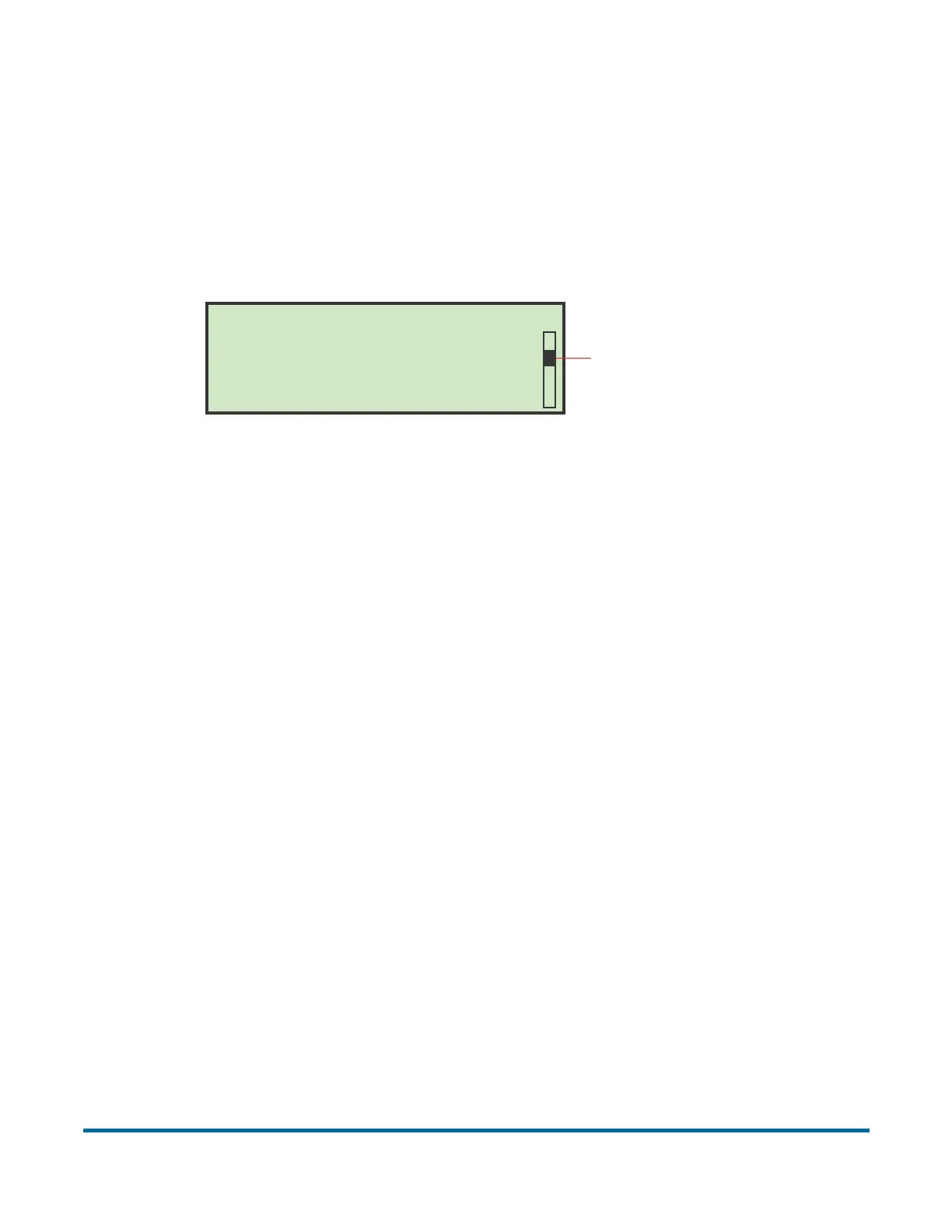
Enhanced Scrolling
When a list or table has more information than can be displayed on the screen,
a scroll bar will be displayed on the right side of the screen. The scroll bar gives
you a relative idea were the cursor is in relation to the top and bottom of the list.
Figure 5: Typical enhanced scrolling screen
Keypad button functionality
The Keypad is used to select options and move from menu to menu on the
LCD Display. The keys and their functions are:
Enter - Pressed to enter a parameter highlighted by the LCD Display cursor.
Cancel - Pressed to cancel a selection.
Start - Pressed to wake up the unit.
Stop - Pressed to put the unit on a sleep or standby mode. This button also
results in a system reset.
Up Arrow Press - will allow you to navigate up through a column of data. When
the upper item within the column is highlighted and you press the up key, the
list of data is shifted down by a row and the previous line of data is displayed. If
the up arrow is pressed while on the first row of data, then the cursor will move
left to the first item in the table. If the first item is selected, then the cursor will
move to the last item in the list.
Up Arrow Hold - Pressing and holding the up arrow will display the previous full
page of data. The screen will wrap to the last page of data when you hold the
up arrow while the first page of data is displayed. When the screen wraps to
the last page, the last item in the list will be highlighted.
SELECT JOB
AMEX001
AMEX004
CITI003
PNC001
TD002
WACH003
AMEX003
CITI002
GMAC002
TD001
WACH002
WACH005
AMEX002
CITI001
GMAC001
PNC002
WACH001
WACH004
Scrollbar denotes
position in list



 To Next Page