57
Falcon User Manual - Remittance Processing - OPEX Corporation
Rescanning items
There are a couple reasons and methods for rescanning items:
• If you are not pleased with a particular image, you can rescan the item while
the job is running. CertainScan has a Rescan button that allows you to
replace a poor image or item scanned out of order by using the normal
feeder. Steps for this method are described below.
• After a multi-feed reject, the feeder and conveyor will stop, a jam dialog will
appear on screen, the Rescan Feeder LEDs will flash blue, and the Pre-
Feed MFD Override LED will flash green. The flashing in these two areas
alerts you that either one may be chosen to re-feed the reject:
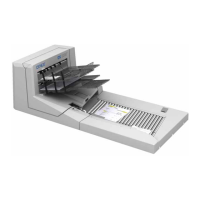
- Rescan Feeder - The Falcon Rescan Feeder is a mechanism that allows
the operator to feed a single or multiple items into the machine which had
been rejected or the auto-feeder is not able to feed. See “About the
Rescan Feeder” on page 58 for more details.
- Pre-Feed - The Falcon has another entry point at which the operator can
interject rejected sheets: this entry point is in the Pre-Feeder mechanism
and is primarily designed for multiple rejects to be stacked; alleviating the
need to insert them one at a time. See “About the pre-feeder mechanism”
on page 60 for more details.
To rescan an item:
1 Select the item’s thumbnail.
2 Take the item out of the sort bin.
3 Press Rescan to replace the item in the batch.
Note: If an audit trail was printed on the item the first time it was scanned,
you may press Rescan NP (no printing) to replace the item in the batch.
This way, no additional audit trails will be printed on the item.
4 Drop the item onto the conveyor.
5 Verify that the image is acceptable.
Note: The Rescan buttons will only be available if activated in the batch
parameters.


 To Next Page