62
Falcon User Manual - Remittance Processing - OPEX Corporation
Deleting items from the batch
When the machine is stopped, you can delete items from the batch. Click the
Delete button to delete an item image.
Note: The Delete button will only be present if activated in the current job.
The action of the Delete button depends on the setting of the Allow Delete
batch parameter:
• If the parameter is set to Delete Last Item, you will only be able to delete the
most recently scanned item image from the batch. Press Delete to delete the
last image.
• If the Allow Delete parameter is set to Delete To End Of Batch, you can also
choose an item thumbnail and delete the selected item and all the items
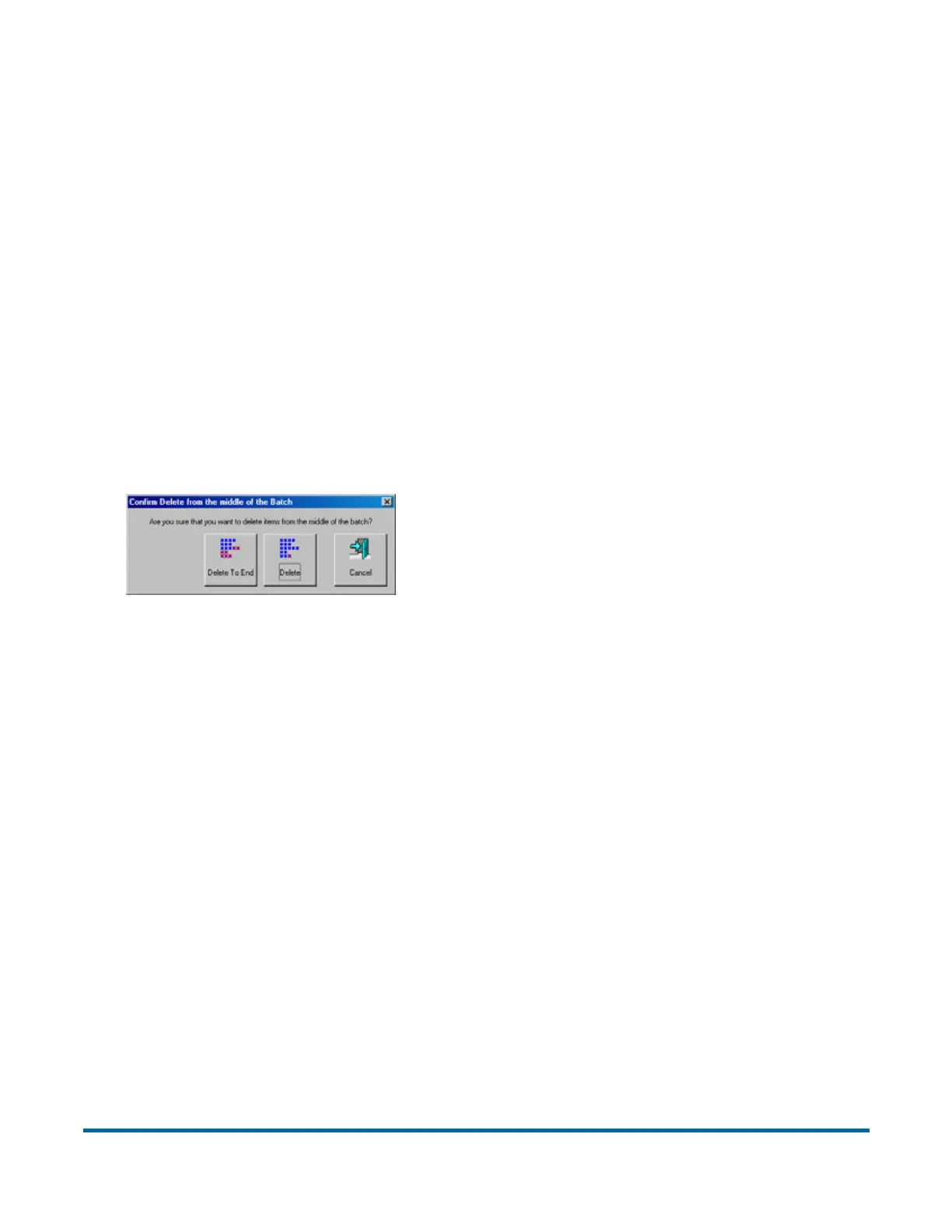
scanned after the item. When the Delete button is pressed, the Confirm
Delete window (Figure 17) will appear.
Figure 17: Confirm delete
Note: It is not possible to delete a single item image from the middle of the
batch within CertainScan. If you need to delete an image from the middle
of the batch, you must also delete all the images to the end of the batch
as well.
Starting a new batch
There are three ways to start a new batch:
• Press the New Batch button while the job is running to begin a new batch
with the next scanned item.
• Press the Close Batch button, then scan the new batch ticket or the first item
of the new batch.
• Scan a batch ticket (if the New Batch Mode Job parameter is set to Auto).
Note: The New Batch button will only be available if activated in the batch
parameters.


 To Next Page