27
Falcon User Manual - Remittance Processing - OPEX Corporation
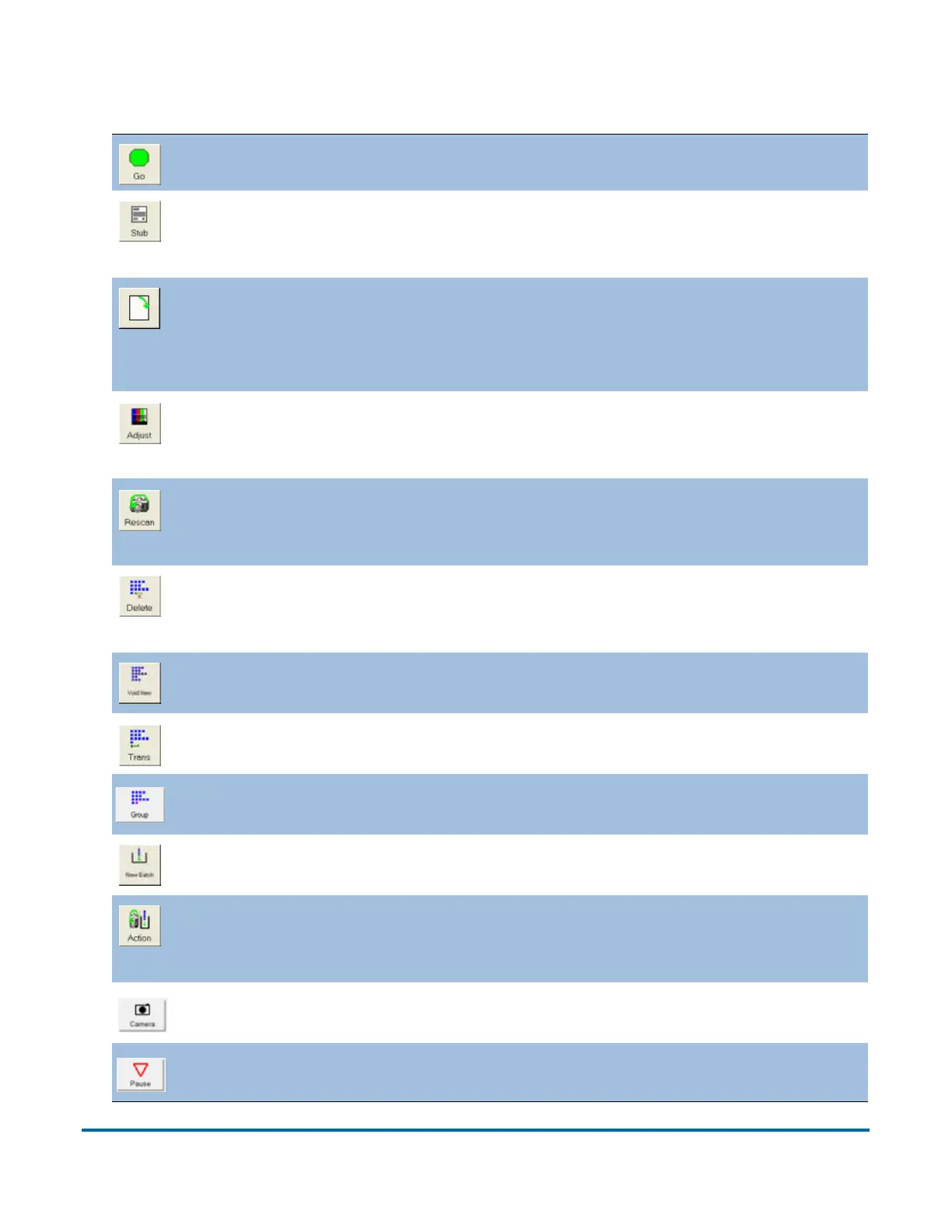
Run Screen buttons
Press Go to start the scanner.
The Page Type buttons indicate the page types assigned to the current
job. The use of the buttons vary depending on the job setup. See
“Assigning a page type” on page 54 for more information.
Rotate the image of the selected item. Use the three buttons to rotate
the image 90 degrees clockwise, 180 degrees clockwise, and front to
back. This button will only be available if it has been activated in the
System > Config > User Interface Settings parameters.
Adjust the settings in the Capture Parameters window to enhance the
quality of the output images. See “Adjusting the image quality” on
page 56.
Press a Rescan button to replace a previously scanned image with a
new one. This button will only be available if it has been activated in the
batch parameters. See “Rescanning items” on page 57.
Delete an item from the batch. This is only available when the scanner
is stopped. This button will only be available if it has been activated in
the batch parameters. See “Deleting items from the batch” on page 62.
Void the selected item or transaction. This button will only be available
if it has been activated in the batch parameters.
End the current Transaction. This button is only available if it has been
activated in the batch parameters.
End the current Group. This button is only available if it has been
activated in the batch parameters.
Start a New Batch. This button will only be available if it has been
activated in the batch parameters.
Press the Action button to access the Rescan, New Batch, and Void
buttons. The Action button only appears if two or more of these buttons
(Rescan, New Batch, Void) are enabled.
Press the Camera button to insert up to two images from an external
camera into the batch.
Pause the machine. Once pressed, the Resume button appears.


 To Next Page