43
Menu
mation about the USB disk drive Settings menu and press OK.
You can check out what is the size of the drive and how much free space is
left on it. Additionally, you can format the disk, using the BLUE button. Con-
rm the action by selecting Yes.
Connect the USB as on the screen
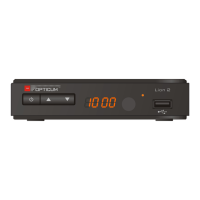
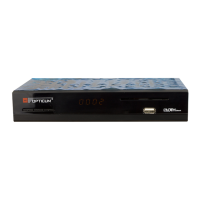
Displays information about how to properly connect the USB drive to the re-
ceiver. The rst is a USB input for additional devices such as a network adap-
ter. While the other is used to connect the drive to record.
Recording Settings
In this menu, you can set the default method of recording.
Jump With the / buttons switch between time-valu-
es (from 30 sec. To 30 min.) Over the scroll is used
during playback and time shift with the (SKIP–)
or (SKIP+),
default start of a
recording
Set the number of minutes before the start of the
program the receiver starts recording.
default end of
the recording
Set how many minutes after the end of the program
the receiver stops recording.
Do not show
the details in
the recording
window
Press OK to enable or disable the recording of detailed
planning available EPG view.
The default mode
of recording
If you turn o the window showing the details of the
recording, you can set the default mode for the plan-
ned recording.
Safely remove USB drive
Use this function to safely eject the USB device before manually removing it
from the slot in the receiver. This will prevent the risk of data loss. Use / to
select Safely Remove USB drive and press OK.


 To Next Page