Setting up a music server
In order for the to play music files from a
computer, the computer must be set up to share files
or media.
A 2696
UPnP media sharing allows devices like the
A 2696 to play music from a shared media library,
navigating through tag menus such as Artist, Album or
Genre. If you are running a suitable server system such
as a PC with Windows Media Player 10 or later (WMP),
and your music library is well-tagged, then it is
recommended to use media sharing. Only the UPnP
server needs to be set up.
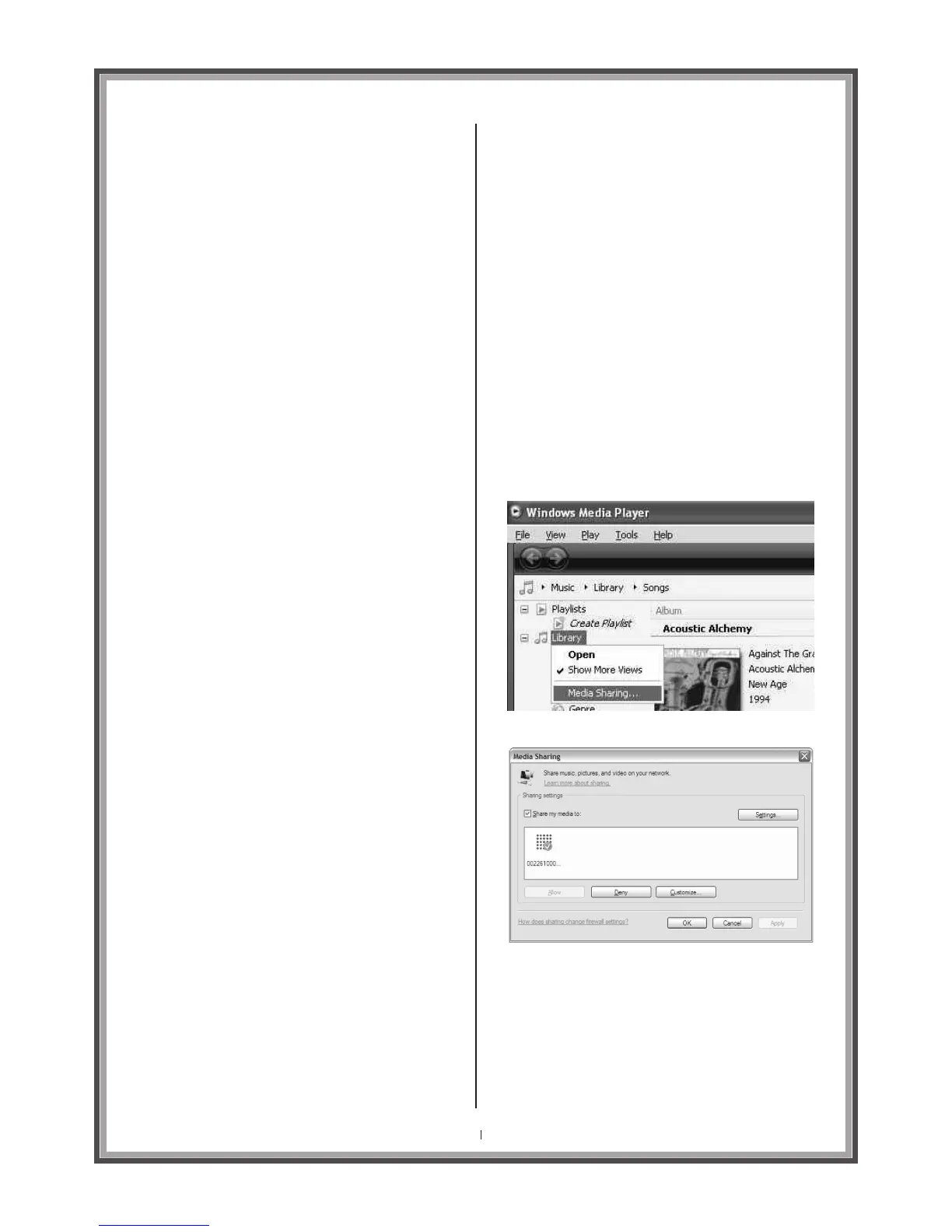
Sharing media with Windows Media Player
The most common UPnP server is Windows Media
Player (10 or later). Alternatively, other UPnP platforms
and servers may be used. To set up WMP for media
sharing, perform the following steps:
Ensure that the PC is connected to the network.
1.
2.
3.
4.
5.
Ensure that the is powered on and
connected to the same network.
A 2696
In WMP, add to the media library the audio files
and folders you want to share with The A 2696
(Library > Add to Library…).
In WMP, enable media sharing by right clicking
on the Library and then selecting Media
sharing…)
In the next dialogue box you'll see the
displayed. Click on the icon representing the
A 2696 and then click
A 2696
Allow
Your newly shared media library will now be listed
under Music Player > Shared Media on the A 2696
Note: The WMP UPnP service runs in the background; there is
no need to start WMP explicitly each time.
Note: iTunes does not currently work as a UPnP media server,
but there are add-ons available (such as Allegro Media
Server™ for Macintosh or PC) to work with an iTunes library.
Alternatively if you are a PC user simply install and run
Windows Media Player (10 or later) and add your iTunes library
to the media library in Windows Media Player. You will be able
to continue to use iTunes as your primary source of music
library management and Windows Media Player will update
automatically making your music always available on the
A 2696.
Page 20
Opus One



 To Next Page