14. Libretto Wireless
Device Remote Control
Libretto Wireless Device Remote Control is an
application for the iPhone and the iPod touch, that
allows users to control the A 2696 devices.
Using the Libretto application, you can navigate
between the A 2696's music modes, and browse
and play content remotely.
The Libretto application works on all iPhones and iPod
touch devices running iOS 3.1.3 or later. It works with
the IR2.2 software running on the A 2696.
Note: For brevity, “iPhone” is used to mean “iPhone or
iPod touch” in this chapter. Please note the volume
control on the app will not affect the volume when
used with any stand-alone network player.
Obtaining the Wireless Device Remote
Control application
To install the Wireless Device Remote Control
application on the iPhone:
In the iPhone's main menu, open the App
Store by clicking the App Store icon.
In the App Store, search for “DOK”:
Select Frontier Silicon Ltd DOK
The application is free so you can just choose to install
it with no charge to your iTunes account.
Setting up the connection to the A 2696
After you download the Libretto Wireless Device
Remote Control application, you must set up a
connection between the iPhone/iPod and the
A 2696. To do this, follow these steps:
On the A 2696, navigate to
Menu > Main menu > System settings >
Network > Keep network connected, and
select YES.
The network connection now stays on when
the device is in standby mode. This setting is
retained in the device's memory after it is
switched off and on again.
Make sure your iPhone is connected to the
same wireless network as the A 2696
Starting the Wireless Device Remote Control
application
To start the Libretto Wireless Device Remote Control
application:
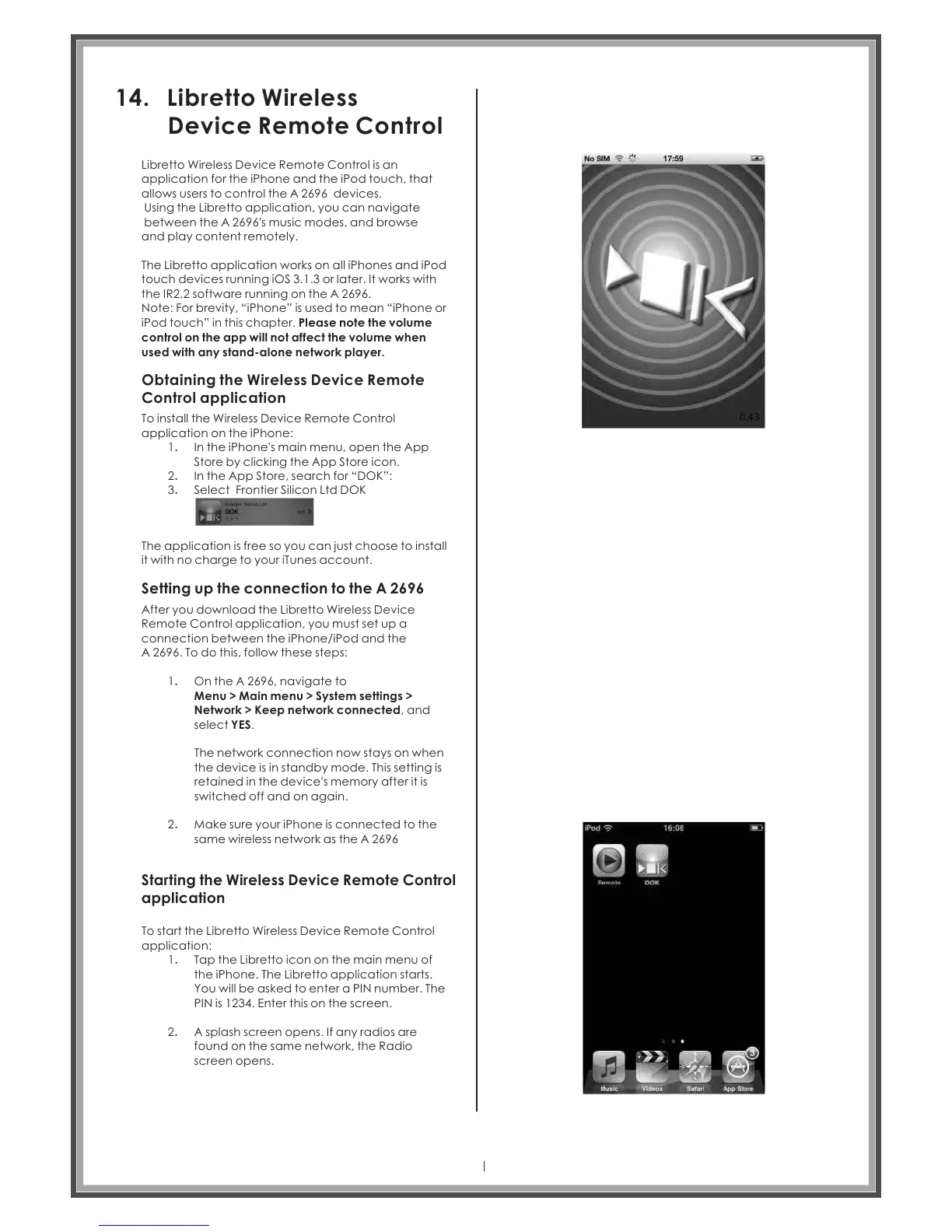
Tap the Libretto icon on the main menu of
the iPhone. The Libretto application starts.
You will be asked to enter a PIN number. The
PIN is 1234. Enter this on the screen.
A splash screen opens. If any radios are
found on the same network, the Radio
screen opens.
1.
2.
1.
2.
1.
2.
3.
Page 35



 To Next Page