EasyManua.ls Logo

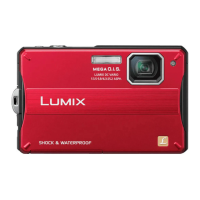
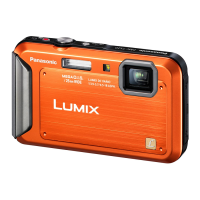
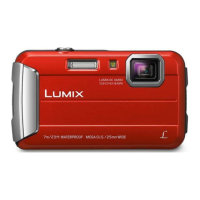
Panasonic Lumix DMC-FT10 - User Manual

Panasonic Lumix DMC-FT10
61 pages
Print Icon
To Next Page IconTo Next Page
Loading...
Operating Instructions
for advanced features
Digital Camera
Model No. DMC-FT10
Before use, please read these instructions completely.
VQT2X62

Table of Contents

Other manuals for Panasonic Lumix DMC-FT10

Questions and Answers

  • Z
    Zachary FoxAug 17, 2025
    Why does my Panasonic Lumix DMC-FT10 stop recording motion midway?
    • L
      Lisa WoodsAug 17, 2025
      If motion recording on your Panasonic Digital Camera is cancelled due to card writing speed, ensure you are using a card rated with an SD speed class of ‘Class 6’ or higher. It may also help to back up the data on the memory card and reformat it. Note that motion picture recording may be automatically terminated with certain cards.
  • H
    hooverlaurenAug 19, 2025
    Why does Panasonic Lumix DMC-FT10 Digital Camera motion recording stop midway?
    • J
      Joshua LeeAug 20, 2025
      If your Panasonic Digital Camera stops recording motion picture midway, ensure you are using a card rated with an SD speed class of ‘Class 6’ or higher. If the data writing speed is low, back up the data on the memory card and reformat it.
  • J
    Julie AdamsAug 22, 2025
    How to fix white pictures on Panasonic Digital Camera?
    • W
      wallsmichaelAug 22, 2025
      If recorded pictures on your Panasonic Digital Camera look white, clean the lens surface with a soft, dry cloth to remove any dirt or fingerprints. If the lens is foggy, turn the camera off and leave it for about 2 hours in a place with a constant ambient temperature. If the fog does not disappear, it may help to open the card/battery door or terminal cover for about 2 hours.
  • X
    xpenaAug 26, 2025
    What to do if my Panasonic Digital Camera cannot record pictures?
    • D
      danielpenaAug 26, 2025
      If your Panasonic Digital Camera cannot record pictures, it may be in Playback Mode. Press the Playback button to switch to Recording Mode. Also, check if the built-in memory or card is full. If so, free up space by deleting unwanted pictures.
  • S
    Steven ObrienAug 28, 2025
    How to improve coarse pictures on Panasonic Digital Camera?
    • A
      Ashley MaciasAug 28, 2025
      If recorded pictures on your Panasonic Digital Camera appear coarse or show interference, try lowering the [SENSITIVITY]. Set [COLOR MODE] to [NATURAL]. Also, try taking pictures in brighter locations.
  • J
    Jill LucasAug 30, 2025
    How to fix blurred pictures on Panasonic Lumix DMC-FT10?
    • R
      ryan27Aug 30, 2025
      If recorded pictures on your Panasonic Digital Camera are blurred, hold the camera firmly with both hands, keeping your arms close to your body, as shutter speed is slower in dark locations and the Optical Image Stabilizer is less effective. You can also set [DIGITAL ZOOM] to [OFF] and [SENSITIVITY] to [ ].
  • P
    Pamela RomeroSep 2, 2025
    Why Panasonic Lumix DMC-FT10 Digital Camera does not work even if power is on?
    • D
      David WilliamsSep 2, 2025
      If your Panasonic Digital Camera does not work even when the power is turned on, it may be because the battery is not inserted correctly or the battery needs recharging.
  • T
    Tammy PerezSep 4, 2025
    Why does my Panasonic Lumix DMC-FT10 Digital Camera power off during use?
    • T
      Tyler MendozaSep 4, 2025
      If your Panasonic Digital Camera's power cuts off during use, the battery may need recharging. Alternatively, the camera may be set to [AUTO POWER OFF]. Press the Power button to turn the power on again.
  • M
    matthewthomasSep 7, 2025
    What to do if Panasonic Digital Camera card is not recognised by the computer?
    • C
      Clayton HooperSep 8, 2025
      If the card is not recognized by the computer when connected to your Panasonic Digital Camera, make sure your computer supports SDXC memory cards. When you insert a card, a message will be displayed requesting you to format the card, but do not format it. If [ACCESS] remains displayed on the LCD monitor, turn off the camera and then disconnect the USB cable.
  • W
    Wendy BrownSep 10, 2025
    How to fix folder creation issue on Panasonic Lumix DMC-FT10 Digital Camera?
    • M
      mikegoldenSep 12, 2025
      To resolve the issue of a folder not being created on your Panasonic Digital Camera, save needed data on a computer or other device, and then use [FORMAT] on the camera. If the problem persists, performing [RESET] in the [SETUP] menu may resolve the issue.

Summary

Quick start guide

Preparations

Basic steps before operation, including battery charging and card insertion.

Recording

Instructions for powering on, selecting modes, and taking pictures.

Before use

Read first

Important initial checks and warnings before operating the camera.

To prevent damage, malfunctions, and faults

Guidelines to avoid camera damage and ensure proper function.

(Important) About the waterproof;dustproof and anti-shock performance of the camera

Details on camera's resistance to water, dust, and impacts.

Camera care and the waterproof performance

Opening and closing the card;battery door and terminal cover

Procedure for safely opening and closing camera compartments.

Causes of water entering the camera

Identifying situations that can lead to water ingress and camera malfunction.

Cleaning the rubber seals

Method for cleaning camera seals to maintain waterproof integrity.

Charging the battery

Inserting and removing the card (optional); the battery

Picture save destination (cards and built-in memory)

Explains where pictures are saved (card or internal memory).

Remaining battery and memory capacity

How to check the battery level and available memory.

Setting the Clock

Setting the menu

Using the [SETUP] menu

Important Setup Options

Key settings like precautions, clock, and auto power off for usability.

Sequence of Recording

Recording Mode list

Overview of available recording modes like Intelligent Auto and Normal Picture.

Taking pictures with automatic settings [INTELLIGENT AUTO] Mode

To use flash

Options for controlling the camera's flash functionality.

Automatic Scene Detection

How the camera automatically identifies scenes for optimal settings.

Taking pictures with your own settings [NORMAL PICTURE] Mode

Align focus for desired composition

Techniques for achieving sharp focus on subjects.

Taking pictures with zoom

Zoom In;Out

How to use the zoom function for framing shots.

Enlarging further [DIGITAL ZOOM]

Using digital zoom for increased magnification, with quality considerations.

Viewing your pictures [NORMAL PLAY]

Playback Controls and Options

Features like playback zoom, list view, and motion picture playback.

Deleting Pictures

Procedures for removing unwanted still or motion pictures.

Taking pictures with flash

Available types in each mode

Flash modes and their compatibility across different camera settings.

Taking close-up pictures

Focus range for AF Macro Mode

Details on focus distances for macro photography.

Taking pictures at even closer range [MACRO ZOOM]

Using macro zoom for extreme close-up shots.

Taking pictures with Exposure Compensation

Registering commonly used scenes [MY SCENE MODE]

Taking motion pictures [MOTION PICTURE] Mode (Continued)

Useful features for travel (Continued)

Using the [REC] menu (Continued)

Using the [REC] menu (Continued)

Watching motion pictures

Different playback methods (Playback Mode) (Continued)

Using the [PLAYBACK] menu (Continued)

Using the [PLAYBACK] menu (Continued)

Using with your PC

Transferring pictures from camera to computer.

Using with your PC (Continued)

Printing

Connecting the camera directly to a printer for printing.

Printing (Continued)

Printing (Continued)

List of LCD monitor displays

Message displays

Memory Card and Picture Errors

Explains common memory card and picture-related error messages.

System and Operation Errors

Interprets system error messages and operational issues.

Message displays (Continued)

Recording and Folder Errors

Addresses errors related to motion recording and folder creation.

Battery and Cover Warnings

Explains messages concerning battery status and compartment covers.

Q&A Troubleshooting

Recording (continued)

Solutions for common recording problems.

Q&A Troubleshooting (Continued)

Usage cautions and Notes

About the waterproof;dustproof and anti-shock performance

Important precautions regarding camera durability and performance.

Panasonic Lumix DMC-FT10 Specifications

General IconGeneral
Megapixel14.1 MP
Camera typeCompact camera
Sensor typeCCD
Image stabilizerYes
Image sensor size1/2.33 \
Maximum image resolution4320 x 3240 pixels
Digital zoom4 x
Focal length range6.3 - 25.2 mm
InterfaceUSB 2.0, AV out
Digital SLRNo
Camera shutter speed8 - 1/1600 s
Compatible operating systems-
Focal length (35mm film equivalent)35 - 140 mm
Normal focusing range0.5 - ∞ m
Auto Mode focusing range (wide)0.1 - ∞ m
ISO sensitivity80, 100, 200, 400, 800, 1600
Flash modesauto, Red-eye reduction, Slow synchronization
Internal memory40 MB
Compatible memory cardsSD, SDHC, SDXC
Motion JPEG frame rate30 fps
Maximum video resolution640 x 480 pixels
Display diagonal2.7 \
Display resolution (numeric)230000 pixels
USB version2.0
Scene modesBeach, Candlelight, Close-up (macro), Night landscape, Night portrait, Portrait, Self-portrait, Snow, Sports, Sunset, Landscape (scenery)
Image editingcrop, resizing
Photo effectsBlack&White, Neutral, Sepia, Vivid
White balanceAuto, Cloudy, Daylight, Shade
Camera playbacksingle image, slide show
Product colorBlack
Battery capacity695 mAh
Battery life (CIPA standard)300 shots
Bundled softwarePHOTOfunSTUDIO 5.0 Edition / QuickTime / Adobe Reader
Weight and Dimensions IconWeight and Dimensions
Depth63.5 mm
Width100.3 mm
Height21.6 mm
Weight152 g

Related product manuals