32
Top
Using the printer with
Easy-Mark Plus
Troubleshooting
Part Names and
Functions
Start Here
Cleaning
Initializing the
Settings
Label Functions
Key Menu Index
Frame and Table Lists
Symbol List
Specications
Technical Support
Customizing Labels
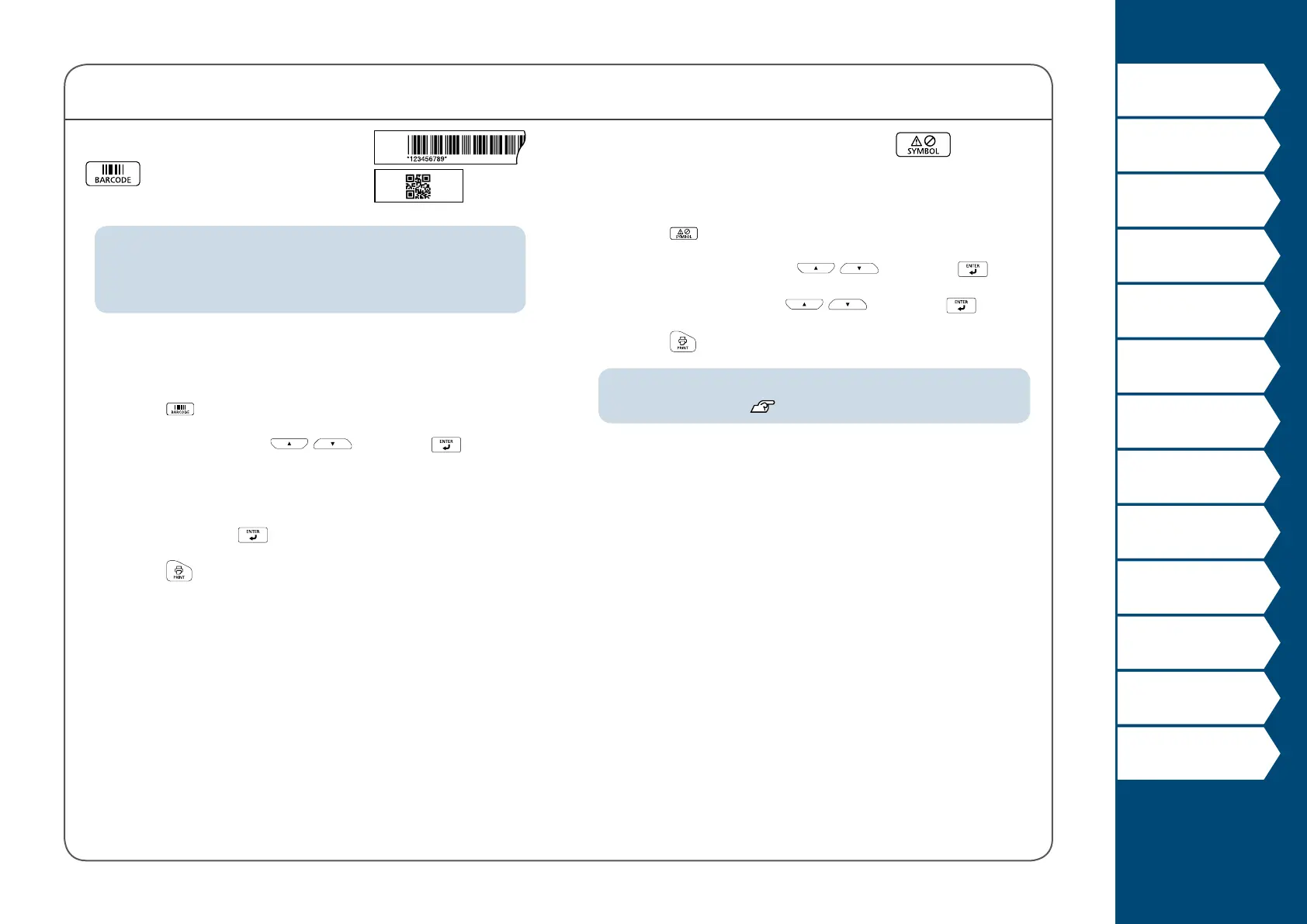
Creating Labels with Symbols
1. Press .
2. Select a category with
/ and press .
3. Select a symbol with
/ and press .
4. Press
.
MEMO
For available symbols "Symbol List"
Creating Barcode Labels
MEMO
• You may not be able to add a barcode depending on the label
type you create.
• Only up to two barcodes can be inserted in one label.
Supported barcode types:
EAN-8, EAN-13, CODE128, CODE39, QR CODE, ITF,
CODABAR, UPC-A, UPC-E
1. Press
.
2. Select an item with
/ and press .
Move on to the next options until the setting is
complete.
3. Enter the alphanumeric characters for the barcode
and then press
.
4. Press
.


 To Next Page