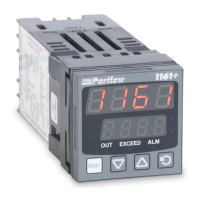
MIC 1161 Manual
28
Pressing the SCROLL key will display the Enable mode codes with the
upper display blank. The next depression of the SCROLL key will add the
Enable code status (ON or OFF) to the upper display. With the Enable
code status displayed, use the UP key to change the status to ON and the
DOWN key to change the status to OFF.
To exit the Enable mode, press the UP key with the Enable code displayed
in the lower display and the upper display blank.
DISPLAY AVAILABLE FACTORY
STEP DESCRIPTION CODE SETTINGS SETTING
1 Program Mode EPro ON/OFF ON
2 Set-Up Mode ESEt ON/OFF ON
3 Lock Loc 0 to 9999 10
TABLE 3-2 PROGRAM MODE
To enter the Program mode, press and release the SCROLL key until
"Prog" is displayed. Use the DOWN key to enter the Program mode. De-
press and release the SCROLL key to sequence through the parameters
and their values, alternately showing the parameter code in the lower dis-
play with the upper display blank, then the parameter code with the param-
eter value displayed. Use the UP and DOWN keys to adjust the parameter
values. After adjusting a parameter, the upper display will flash, indicating
that the new setting has yet to be confirmed. When the setting is as re-
quired, it may be confirmed by pressing the RESET key and the upper
display stops flashing. After confirming a change, press the SCROLL key
to proceed to the next parameter. Use the DOWN key to advance to the
next parameter when a parameter code is showing in the lower display and
the upper display is blank.
To exit the Program mode, press the UP key whenever a parameter code is
displayed in the lower display and the upper display is blank.
DEFAULT PARAMETER INDICATION
If a parameter value, such as Input Select, was changed while in the Pro-
gram mode, when returning to the Control mode, a decimal point after each
digit will be lit. This display indicates all Set-Up mode parameters have
been set to their default condition. To clear this condition, enter the Set-Up
mode and make a parameter value change and review each parameter for
its proper setting.
www.GlobalTestSupply.com
Find Quality Products Online at: sales@GlobalTestSupply.com


 To Next Page