29
Security Settings
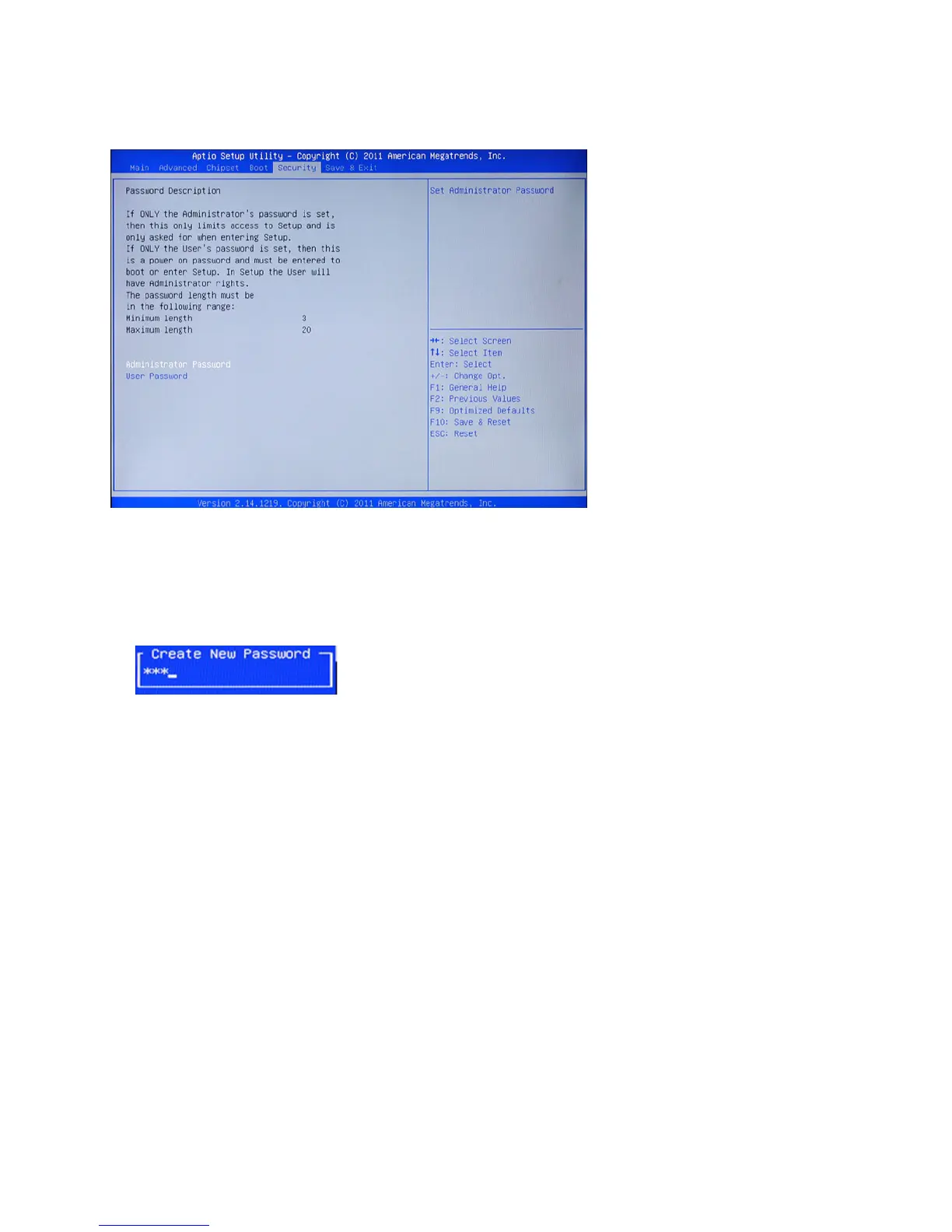
This screen allows you to congure the system security settings.
Figure 3.19 Security Set-
tings Screen
Create or Change Adminitrator/ User Password
An administrator password takes precedence over a user password, and the administrator can limit the activi-
ties of a user. To create or change a password, follow these steps:
1. Highlight the item Administrator/ User Password on the Security menu and press <Enter>.
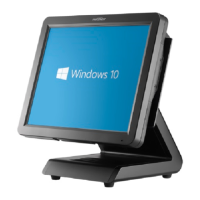
2. The password dialog box appears.
3. If you are creating a new password, type in the password. You can type alphanumeric characters. Symbols
are ignored. The Administrator/ User Password item differentiates between upper and lower case char-
acters. Press <Enter> after you have typed in the password. To conrm the password, type the password
again and press <Enter>.
4. Write the passwords down and keep them in a safe place.
Clear Adminitrator/ User Password
To clear the password, leave the dialog box blank, press <Enter>, when the conrm box appears, press <En-
ter> again.



 To Next Page