2
26
Mini-101M
If you want to check the latest status of the print server, you can click
icon, and all the status will refresh immediately, and show the message
at the bottom right corner.
You can restart the MFP Server by clicking theņRebootŇbutton
.
3.4. Setup Mini-101M
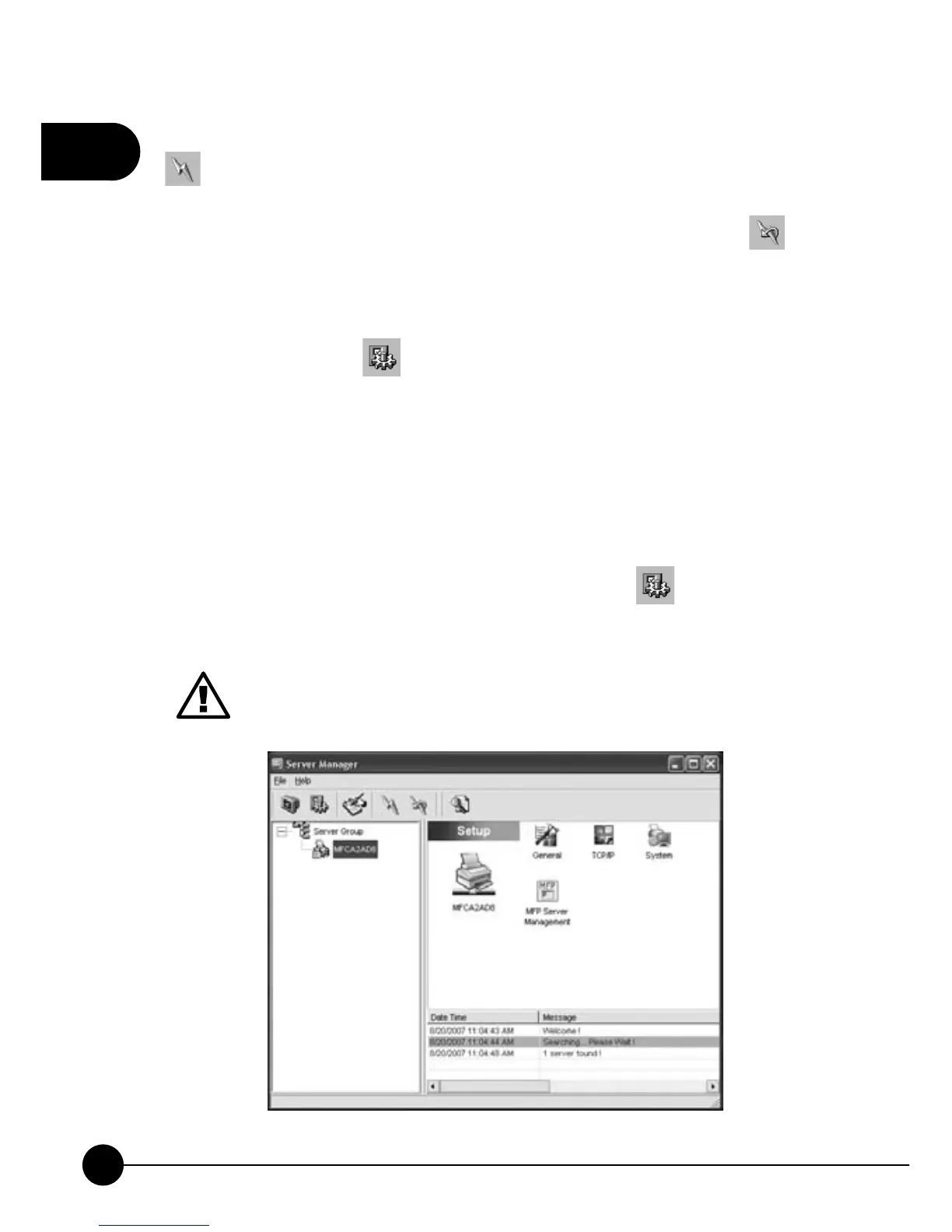
ClickņSetupŇicon on the tool bar, the setup items of the current
selected MFP Server will be shown on the right side of the window.
The right side of the window will show you all kinds of settings and you
can choose a setting to set up according to your needs. But before you
start changing the settings, it will ask you to enter the User Name and
the Password. Key inņadminŇas the User Name andņ0000Ňas the
Password, and you may start setting up the print server. If you want to
change any settings later on, you may click on the
icon and choose
the item you want to configure and modify the settings.
When you finish the settings, please click to restart the MFP
Server to let the settings take effect.



 To Next Page