39EN 39EN
Recording
Basic SetupConnections Playback EditingIntroduction Function Setup VCR Functions
Others
BEFORE RECORDING
Use this feature to make the unfinalized +VR mode discs
recorded on other unit recordable on this unit. When you
make an additional recording on this unit with “Make
Recording Compatible” set to “ON”, the title list is
automatically converted to our style.
1) Press [SETUP] and use [K / L] to select “General
Setting”, then press [OK].
“General Setting” menu will appear.
2) Use [K / L] to select “Recording”, then press [OK].
“Recording” menu will appear.
3) Use [K / L] to select “Make Recording Compatible”,
then press [OK].
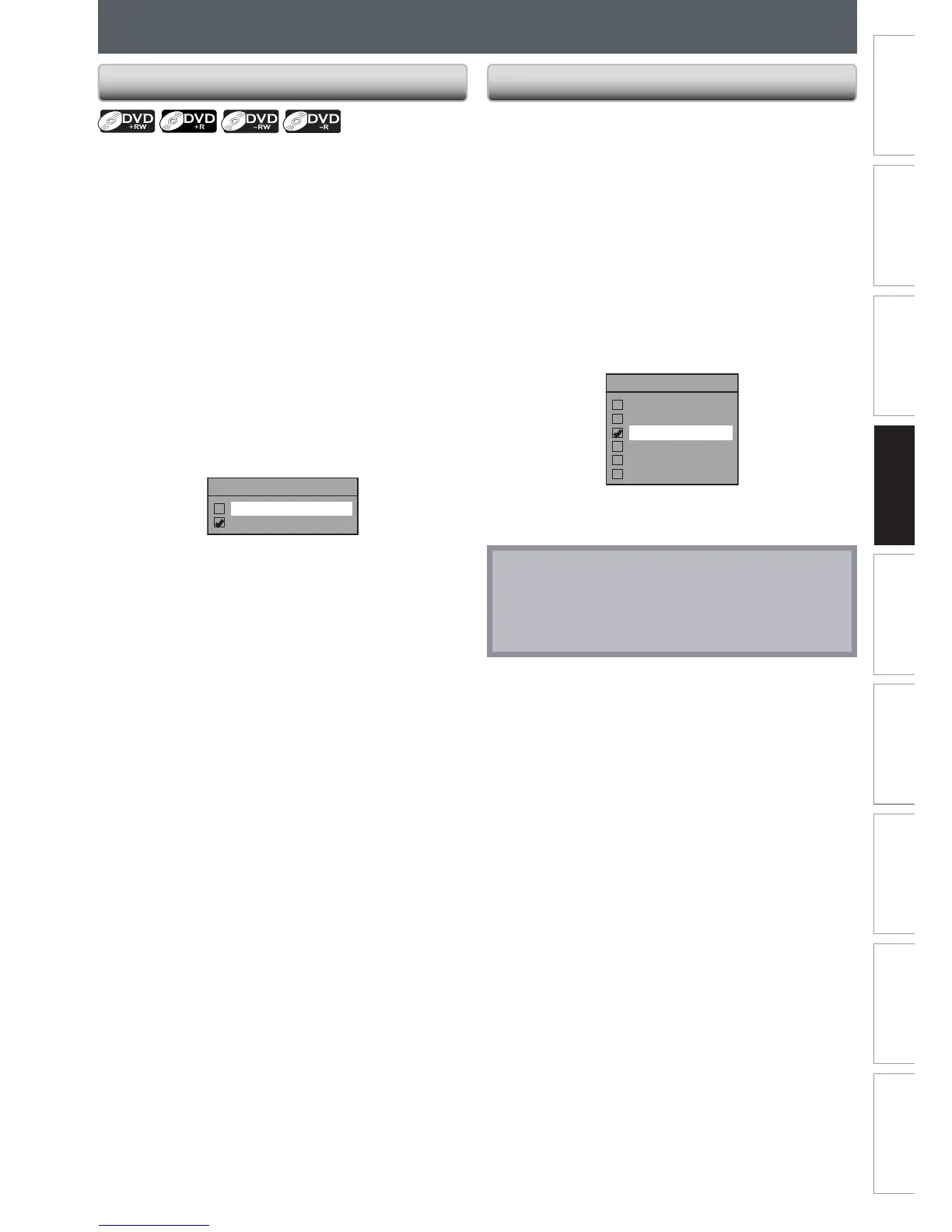
4) Use [K / L] to select “ON” or “OFF”, then press [OK].
Make Recording Compatible
ON
OFF
ON: Title list will be replaced when you make
additional recordings to the discs recorded by
other units.
OFF: Prohibiting additional record to the disc that
has a title list created by other units.
5) Press [SETUP] to exit.
Make Recording Compatible Setting for Auto Chapter
You can set a specified time for chapter marks.
1) Press [SETUP] and use [K / L] to select “General
Setting”, then press [OK].
“General Setting” menu will appear.
2) Use [K / L] to select “Recording”, then press [OK].
“Recording” menu will appear.
3) Use [K / L] to select “Auto Chapter”, then press [OK].
4) Use [K / L] to select a desired time option, then
press [OK].
Auto Chapter
OFF
5 minutes
10 minutes
15 minutes
30 minutes
60 minutes
5) Press [SETUP] to exit.
Note
• The interval for auto chapter marks may slightly
differ.
• A blank chapter may be created depending on the
remaining time of the disc.



 To Next Page