83EN 83EN
Playback
Editing
Recording
Basic Setup
ConnectionsIntroduction Function Setup VCR Functions Others
EDITING DISCS
Setting Pictures for Thumbnails
1
Follow steps 1 to 3 in “Deleting
Titles” on page 77 to display “Edit”
menu.
2
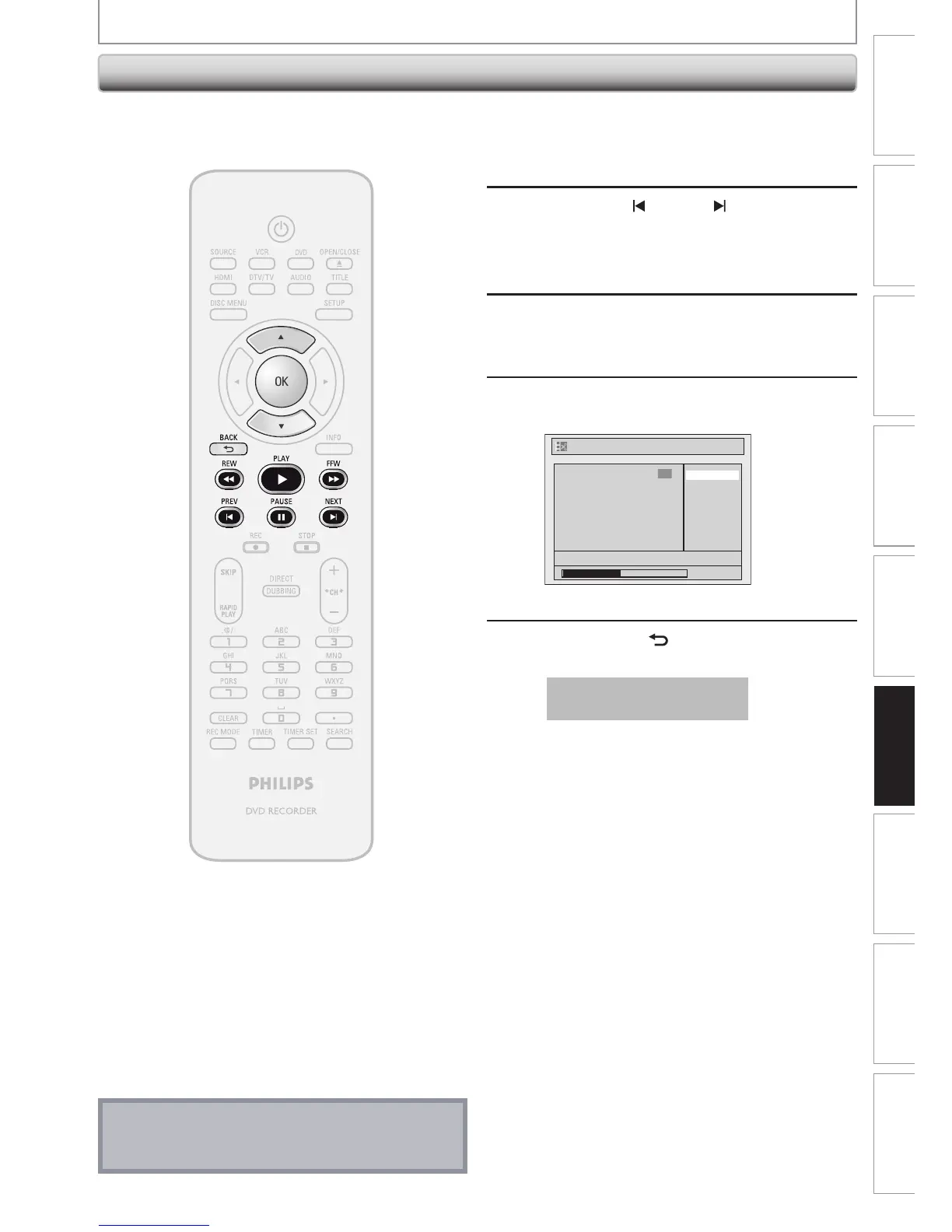
Use [PREV ], [NEXT ], [REW E],
[FFW D], [PAUSE F] and [PLAY B]
to decide the picture you want to
select as a thumbnail.
3
Use [K / L] to select “Index Picture”,
then press [OK].
4
Use [K / L] to select “Yes”, then press
[OK].
No
Yes
1
Edit - Index Picture
NOV/21/07 11:00AM CH12 SP
0:00:59
F
A picture for thumbnail will be set.
5
Press [BACK ] to exit.
Data will be written onto the disc momentarily.
This operation may take a
while to be completed.
Note
• If the selected picture for a thumbnail is overwritten,
the index picture is reset to the first scene of the title.
You can set your desired scene as a thumbnail for each
title.







 To Next Page