Change video play
1 Play a title.
2 Use the remote control to change the
video play.
Button
AUDIO
SYNC
SUBTITLE
REPEAT
ZOOM
G3INFO
SCREEN
FIT
Action
Selects an audio language or
channel on a disc.
Selects the subtitle language on
a disc.
Selects or turns off repeat or
shuffle mode.
Repeat options vary depending
on the disc type.
For VCDs, repeat play is only
possible if the PBC mode is
turned off.
Zooms in or out of the picture,
To pan through the zoomed
image, press the Navigation
buttons.
Displays the current status or
disc information,
You can change the video
play options here without
interrupting disc play,
Fits the picture format to the
TV screen,
You can watch the movie in full
screen on TV.
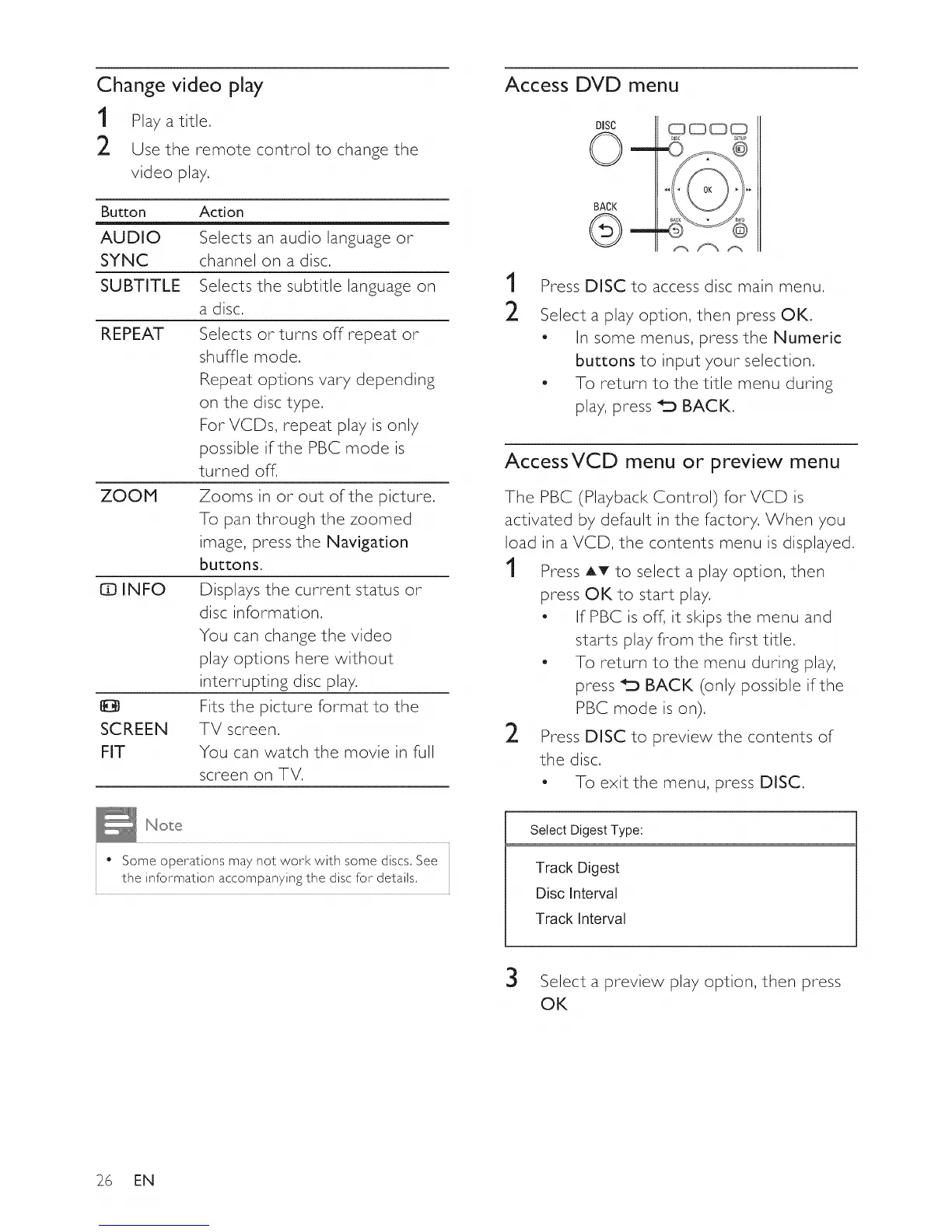
Access DVD menu
1
2
DISC
©-
BACK
©-
CD_CDCD 0
DISC SETUP
Press DISC to access disc main menu.
Select a play option, then press OK.
* In some menus, press the Numeric
buttons to input your selection.
- To return to the title menu during
play, press _'_ BACK.
AccessVCD menu or preview menu
The PBC (Playback Control) for VCD is
activated by default in the factory. When you
load in a VCD, the contents menu is displayed.
1 Press AT to select a play option, then
press OK to start play.
• If PBC is off, it skips the menu and
starts play from the first title.
- To return to the menu during play,
press _'_ BACK (only possible if the
PBC mode is on).
2 Press DISC to preview the contents of
the disc.
- To exit the menu, press DISC.
• Some operations may not work with some discs, See
the information accompanying the disc for details,
Select DigestType:
Track Digest
Disc Interval
Track Interval
3
Select a preview play option, then press
OK
26 EN




 To Next Page