Operation Log in/out
34
4522 207 12671/ * 2021-06-17
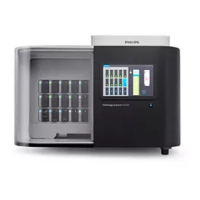
Pathology Scanner SG20 / SG60 / SG300
Log in/out
Log in
It is recommended to restrict access to the scanner by means of an access policy. To change this
setting, see chapter “Customize security settings” on page 48.
Log in can be done at the user interface or by remote access to the scanner.
Log in procedure at user interface
► Touch the screen.
⇨ When authentication is required the login screen will appear.
► Enter the required log in credentials (PIN or user name and password).
► Select Log in.
► For first time log in with a user name and password only: follow the on-screen instructions
to change your login credentials.
⇨
You are logged in and your user name appears in the top right corner of the user interface.
Log in procedure for remote access
►
On your computer, open a Chrome window to access the internet/intranet.
► Enter the URL, the web address to access the scanner, provided by Philips.
► Enter the required log in credentials (user name and password).
► Select Log in.
► For first time log in only: follow the on-screen instructions to change your login credentials.
⇨
You are logged in and your user name appears in the top right corner of the user interface.
Log out
Automatic log out
It is recommended to set the automatic log out setting to 1 minute. To change this setting, see
chapter “Customize security settings” on page 48.
Manual log out
When you are logged in, you can see your user name and a white triangle next to it. Select this
triangle to open the drop-down menu. Select Logout to log out.


 To Next Page