Taking the scanner temporarily out of use
93
4522 207 12671 * 2021-06-17
Pathology Scanner SG20 / SG60 / SG300
Taking the scanner temporarily out of
use
Follow the procedure below if you want to take a scanner temporarily out of use.
► Make sure that there are no slides present in the scanner.
► Make sure that the scanner is clean, see chapter “Cleaning” on page 49 for details on how
to clean the scanner.
► Make sure that the store door and maintenance door are closed.
► To shut down the scanner, select the power button on the front.
⇨ A confirmation window appears.
► Select Yes to confirm.
► Wait for the blue LED in the power
button to turn off.
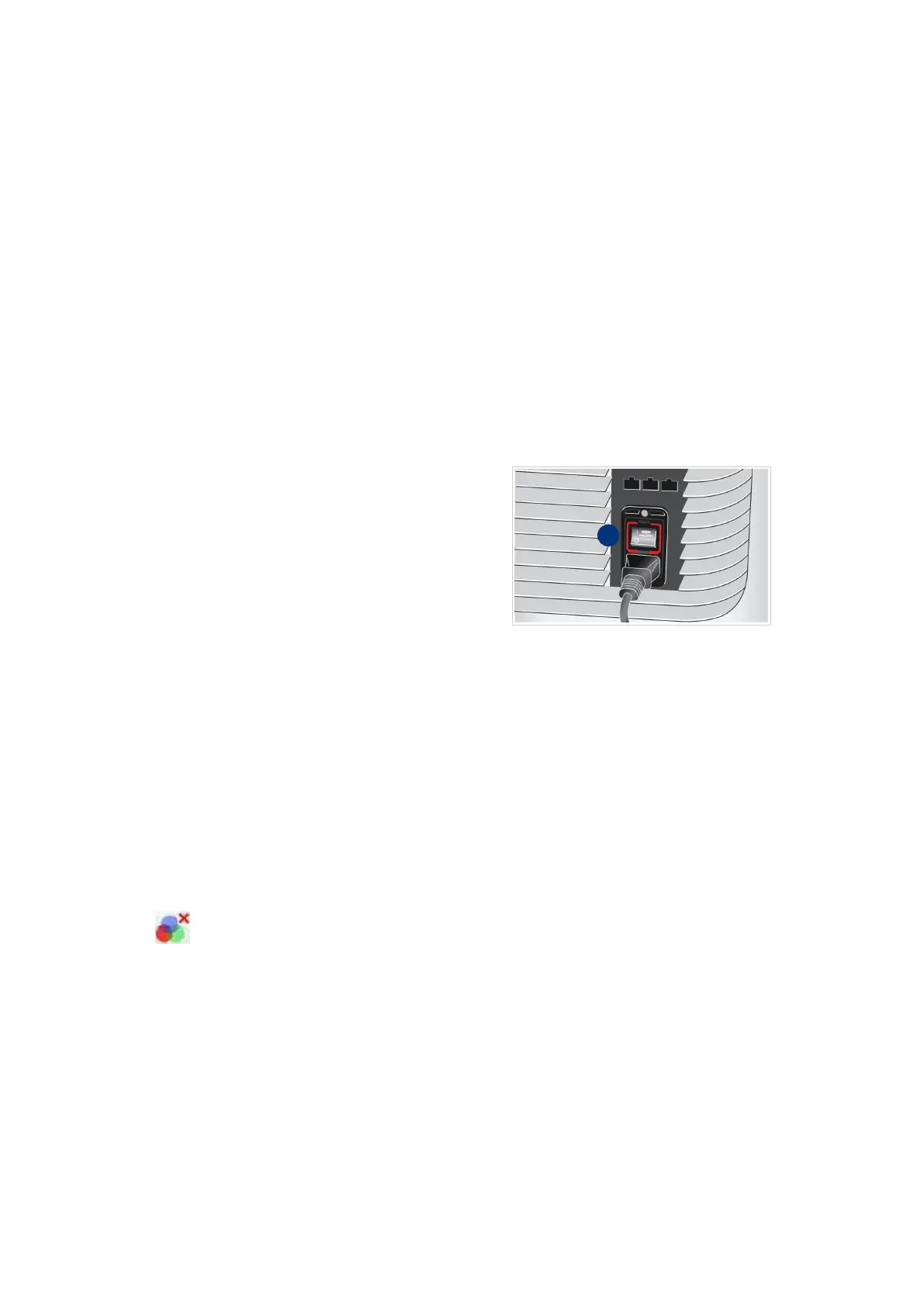
► Use the power switch (I) on the rear
side of the scanner to stop the
power supply.
NOTICE
It is recommended to keep the scanner connected to main power supply and to the IMS.
Contact Philips if the scanner needs to be reconnected.
When starting to use a scanner after a temporarily out of use period, do a check on scanner
performance after switching the scanner on:
► Scan 4 standard slides, at least one with a barcode.
► Check that the icon 'calibration failed' is not visible on the user interface.
If it is visible, see chapter “Manual re-calibration” on page 91 to start a manual calibration.
► Verify on the scanner the slides have been scanned successfully:
- Check for error messages.
- Check that all tissue has been detected and scanned.
- Check that the barcode has been detected.
If one of these checks is not OK, contact Philips to help you solve the problem with the
scanner.
► Use the IMS for the image data and image quality check.
⇨
When all checks are OK, the scanner is ready for use.
10


 To Next Page