User management Administrator tasks
47
4522 207 12671 * 2021-06-17
Pathology Scanner SG20 / SG60 / SG300
User management
Privileges
Identification Policy
Automatic log off
Name Level
1 Minute
Controlled
Task
User management
Settings
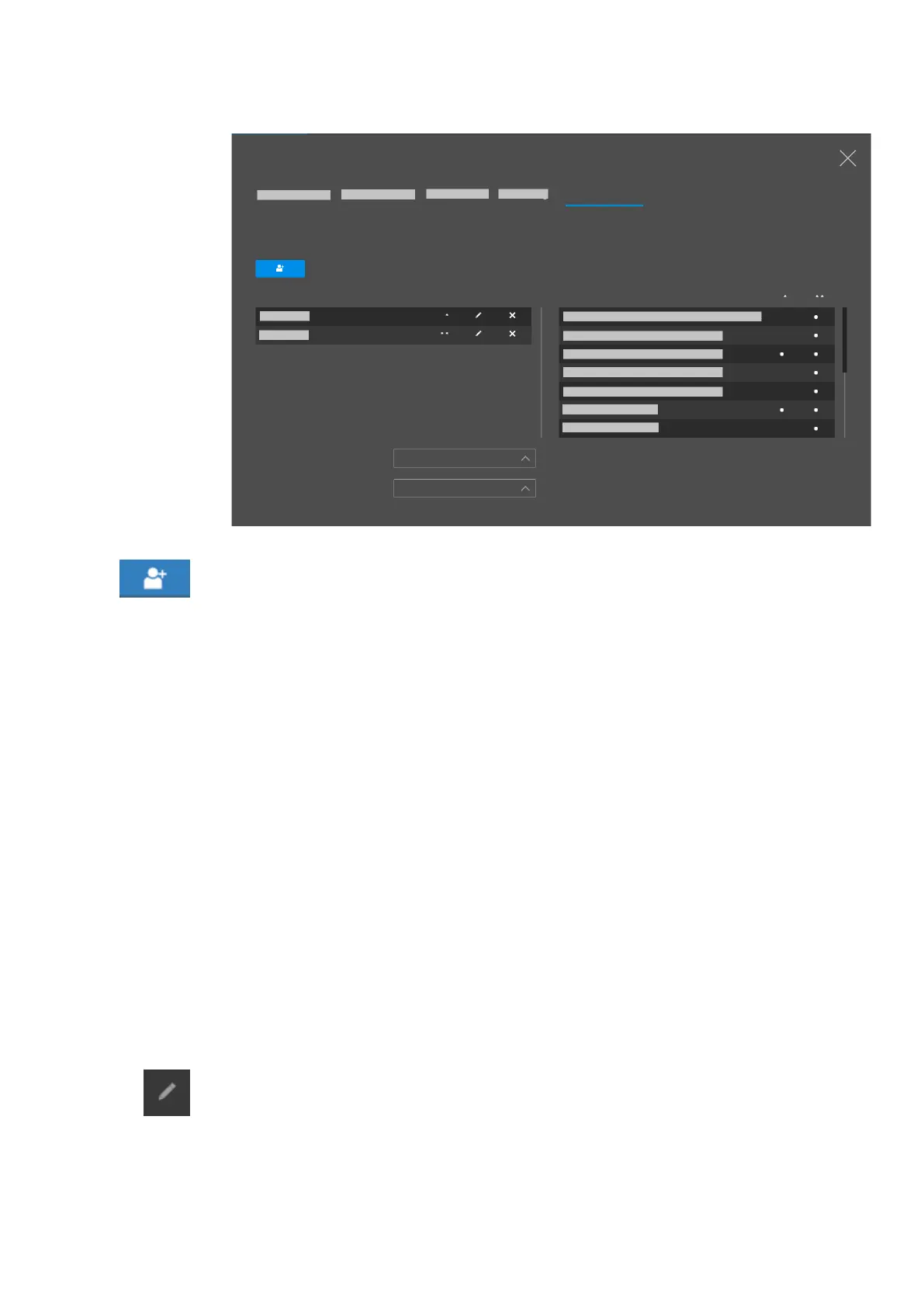
Fig. 26: User management
► Select Add user.
⇨ A new screen appears.
► Follow the on-screen instructions.
⇨
The scanner will create a temporary password for the new user and add the person to the
user list. When the new user logs in for the first time, users are requested to change their
password.
⇨
The scanner will generate a unique PIN code for the new user. The PIN code will be a four
digit number greater than 999.
Please note that user names and passwords are case-sensitive. For user names and passwords
rules apply:
• User name requirements:
– User name must be unique.
– Spaces are not allowed.
• Password requirements after log in for the first time are shown in the on-screen
instructions.
Edit a user account
► Open the Settings screen.
►
Select User management.
► Select the edit button if you want to change the user name, log in credentials or the user
role.
Delete a user account
►
Open the Settings screen.


 To Next Page