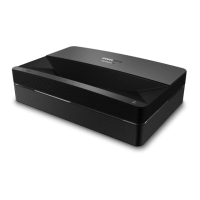
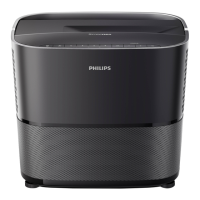
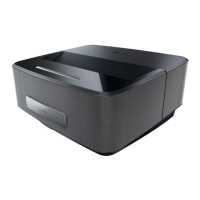
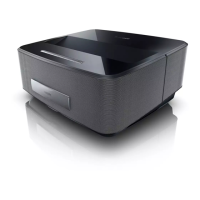
The Philips Screeneo U5 (SCN550/INT) is an Ultra Short Throw (UST) projector designed for indoor use, offering a comprehensive home entertainment experience with Android TV and Google Assistant integration.
Function Description:
The Screeneo U5 functions as a versatile home entertainment hub, projecting images onto a screen from a very short distance. It supports various input sources, including HDMI-enabled devices like Blu-ray players, gaming consoles, camcorders, digital cameras, and PCs. The projector also features a built-in media player for playing videos, music, and viewing images from USB storage devices. With Android TV 11, users can access a full catalog of apps, stream content via Chromecast, and utilize Google Assistant for voice commands. The projector can be connected to external sound systems via coaxial, S/PDIF, or AUX outputs, and supports Bluetooth speakers for wireless audio streaming. It also incorporates Philips EasyLink (HDMI™ CEC) for integrated control with compatible devices.
Important Technical Specifications:
- Display Technology: DLP Cinema Chip
- Light Source: Laser, with a life of over 25,000 hours
- Resolution: True 4K UHD (3840 x 2160 pixels)
- Brightness: 2,200 Lumens
- Contrast Ratio: 1483:1 (FOFO)
- Aspect Ratio: 16:9 or 4:3
- Throw Ratio: 0.21:1 (Ultra Short Throw)
- Screen Size (diagonal): Up to 150" (Recommended 120")
- Screen Distance: 11 inch/28.1 cm for 120" image; 16.5 inch/42 cm for 150" image
- CPU: Quadcore MTK 9629
- Internal Memory (RAM/ROM): 2 GB / 32 GB
- Operating System: Android TV™ 11
- Wireless Connectivity: Wi-Fi MIMO 802.11a/b/g/n/ac 2.4 + 5 GHz, Bluetooth 5.1
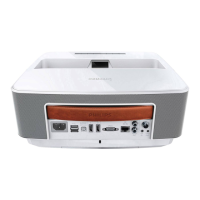
- Inputs: 2x HDMI™ (HDMI™ 2.1 with eARC, CEC), 2x USB (5V/1A, USB 2.0), LAN (x1)
- Outputs: Coaxial (x1), AUX (3.5mm Audio jack, x1), S/PDIF (x1), RS-232 (x1)
- Audio: Internal speaker 2 x 10 W (4 channels), Dolby Atmos / Dolby Decoding, DTS Decoding, DSP
- Power Supply: 100-250V AC, 50/60 Hz, 2.8A/1.2A
- Power Consumption: Max. 220W (Eco Mode: 145 W, Standby Mode: 0.39 W)
- Dimensions (WxDxH): 485 x 151 x 325 mm / 19.09 x 5.94 x 12.8 inch
- Weight: 9.7 kg / 21.38 lb
- Operating Temperature: 5 °C - 35 °C
- Storage Temperature: -20 °C - 50 °C
- Humidity: 20% - 80% RH (non-condensing)
- Image Features: REC.709, Dolby Vision, HDR10 and HLG support, electrical Focus adjustment, manual + digital Vertical keystone, 8-point Keystone correction, Digital Zoom, FlowMotion 4 (MEMC), Gaming Mode, 3D Ready
- Safety Features: Eye Protection Sensor (dims image if movement is detected), Laser safety (Class 1 laser product, RG2 IEC 62471-5:2015)
Usage Features:
- Placement Flexibility: The projector supports four installation configurations: Front Table, Rear Table, Front Ceiling, and Rear Ceiling. This allows for versatile setup depending on the user's environment and screen type (a special rear projection screen is required for rear projection modes).
- Easy Setup: A quick start guide is provided for immediate use. The projector can be positioned on a table for quick setup and portability.
- Remote Control: A dedicated remote control with 2x AAA batteries is included, featuring navigation buttons, quick access to streaming services (Disney+, Prime Video, YouTube), voice search (Google Assistant), electric focus adjustment, and volume/mute controls.
- Android TV Interface: The system home page provides access to installed apps, allows for sorting, and offers menus for voice search, notifications, inputs, network & internet, and settings. Users can sign into their Google account to access the Google Play Store for a wide range of applications.
- Picture Adjustment: Comprehensive picture adjustment options include focus adjustment, 8-point picture calibration for precise image correction, and various display modes (Front Desktop, Front Hoisting, Rear Desktop, Rear Hoisting). Users can adjust image size, position, and correct trapezoidal distortions by moving the projector or rotating the height adjusting kickstand.
- FlowMotion 4 (MEMC): This technology enhances playback of fast-moving videos, making them smoother.
- Sound Settings: Users can customize sound settings, including surround sound effects, speaker on/off, eARC, digital output, DTS DRC, and various sound styles.
- Connectivity: Wired network connections via LAN, Wi-Fi for internet access (including 5 GHz networks for better streaming), and Bluetooth for connecting external speakers, keyboards, or mice.
- Chromecast Built-in: Allows streaming of content from Chromecast-enabled apps on mobile devices (smartphones, tablets, laptops) to the projection screen.
- EasyLink (HDMI™ CEC): Enables control of connected HDMI™ CEC-compatible devices with a single remote, including device auto power off and TV auto power on.
- TV Manager: A built-in tool for usage detection, optimization, cleaning, memory boosting, app uninstallation/installation, and intelligent diagnosis.
- Quick Settings: A horizontal menu available in HDMI™ input mode, providing quick access to inputs, picture, sound, power settings, and advanced options.
- Eye Protection Mode: Can be turned on or off. When on, the image dims if the system detects movement, enhancing safety.
- Lighting Settings: Options for Standard, High Light, or Energy Saving lighting modes.
Maintenance Features:
- Software Updates: The projector's software can be updated via the internet or a USB flash drive to ensure the latest features and support. Instructions are provided for checking the current software version and performing updates.
- Cleaning: The projector's surfaces should be cleaned with a soft, lint-free cloth. The lens requires a soft brush or lens cleaning paper, avoiding liquid cleaning agents to prevent damage to the coating film.
- Troubleshooting: A dedicated section provides solutions for common issues such as the projector not turning on, turning off unexpectedly, USB stick reading problems, no image/sound from external devices, and remote control unresponsiveness. Power cycling is recommended as a first step for persistent problems.
- Factory Reset: If the projector malfunctions, a factory reset can restore default settings, deleting all installed apps and user data.
- Repair Policy: Users are advised not to repair the product themselves and to contact an authorized service center for any repairs to avoid voiding the warranty or causing further damage.
- Environmental Considerations: The manual emphasizes the product's design for sustainable development, including recyclable packaging and proper disposal of batteries and the device itself according to European regulations.

 To Next Page





 General