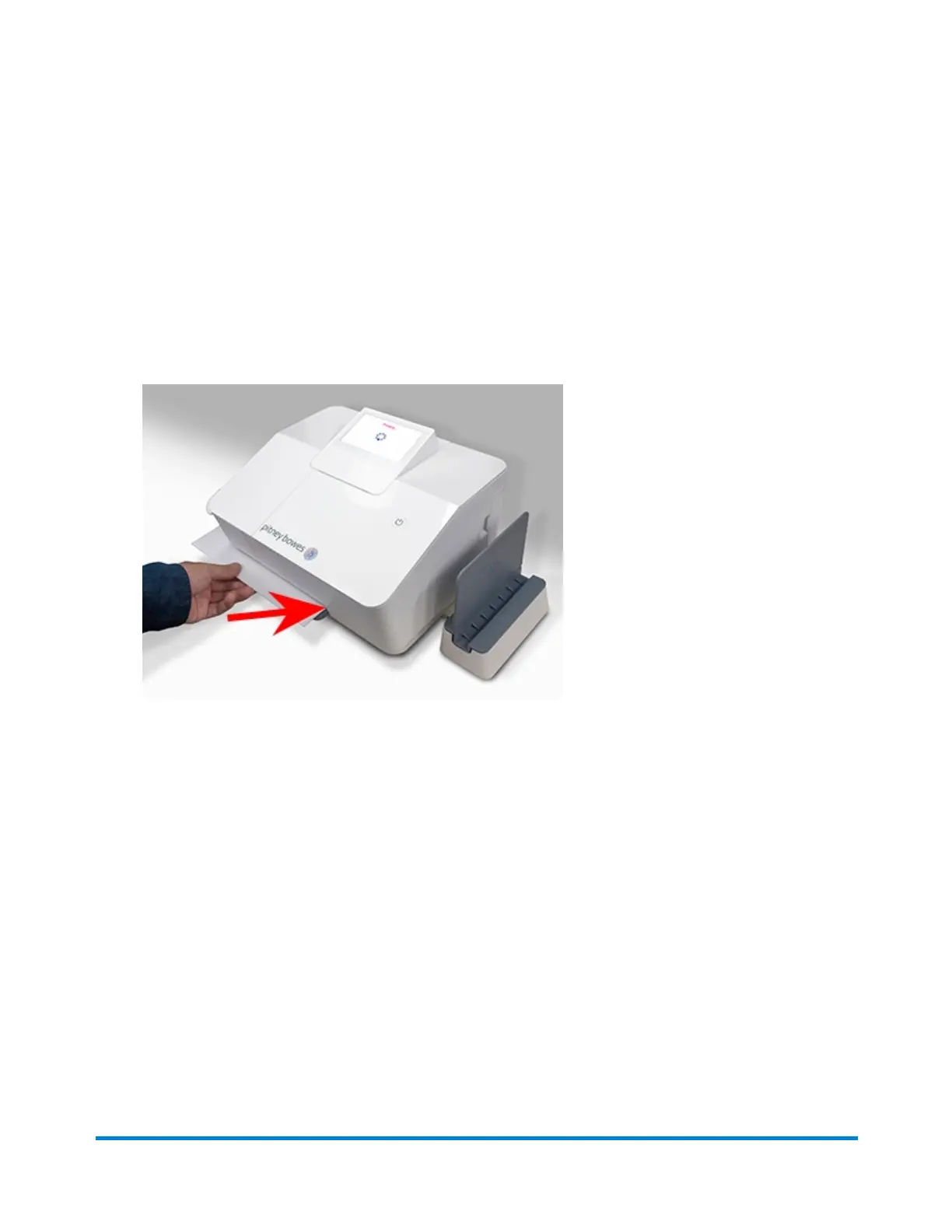
Printing postage
1. Place your envelope on the scale or enter the weight manually.
2. (Optional) If accounting is enabled, tap Cost Account to select an account, or leave the default
account selected.
3. Ensure that the correct class and envelope size are selected by tapping the arrows at the top of
the display.
4. Insert the letter into the device, pushing in all the way to the back and right. The device will
clamp the letter and print postage. The power button will flash while the device is printing.
5. When the device finishes printing, remove the letter. Do not pull the letter out of the machine
while the power button is flashing.
Printing a USPS shipping label
You can print a USPS shipping label in SendPro Online for Priority Mail, First-Class Package
Services, large envelopes over 13oz, and large envelopes needing Extra Services.
Using a browser on your PC, go to SendPro Online. Log into your account and print your postage from
there.
Printing
Pitney Bowes User Guide October 2021 45











 To Next Page