Button Configuration Window Overview 7
All rights are reserved.
the number underneath corresponds to the function number displayed on the
scanner front panel. Nine frequently-used scanning tasks are pre-configured
for your convenience to start scanning immediately.
If not all available buttons
are displayed, drag the scrolling bar up and down to navigate through them.
Clicking any icon on the left pane and its current button settings are displayed
immediately on the right pane. You may adjust the settings as desired.
is not displayed on the Dock,
2.1
Customize Button Settings
Clicking any icon on the left pane in the Button Configuration window displays
its current button settings on the right pane.
The items and parameters available in the window are explained as follows:
available scanning function (
Scan, Copy, OCR, File, E-Mail
has been especially designed as an individual button template, which gives you
great convenience and time-saving in configuring the settings to meet your
needs. By simply selecting one function from the drop-down menu, you may
turn this Custom button into your frequently-used scanning function.
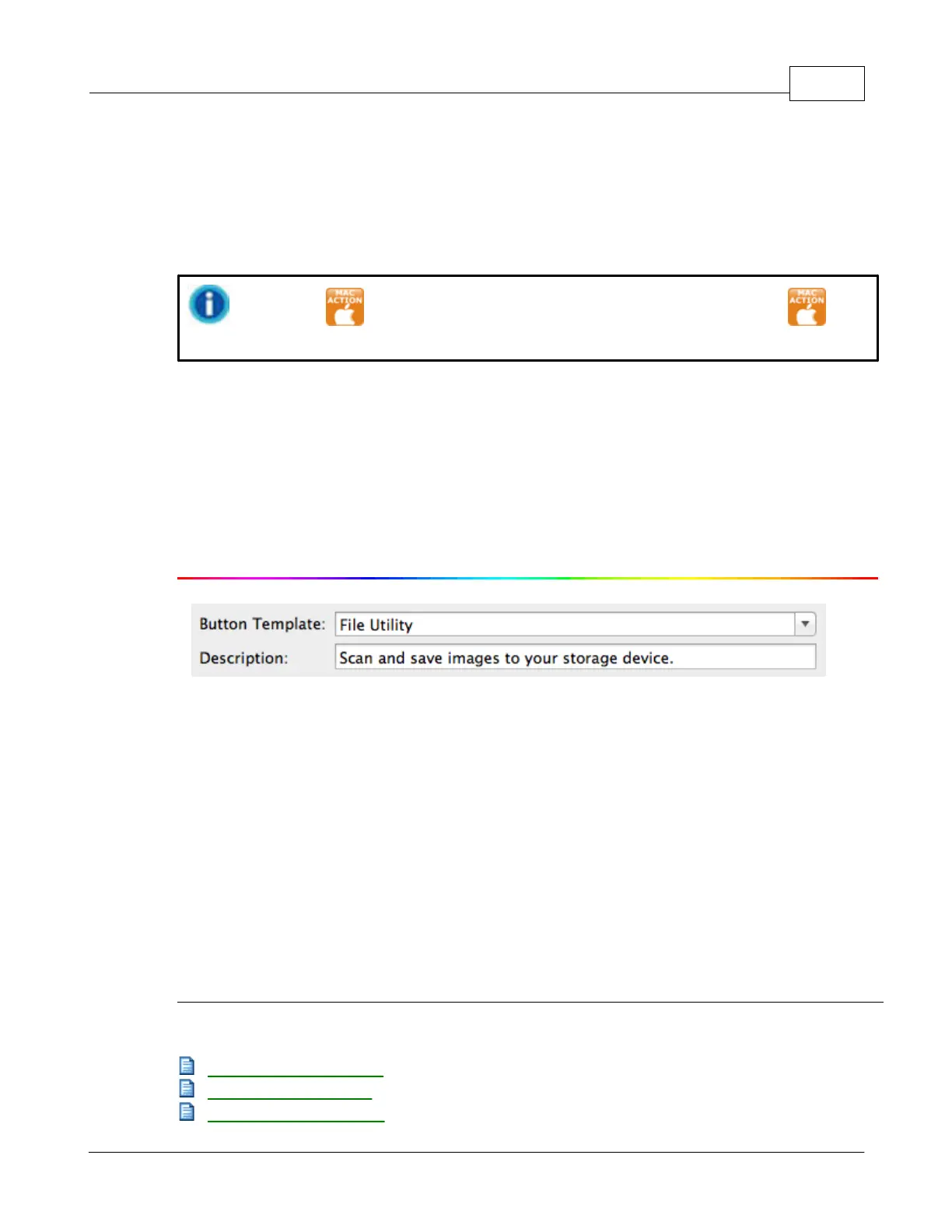
After you select a desired function from the drop-down menu of Button
Template and adjust the corresponding settings in this Button Configuration
window, you may enter a brief description here as a personal memo.
Also see:
OCR
Button Settings
File
Button Settings
Scan
Button Settings








 To Next Page