Button Configuration Window Overview 17
All rights are reserved.
You are recommended to check existing files in the saving folder
before configuring the file name format here, and make sure there are no
existing files having the same file name and file extension combination.
2.5
OCR Button Settings
icon on the left pane in the Button Configuration window
displays its current button settings on the right pane.
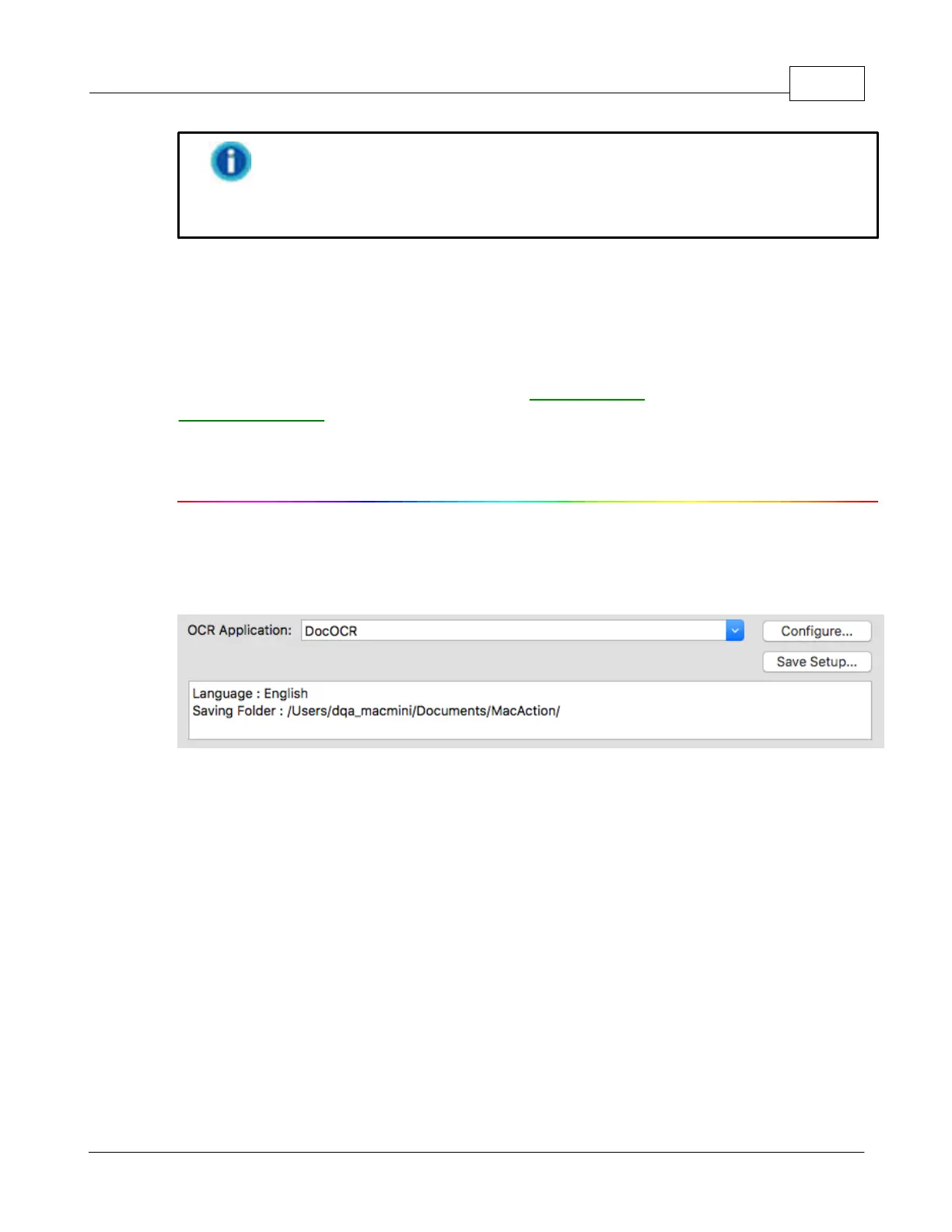
The settings can be categorized into two: OCR
Settings on the upper part, and
Scan
Parameters on the lower part.
The items and parameters available in the window are explained as follows:
Determine to use which OCR application and what settings (e.g., recognition
language) to process the scanned images into text file.
All documents that are scanned are treated by the computer as graphic
images. Acting as an image-to-text converter, an OCR (Optical Character
Recognition) application program recognizes letters on a page and write
them into an editable text file or a text-searchable pdf file.
The options available in the drop-down menu depends on the OCR
application programs that you may have installed in your Mac OS.
Action has been programmed to support the following famous OCR
applications in the industry to give you the convenience of single-touch
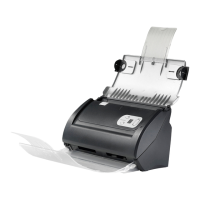
The availability of the programs may vary depending on the scanner model








 To Next Page