MacAction Help22
All rights are reserved.
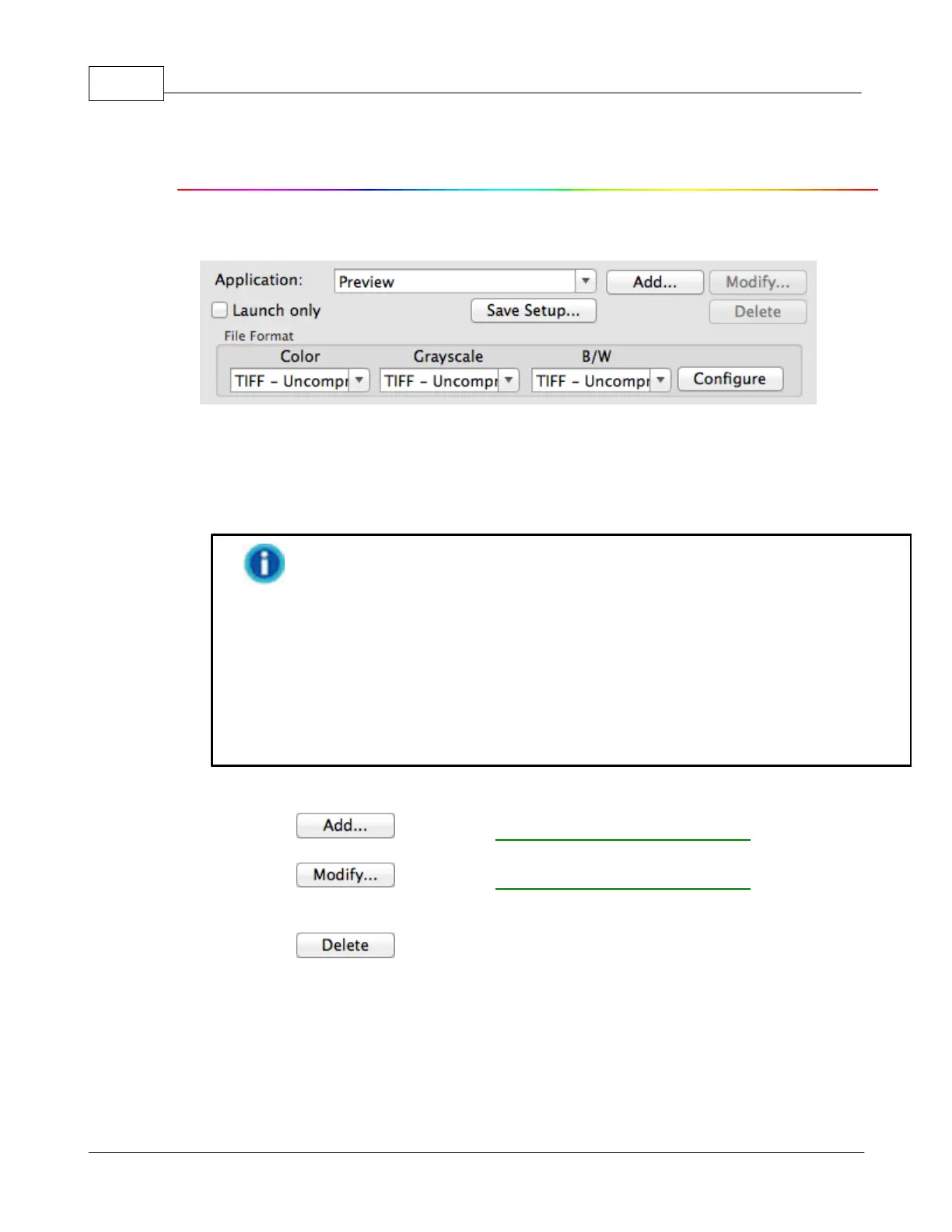
The items and parameters available in the window are explained as follows:
Application and File Saving Settings
Specifies an application program to be launched and linked to the Scan
button. After the scan is complete, this application program is started up
automatically and displays all scanned images.
Make sure you select an application that can process the specified file
format. Scanned images cannot be displayed properly if the specified file
format is not supported by that application.
For example, if you select file format as JPEG, PNG, BMP or TIFF
(compressed or uncompressed), make sure you select an
application; if you select PDF to save the scanned images, you are
recommended to select Adobe Acrobat or Adobe Acrobat Reader that has
been installed in your Mac OS.
Up to 10 programs can be added to Application's drop-down menu.
· Clicking opens the "Add/Modify
Linked Application " window
where you may add frequently-used programs to the Application menu.
· Clicking opens the "Add/Modify
Linked Application " window
where you modify the name, memo and command line for the current
application.
to delete the current application link from the
If this check box is ticked, clicking the Scan button will only start the linked
application program. No scan is performed.
This option allows you to set up this button as a hot key to simply launch an








 To Next Page