Button Configuration Window Overview 39
All rights are reserved.
Use this setting if you want to scan double-sided
documents that are longer than 14
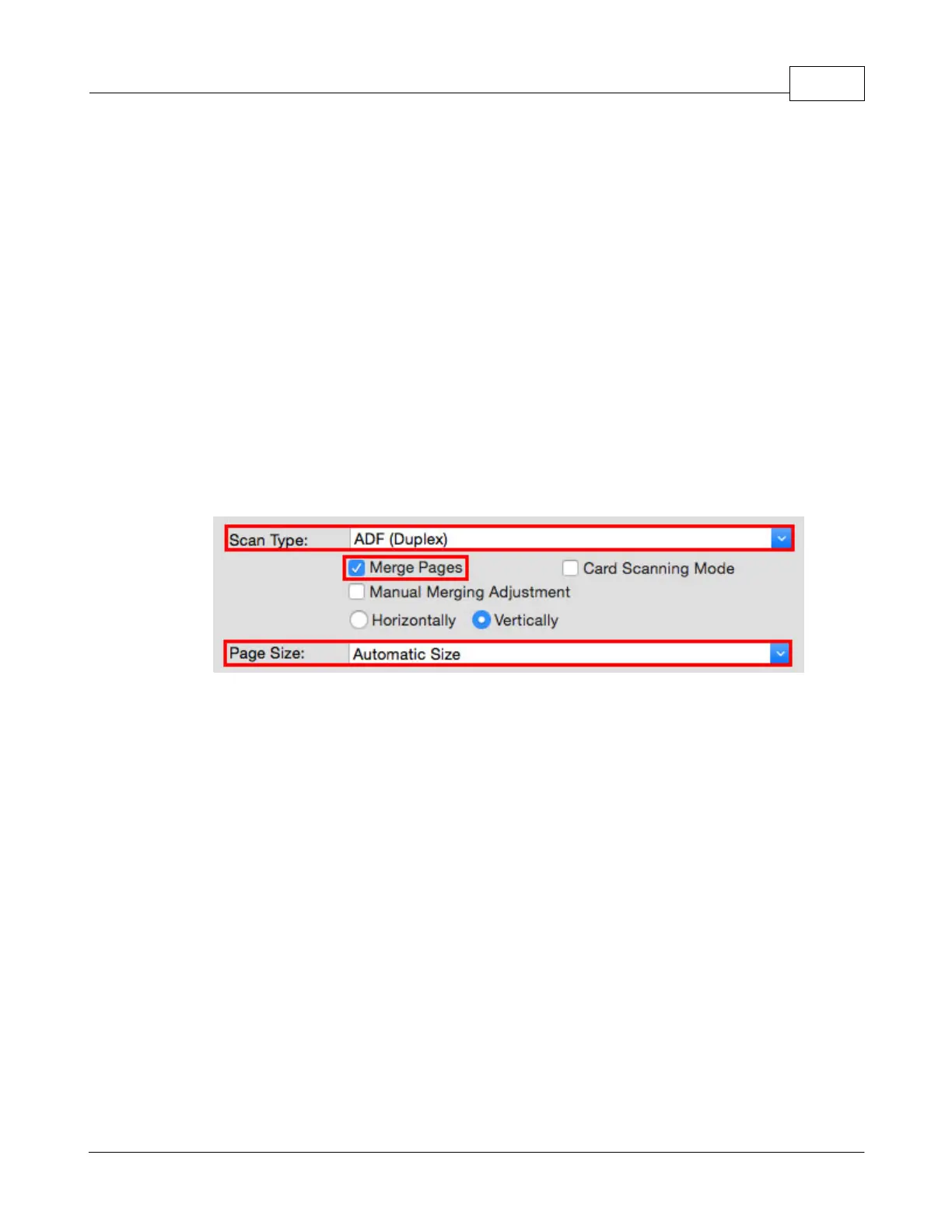
When you scan double-sided documents, tick this check box if you want to
output the scan images of both front and rear sides in one image. When you
scan a document folded in half, tick this check box to generate a joined image.
You can enable this feature only when you select
Check the radio button of
, and both front and rear image data are
generated side by side in an joined image. The rear image will be placed at the
right side next to the front image. Check the radio button of
front and rear image data are generated vertically in an joined image. The rear
image will be placed below the front image. You can make the selection of
only when the function of
Manual Merging Adjustment
Manual Merging Adjustment
manually shift the merging position of the two scanned pages to rectify any up,
down, left or right deviation.
as the the merging mode, you will enter the
Horizontal Merging Adjustment window after the scanning is done showing
the two scanned pages ready to merge. You may click the arrow buttons to
move one of the pages, with one click moving one pixel.
as the the merging mode, you will enter the Vertical
Merging Adjustment window after the scanning is done showing the two
scanned pages ready to merge. You may click the arrow buttons to move one
of the pages, with one click moving one pixel.
When the adjustment is done, click
(This function may or may not be available
depending on the scanner model you purchase.)
Tick this check box to improve scanning results when you scan plastic cards.








 To Next Page