EasyManua.ls Logo

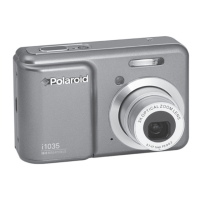
Polaroid i1035 - User Manual

Polaroid i1035
117 pages
Print Icon
To Next Page IconTo Next Page
Loading...
10.0 Megapixel Digital Camera
i1035
User’s Manual
Questions?
Need Some Help?
This manual should help you
understand your new product.
or visit
www.polaroid.com/support.
If you still have questions, call
our help line found on the
insert with this icon:
DIGITAL QUALITY, POLAROID SIMPLICITY™

Table of Contents

Questions and Answers

  • M
    martinezsamanthaSep 9, 2025
    How to fix the error message when installing “Polaroid i1035 Camera Driver”?
    • R
      Robert EvansSep 9, 2025
      If you receive an error message when installing the Polaroid i1035 Camera Driver, shut down all other applications and attempt to reinstall the driver. Also, check to see if the USB in your BIOS is activated. Please refer to Polaroid web site to activate the USB in the BIOS.
  • A
    Andrew PageAug 25, 2025
    What to do if my Polaroid i1035 Digital Camera does not turn on?
    • K
      Kelly HunterAug 25, 2025
      If your Polaroid Digital Camera doesn't turn on, the battery might not be oriented correctly, or the battery is dead. Try orienting the battery correctly or recharge it.
  • D
    Dr. Jared CurtisAug 25, 2025
    Why my Polaroid i1035 Digital Camera does not turn on?
    • C
      Colton KellyAug 26, 2025
      If your Polaroid Digital Camera doesn't turn on, the battery might not be oriented correctly or the battery is dead. Orient the battery correctly or recharge it.
  • W
    William JohnsonSep 23, 2025
    Why is the colour of the playback pictures different from the picture on the LCD screen during recording on my Polaroid i1035 Digital Camera?
    • R
      Rebecca SchmidtSep 23, 2025
      If the color of the playback pictures differs from what you see on the LCD screen during recording with your Polaroid Digital Camera, it could be because sunlight or another light source is shining directly into the lens during recording. Position the camera so that sunlight does not shine directly onto the lens.
  • C
    Cody TaylorSep 12, 2025
    Why does the LCD screen on my Polaroid i1035 indicate the image is out of focus?
    • J
      Jared JonesSep 12, 2025
      If the LCD screen indicates the image is out of focus on your Polaroid Digital Camera, it could be because macro mode is being used for far subjects, or still image mode is being used for near subjects. Set the camera to Still Image mode, or set the camera to Macro mode for subjects this close to the lens: Wide Angle: 0.3 ft~ 1.6 ft (0.1 m ~ 0.5m) Telephoto: 1.1 ft ~ 2.6 ft (0.35 m ~ 0.8 m)
  • R
    ricegarrettSep 15, 2025
    Why pictures are not displayed on my Polaroid Digital Camera?
    • C
      Carolyn FloydSep 15, 2025
      If pictures are not displayed on your Polaroid Digital Camera, a memory card with non-DCF pictures recorded with another camera might be loaded in the camera. This camera cannot display non-DCF pictures recorded onto a memory card used by another digital camera.
  • S
    solismarySep 4, 2025
    What to do if recorded pictures are not saved in memory on Polaroid Digital Camera?
    • S
      Steven HansonSep 4, 2025
      If recorded pictures are not being saved in the memory of your Polaroid Digital Camera, it's likely because you're removing the memory card before the save operation is complete. Avoid removing the memory card before the save operation is complete.
  • M
    Mary HowellSep 5, 2025
    How to fix 'Polaroid i1035 Camera Driver' installation error message?
    • S
      Sarah RhodesSep 5, 2025
      If you receive an error message when installing the “Polaroid i1035 Camera Driver”, try shutting down all other applications and attempt to reinstall the driver. Also, check to see if the USB in your BIOS is activated.
  • J
    Jorge GlassSep 23, 2025
    What to do if the camera is detected by Windows but a driver letter of the Removable disk is not created for Polaroid i1035?
    • J
      Jaime MooreSep 23, 2025
      If your Polaroid Digital Camera is detected by Windows but a driver letter for the removable disk is not created, it could be that the removable disk crashes with the network drives. Disconnect the crashed network drive and reserve this drive letter for the camera.
  • M
    michaelflemingAug 29, 2025
    What to do if I cannot activate my Polaroid i1035 Digital Camera by pressing the Power switch?
    • J
      Jeffery JacksonAug 29, 2025
      If you cannot activate your Polaroid Digital Camera, it might be due to insufficient battery power or the battery is missing. Try recharging the battery or installing the battery.

Summary

Polaroid i1035 Digital Camera User Guide

Product Overview

Getting Started

Camera Package Contents

Lists all items included in the camera package for initial use.

Installing and Removing the Battery

Step-by-step guide for inserting and removing camera batteries safely.

Using Your Batteries

Provides tips to extend battery life and important warnings for battery usage.

Turning the Camera On and Off

Instructions on how to power the digital camera on and off using the power button.

Camera Settings

Capture Modes

Overview of different still image capture modes available on the camera.

Setup Menu

Instructions on accessing and changing basic camera settings via the setup menu.

Setting the Date and Time

Guide to setting the camera's date and time accurately for proper photo logging.

Resetting back to Factory Defaults

Steps to restore all camera settings to their original factory default values.

Choosing the Media for Storage

How to select the preferred storage media (Internal Memory or SD Card) for saving files.

Taking Pictures

Taking Pictures in Normal Mode

Instructions on how to take standard photos using the camera's default settings.

Taking Pictures in Macro Mode

Guide on using the macro mode for capturing close-up subjects with clarity.

Setting Flash Mode

Instructions on selecting and using the camera's flash modes for various lighting conditions.

Setting the Self-timer

How to use the self-timer function for delayed picture taking.

Setting Picture Resolution and Compression

How to adjust picture resolution and JPEG compression for quality and file size.

Zoom Feature

Explanation of how to use optical and digital zoom to frame subjects.

Setting Exposure Compensation

How to adjust exposure compensation (EV) to improve lighting in photographs.

Recording Video Clips

Recording Video Clips

Step-by-step guide to recording video clips with audio using the camera.

Setting Video Resolution

How to choose the video resolution for recording clips, affecting quality and file size.

Managing Your Pictures and Video Clips

Reviewing Pictures

How to view captured still images one by one on the camera's LCD screen.

Magnifying & Trimming the Displayed Picture

How to zoom in on a picture and crop it to a desired size or location.

Deleting Pictures or Video Clip

Steps to delete single or multiple pictures and video clips from the camera.

Image Cropping

How to crop a displayed JPEG picture to a specific size or location.

Red-eye Correction

How to remove the red-eye effect from subject's eyes in captured images.

Print Settings

Printing Procedures

General steps for preparing and performing direct printing from the camera.

Camera; Printer Connection

How to connect the camera to a printer using a USB cable for printing.

Selecting Print Settings

Guide to choosing various print options like copies, layout, and file name.

Printing

Final steps to initiate the printing process after selecting options.

Using the SD (Secure Digital) Card

Using the SD Card

Information on using Polaroid SD cards for memory expansion and automatic saving.

Inserting a SD card

Step-by-step instructions for inserting an SD card into the camera correctly.

Formatting the SD card

How to format an SD card to erase data and restore it for camera use.

Installing the Software onto a Computer

Installing the Software

Instructions for installing camera software and drivers on Windows and Macintosh systems.

Software Included with Your Camera

Details on the bundled software like drivers, editing tools, and PDF reader.

Computer System Requirements

Minimum system requirements for Windows and Macintosh to use the camera software.

Transferring Pictures and Video Clips to a Computer

Connecting to Your Computer

Steps to connect the digital camera directly to a computer via USB cable.

Transferring Pictures and Video Clips to a Computer

Detailed methods for transferring photos and videos from camera to computer using PC or Mac.

Troubleshooting Problems

Troubleshooting Guide

Common issues and solutions for camera operation and software installation problems.

TV out

Troubleshooting steps for issues related to displaying images on a television.

Getting Help

Polaroid Online Services

Information on accessing online support and services from Polaroid.

ArcSoft Software Help

Contact details and resources for technical support related to ArcSoft software.

Appendix

Technical Specifications

Detailed technical specifications of the digital camera, including sensor, lens, and display.

Storage Capacity of SD Card

Charts showing approximate picture and video clip storage capacities for various SD card sizes.

Polaroid i1035 Specifications

General IconGeneral
Image SensorCCD
Effective Pixels10.0 MP
Resolution3648 x 2736
Optical Zoom3x
Digital Zoom4x
Video Resolution640 x 480
Storage MediaSD/SDHC
Battery TypeLi-ion
ISO SensitivityAuto, 100, 200, 400
Shutter Speed1/2 - 1/2000 sec

Related product manuals