Front panel
7
7 : 1.Front LED illuminated buttons
7 : 2.Switch on
As soon as you you connect the amplier to the power
grid, the amplier’s power supply start supplying power
to the auxiliary systems. The border of the central button
starts blinking white: the amplier is in standby mode.
A pressure on the central button will wake up the
amplier.
7 : 3.Switch off
Keep pressed the central button for 3 seconds to switch
the amplier off. The amplier platform passes to the stand-
by mode and the border of the central button blinks white.
The amplier platform turns completely off only when
the mains connector is unplugged.
7 : 4.Mute
A short pressure of the central button toggles MUTE/
UNMUTE to all active channels: any already muted channel
remains in its mute status.
All other circular buttons except the central one toggle
the MUTE/UNMUTE to the specied output channel (refer
to FIGURE 1 and FIGURE 2).
7 : 5.WiFi
Press the leftmost button: the button will light up and
the system will establish a new local WiFi network whose
SSID is in the form: Powersoft-MODELNAME-SERIAL (e.g.
Powersoft-X8-70133) and default password: 0123456789.
Refer to Chapter 14 : 1.WiFi connectivity for detailed
instruction.
7 : 6.Armonía callback
In order to indentify the unit into the Armonía Workspace,
push on the rightmost button. On the other hand, if you click
on Un/Blink from the contextual menu of the amplier into
the Armonía Workspace, all the front LEDs of the amplier
will blink for a while.
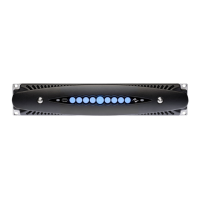
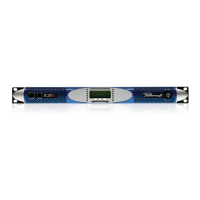
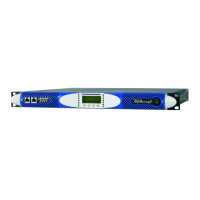
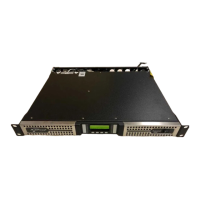
FIGURE 1: X8 front panel.
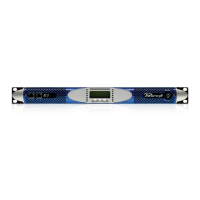
FIGURE 2: X4 front panel.
Front panel | 3
WiFi
on/off switch
Main on/off switch
MUTE ALL
Armonía
callback
MUTE/UNMUTE CH2
MUTE/UNMUTE ALL
USB
port
CH1
MUTE
CH5
MUTE
CH2
MUTE
CH6
MUTE
CH3
MUTE
CH7
MUTE
CH4
MUTE
CH8
MUTE
WiFi
on/off switch
Main on/off switch
MUTE ALL
Armonía
callback
USB
port
CH3
MUTE
CH1
MUTE
CH4
MUTE
CH2
MUTE




 To Next Page
