16 | X Series | User guide
14 : 3.Wired connectivity
By means of the two etherCON ports on the rear panel of
the X8 and X4 amplier platforms, it is possible to connect
the X Series to a Fast Ethernet or Gigabit Ethernet LAN.
14 : 3.1. Network topologies
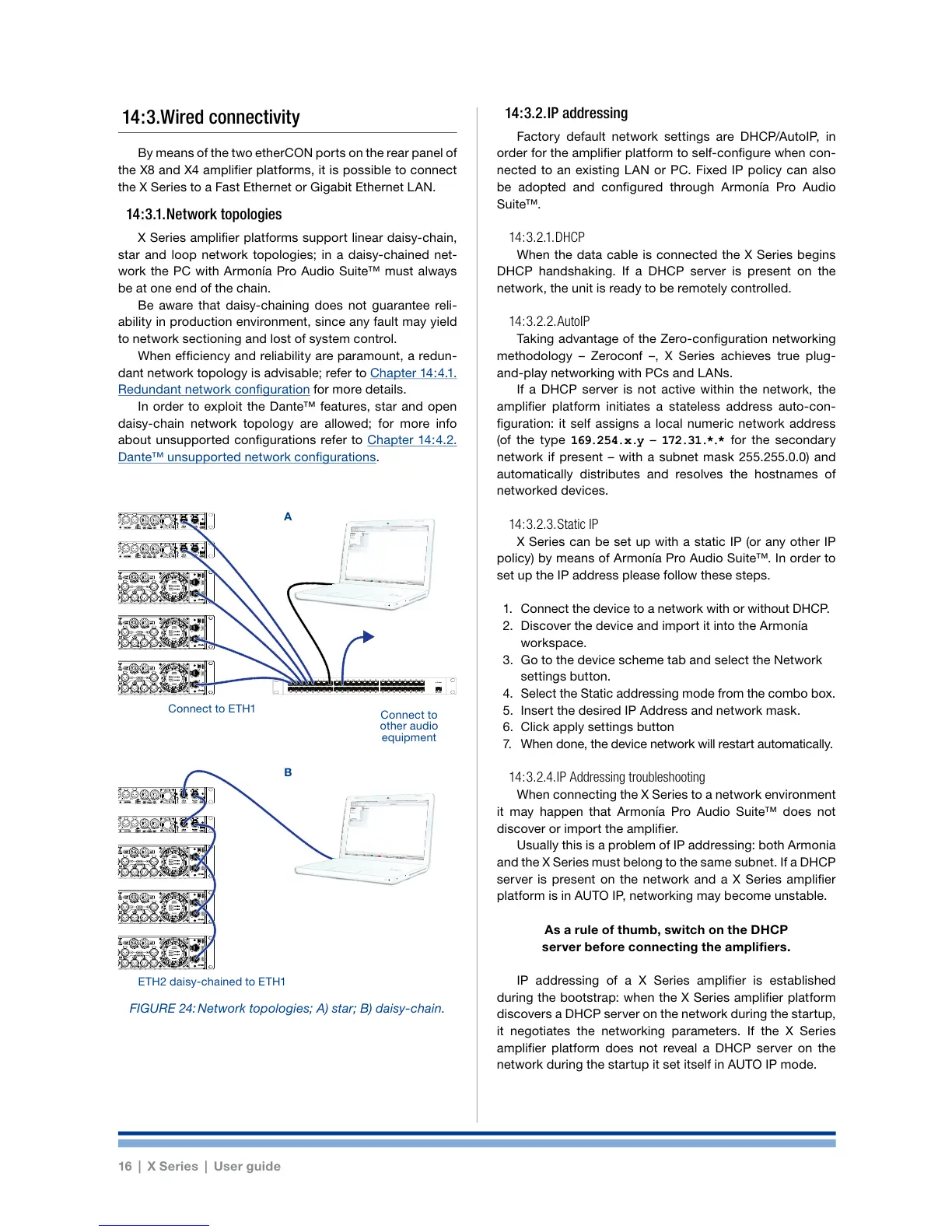
X Series amplier platforms support linear daisy-chain,
star and loop network topologies; in a daisy-chained net-
work the PC with Armonía Pro Audio Suite™ must always
be at one end of the chain.
Be aware that daisy-chaining does not guarantee reli-
ability in production environment, since any fault may yield
to network sectioning and lost of system control.
When efciency and reliability are paramount, a redun-
dant network topology is advisable; refer to Chapter 14 : 4.1.
Redundant network conguration for more details.
In order to exploit the Dante™ features, star and open
daisy-chain network topology are allowed; for more info
about unsupported congurations refer to Chapter 14 : 4.2.
Dante™ unsupported network congurations.
14 : 3.2. IP addressing
Factory default network settings are DHCP/AutoIP, in
order for the amplier platform to self-congure when con-
nected to an existing LAN or PC. Fixed IP policy can also
be adopted and congured through Armonía Pro Audio
Suite™.
14 : 3.2.1. DHCP
When the data cable is connected the X Series begins
DHCP handshaking. If a DHCP server is present on the
network, the unit is ready to be remotely controlled.
14 : 3.2.2. AutoIP
Taking advantage of the Zero-conguration networking
methodology – Zeroconf –, X Series achieves true plug-
and-play networking with PCs and LANs.
If a DHCP server is not active within the network, the
amplier platform initiates a stateless address auto-con-
guration: it self assigns a local numeric network address
(of the type 169 .254.x.y – 172.31.*.* for the secondary
network if present – with a subnet mask 255.255.0.0) and
automatically distributes and resolves the hostnames of
networked devices.
14 : 3.2.3. Static IP
X Series can be set up with a static IP (or any other IP
policy) by means of Armonía Pro Audio Suite™. In order to
set up the IP address please follow these steps.
1. Connect the device to a network with or without DHCP.
2. Discover the device and import it into the Armonía
workspace.
3. Go to the device scheme tab and select the Network
settings button.
4. Select the Static addressing mode from the combo box.
5. Insert the desired IP Address and network mask.
6. Click apply settings button
7. When done, the device network will restart automatically.
14 : 3.2.4. IP Addressing troubleshooting
When connecting the X Series to a network environment
it may happen that Armonía Pro Audio Suite™ does not
discover or import the amplier.
Usually this is a problem of IP addressing: both Armonia
and the X Series must belong to the same subnet. If a DHCP
server is present on the network and a X Series amplier
platform is in AUTO IP, networking may become unstable.
As a rule of thumb, switch on the DHCP
server before connecting the amplifiers.
IP addressing of a X Series amplier is established
during the bootstrap: when the X Series amplier platform
discovers a DHCP server on the network during the startup,
it negotiates the networking parameters. If the X Series
amplier platform does not reveal a DHCP server on the
network during the startup it set itself in AUTO IP mode.
12345678
25 26 27 28 29 30 31 32
9 10 11 12 13 14 15 16
33 34 35 36 37 38 39 40
17 18 19 20 21 22 23 24
41 42 43 44 45 46 47 48 UP Link
Power
FIGURE 24: Network topologies; A) star; B) daisy-chain.
Connect to ETH1
A
B
Connect to
other audio
equipment
ETH2 daisy-chained to ETH1




 To Next Page