6.3. Firmware update
To perform a firmware update, you need the Proemion Firmware Programmer software and a CAN connection with the
device via a CANview USB.
The required software can be downloaded from the Download Center at our Document Library.
NOTICE
Please note: The firmware for the CANlink wireless 4000 series always consists of two parts. Part
one is the application firmware and part two is the firmware for the radio module itself. It must be
considered that certain combinations of firmware versions, require a certain installation sequence.
Please refer to the corresponding release notes which can be found in directory of the firmware at
the Download Center on our Document Library.
Install the Proemion Firmware Programmer prior to the update procedure.
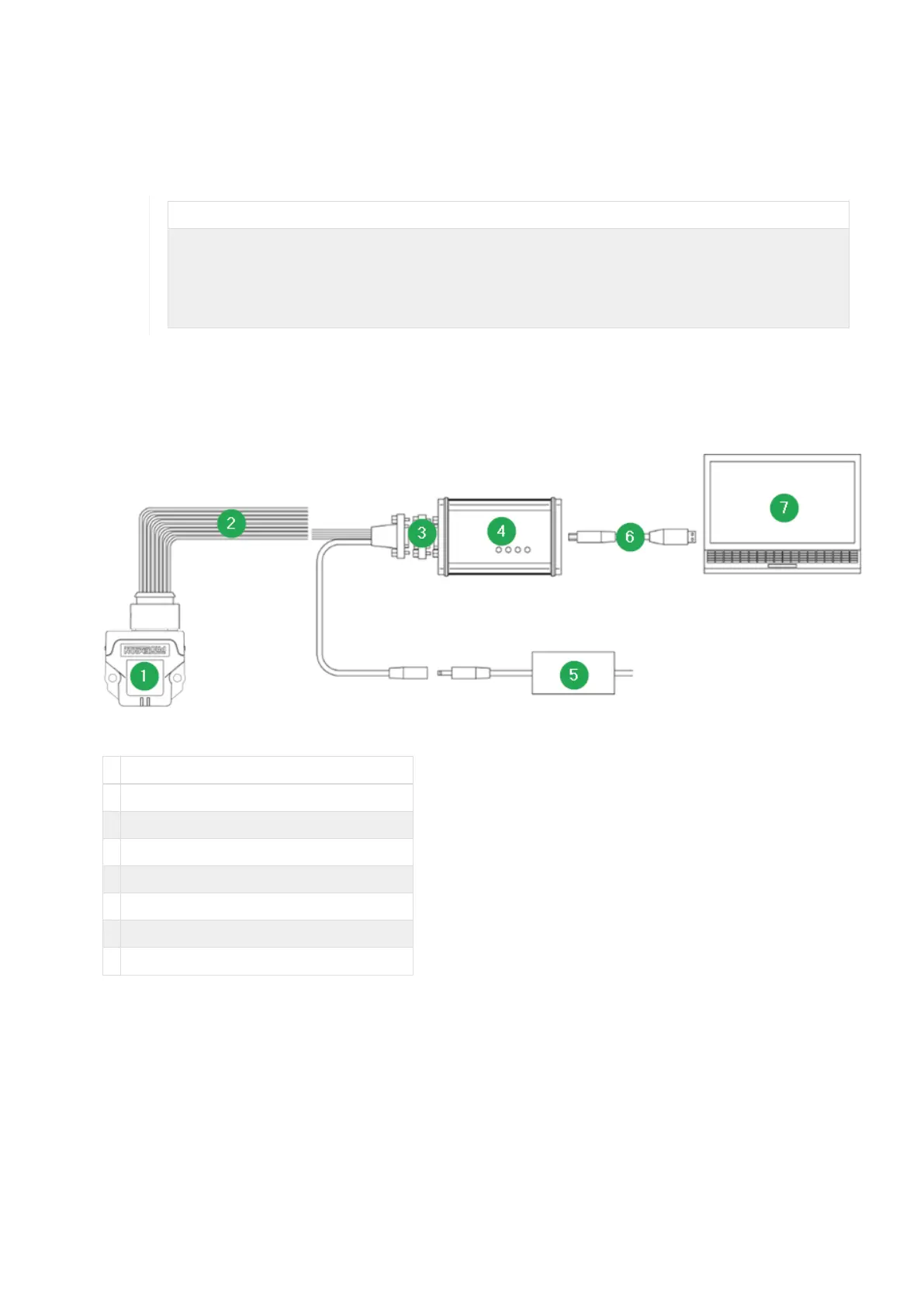
1. Connect your PC to the CAN interface of the CANlink wireless 4000 with a CANview USB (incl. a 120 Ohm
CAN bus termination resistor).
Figure 42. CANlink wireless 4000 Connection to PC via CANview USB
# Item
1 CANlink wireless 4000
2 CLW4K Starter Cable
3 CAN bus terminator D-Sub/D-Sub, 120¬
4 CANview USB
5 Power supply unit
6 USB cable (CANview USB)
7 PC with Proemion Firmware Programmer
2. Start the Proemion Firmware Programmer.
3. In the menu, click on File ¬ Open
4. Select the file (.bin)* with the current firmware.
5. In the dropdown list of the Communication path field, ensure that Connection via CAN is preselected.
6. Click on Search for Targets to start a Node scan.
¬ A list of available Node IDs will be shown.
CANlink wireless 4000 Device Manual



 To Next Page