112
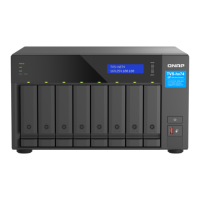
Press “ SELECT” t o go t o t he next opt ion and “ENTER” to select an option.
TCP/ I P
I n TCP/ I P, you can see t he following opt ions:
1. LAN I P Address
380
2. LAN Subnet Mask
3. LAN Gat eway
4. LAN PRI. DNS
5. LAN SEC. DNS
(You can configure t he above sett ings for every int erface).
6. Enter Network Set t ings
a. Network Set t ings – DHCP
i. Set up DHCP on LAN1 and LAN2.
b. Network Set t ings – St atic I P*
i. Press “ SELECT” t o swit ch t o t he next available opt ion.
ii. Press “ ENTER” to configure t he select ed option. The first digit will begin t o
blink.
iii. Press “ SELECT” t o increm ent t he select ed digit, press “ ENTER” t o confirm t he
value, and go t o the next digit unt il all digit s are set.
iv. Repeat t his procedure t his for every set t ing you want t o change.
c. Net w ork Settings – BACK
7. Back t o Main Menu
* I n t his section , you can only configure I P address, subn et m ask, ga tew a y, a nd
DNS of LAN 1 and LAN 2 .
Ph ysical disk
I n Physical disk, you can see t he following opt ions:
1. Disk I nfo



 To Next Page