www.qutools.com quTAG MC Manual 19
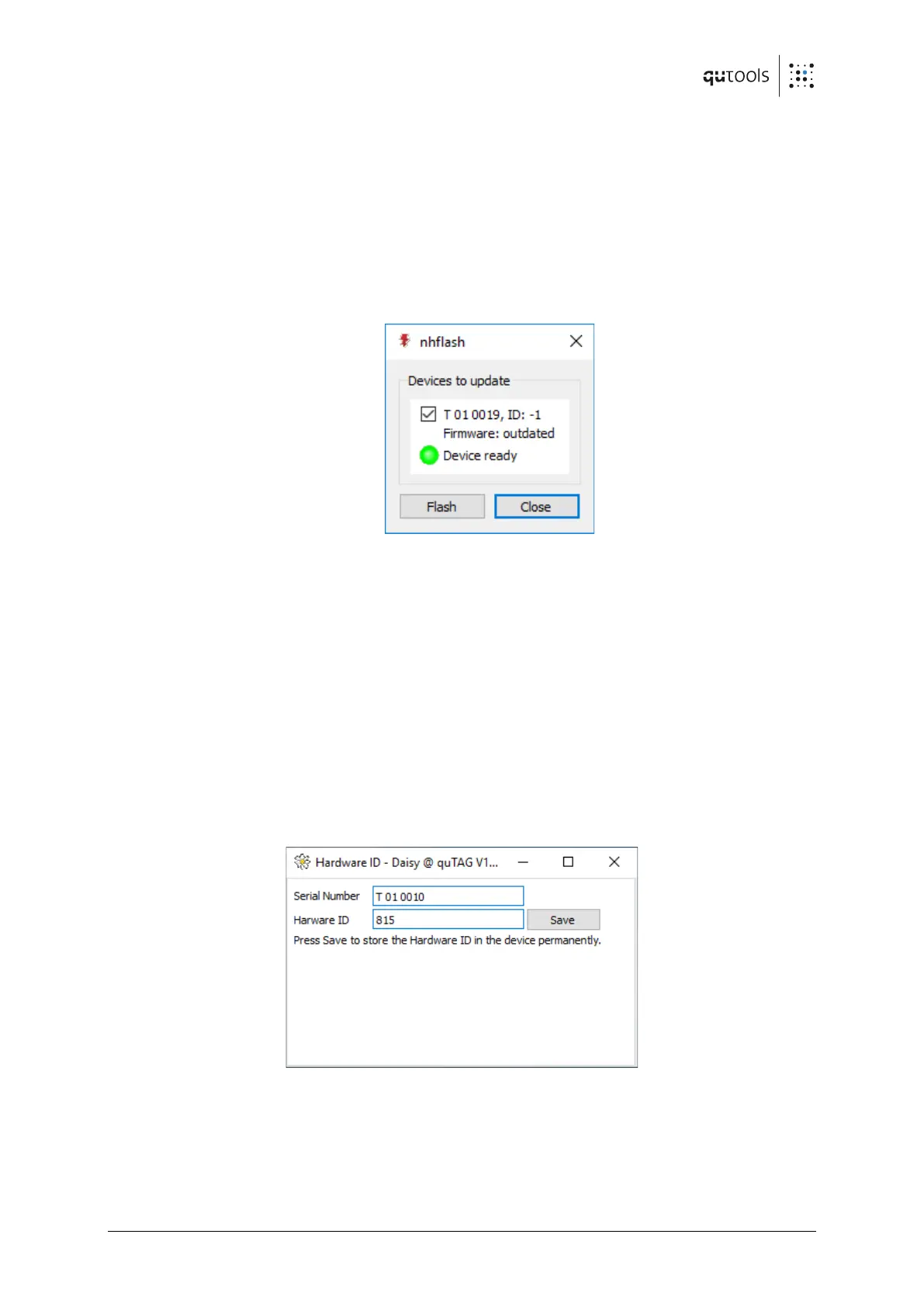
2. Start nhflash(.exe). After some time, the indicator turns green. Proceed only if the tool
display "Firmware: outdated".
3. Press "Flash". Make absolutely sure the device is not shut down or disconnected during
this step! The flash process takes several minutes and may seem to hang without
progress for up to 3 minutes. After the update is completed successfully, the indicator
stops flashing and the text next to it shows "Update complete".
4. Close the firmware update utility.
5. Turn the quTAG device off and on again.
Figure 6: The firmware update tool nhflash
6.3 Hardware ID
The Hardware ID is a (positive) number stored in the device so that it can be used to distinguish
between multiple quTAG that are connected to the same PC. If the Daisy software detects more
than one device, it asks the user to select a device using the Hardware IDs and serial numbers.
Also, the DLL uses the ID to identify a device. If device discrimination is an issue, individual IDs
should be programmed.
To assign a device ID start Daisy.exe, locate "id.ngc" in the installation folder with the file manager
and drag it into the program window (or open the program menu using ctrl+F9 and select file/
load panel). Enter an individual ID and press "Save". Close the program window and restart the
device.
Figure 7: Programming the Hardware ID


 To Next Page