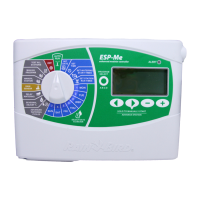
ESP-SMTe Controller
24
Step 4. Set Allowed Watering Windows
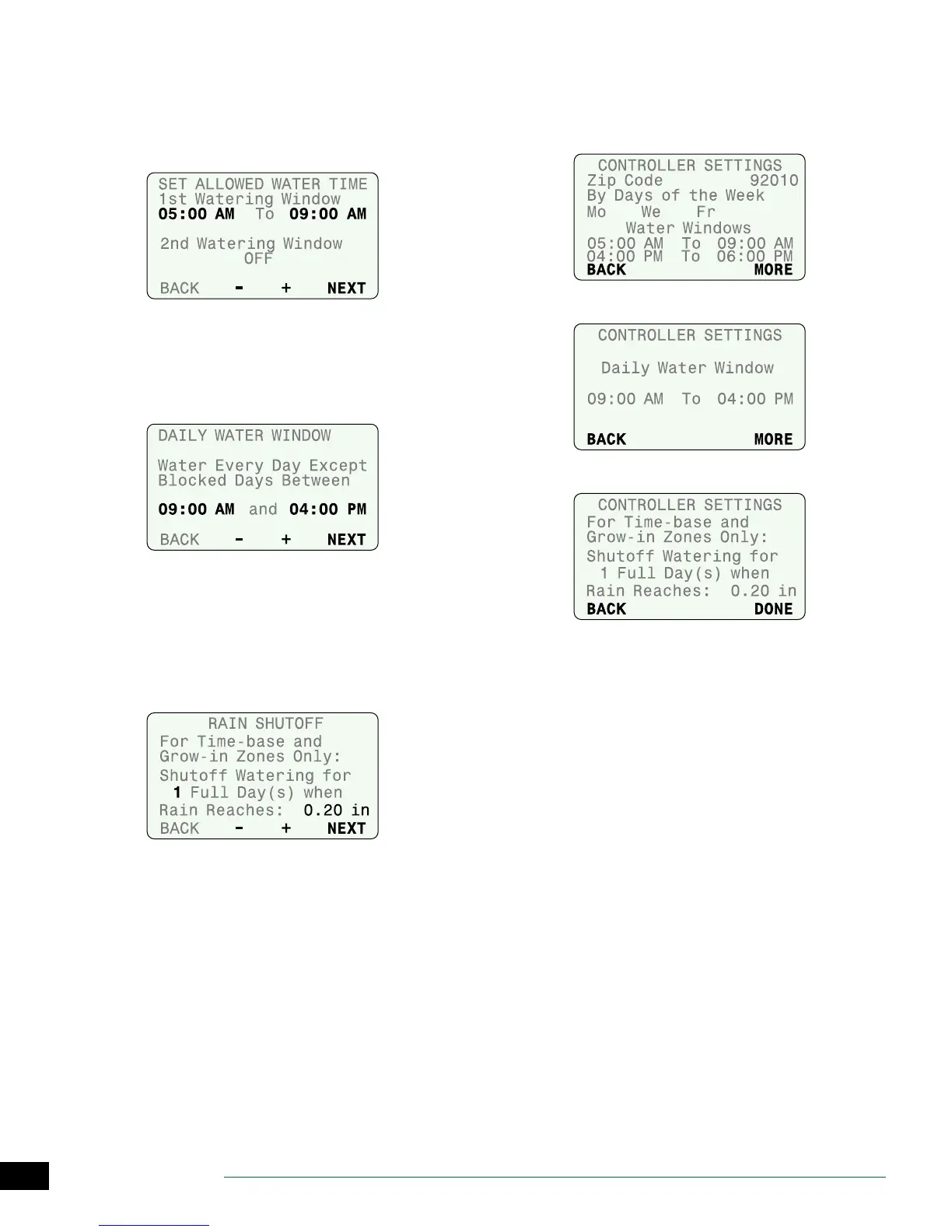
Set a time that irrigation can occur on Allowed Watering
Days.
A
Set the start and end times for the 1st Watering
Window; then press NEXT.
B
If desired, Set the 2nd Watering Window to ON and set
the start and end times; then press NEXT.
C
Set the Daily Water Window for new plants and zones
that may water every day regardless of allowed
watering days; then press NEXT.
NOTE: The Daily Water Window allows irrigation of
new plants every day, and is not aected by Allowed
Watering Days, Blocked Days or Event Days O. The
number of days that a Daily Water Window is in eect
is set in the Enter Plant Maturity step under Input
Zone Information.
D
Set Rain Shuto (days and inches); then press NEXT.
NOTE: Once the desired amount of rain has been
exceeded, the controller will stop watering time based
and grow-in zones for the number of Full Days speci-
ed. Full Days begin at midnight so 1 Full Day is the
rest of today and all of tomorrow.
Step 5. Review
Review the Congure Controller settings.
A
Press BACK to make changes if desired, then press
MORE.
B
Review settings.
C
Review settings and press DONE.


 To Next Page