TND
™
Tablet User Manual 11
3A. Truck GPS > Main Menu
IntelliRoute
®
TND
™
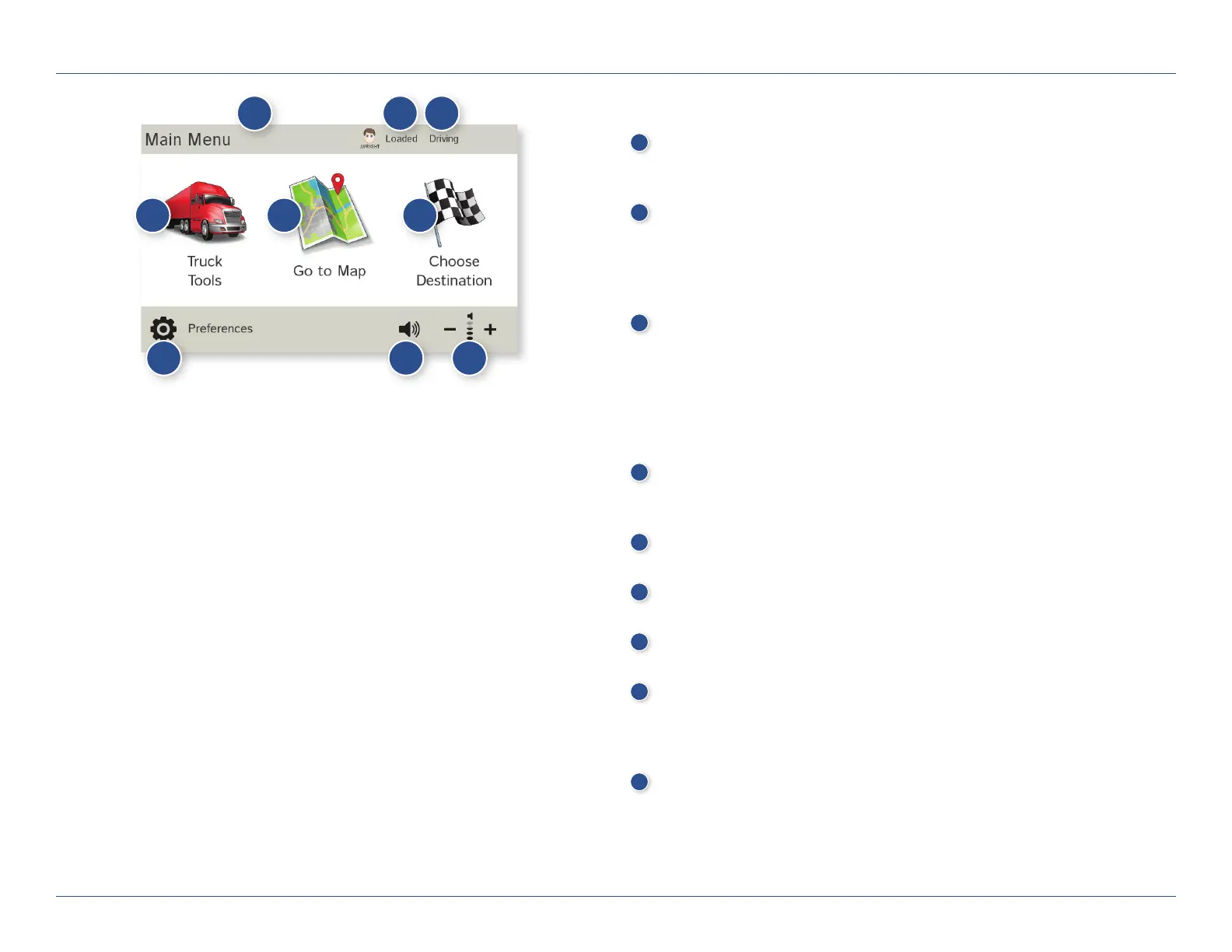
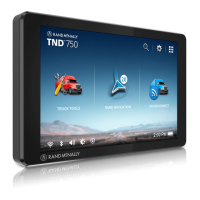
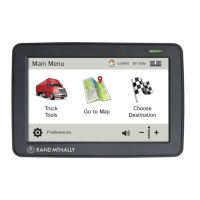
Main Menu
1
Driver Info
Switch between two driver profiles, for team driving. Turn team driving
on in Preferences > General. (See page 15.)
2
Load Option*
Specify in Preferences whether the trailer is always loaded or
whether you want to be prompted each time a route is calculated.
(See page 15.) (Does not display if load option is set to
Always Loaded.)
3
Driver Status*
Select driver status.
Note: Set Driver Status to Automatic to start/stop driving timers when
the vehicle moves/stops. (See page 16). However, when the driver status
is set to Automatic mode, tapping the driver status buttons on the
Main Menu temporarily overrides the automatic setting.
4
Truck Tools
Select to enter truck information, set warnings, and access other tools.
(See page 13.)
5
Go To Map
Tap to view location on the map.
6
Choose Destination
Tap to select an address or point of interest (POI).
7
Preferences
Tap to set device, route, or map options. (See page 12.)
8
Mute/Unmute the Speaker
Tap to mute or unmute spoken instructions.
Note: You can also tap this icon when it appears on the map screen
to mute/unmute.
9
Volume
Tap to increase or decrease spoken instructions volume.
*Note: Not available in Car Mode.
1 2 3
4 5 6
7 8 9
For Sales Information Please Contact
RoadTrucker Inc
(www.RoadTrucker.com)
8312 Sidbury Rd.
Wilmington, NC 28411
(800) 507-0482 / (910) 686-4281



 To Next Page