RT-7600S Auto Hematology Analyzer User’s Manual
Items: user may select all parameters for QC, or select part of parameters for QC.
Delete: delete QC data of QC file currently selected.
Send: use instrument RS-232 serial port to transfer QC data of QC file currently selected
to designated receiver. Prior to transfer, please use RS-232 serial port cable to connect
RT-7600S to equipment ready to receive data, start up and set up receiver software
parameters. For setting of instrument transferring terminal parameter, please refer to
Chapter 7 “System Setting”.
Exit: return to main screen.
4.1.2 L-J QC run
After QC parameter setting of selected QC file is done, QC analysis of this QC file can start.
In main screen, select QC file, enter QC Run screen as shown below:
Fig.4-3 L-J QC run
1. Have QC sample ready, press Aspiration key to start test.
2. After test, QC run result will be shown under current QC number column. If fault alarm
occurs in test, this test result may be inaccurate. You can click “Delete” button to delete
this test result. Eliminate related fault before next run. If out-of-control rule is set during
QC setting, in case of inconformity with QC rules in running, the system will prompt, the
user can delete current QC run result, and test again.
3. Each QC file can save at most 500 QC results. Press “Return” button to return to main
screen.
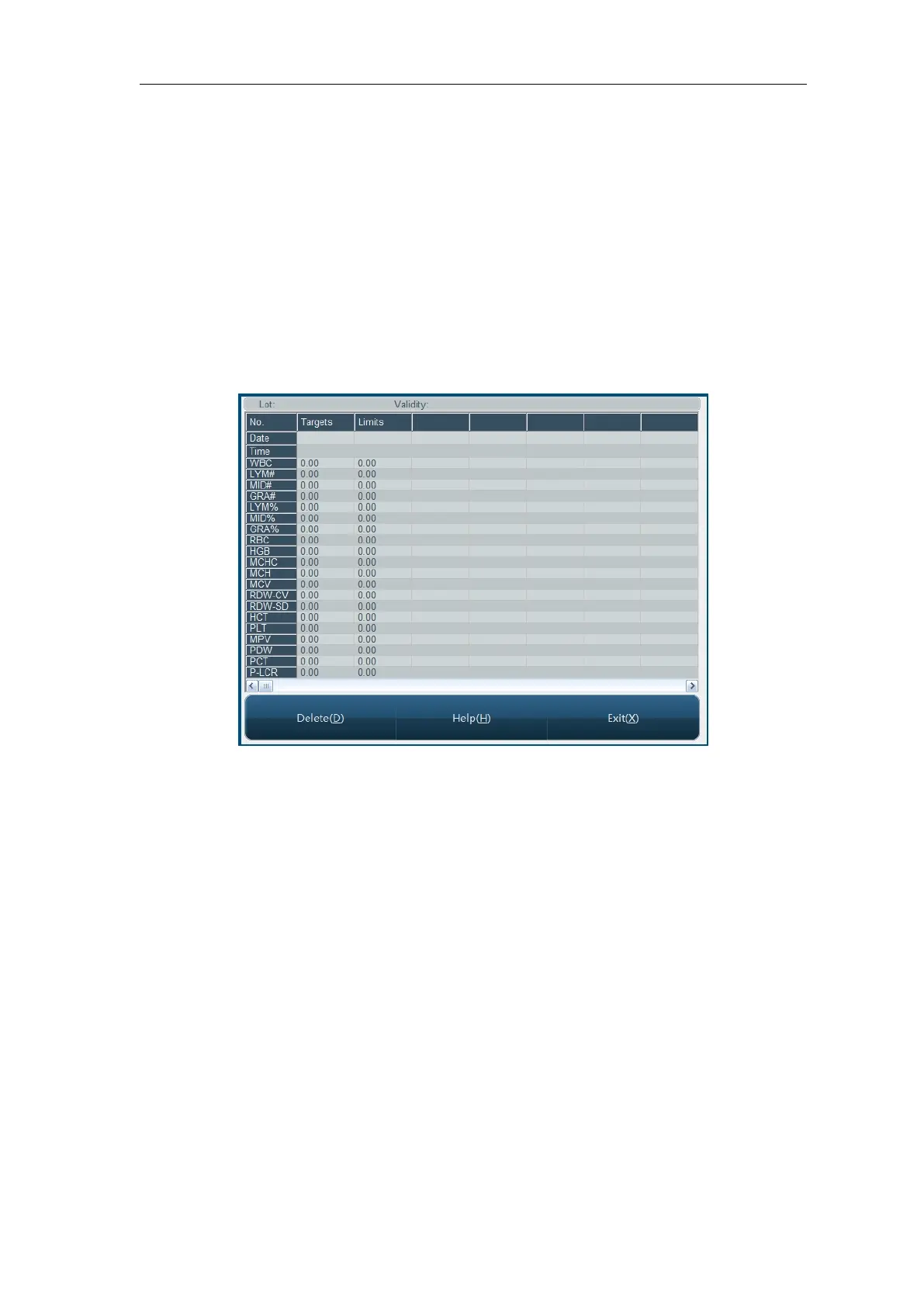
4.1.3 L-J QC list
The instrument can look up QC run data in list. In main screen, select QC file, enter QC list,
as shown below:


 To Next Page