POP 3D Scanner User Manual
COPYRIGHT ©2021 REVOPOINT 3D ALL RIGHTS RESERVED 24
Merge (Multiple Models Processing)
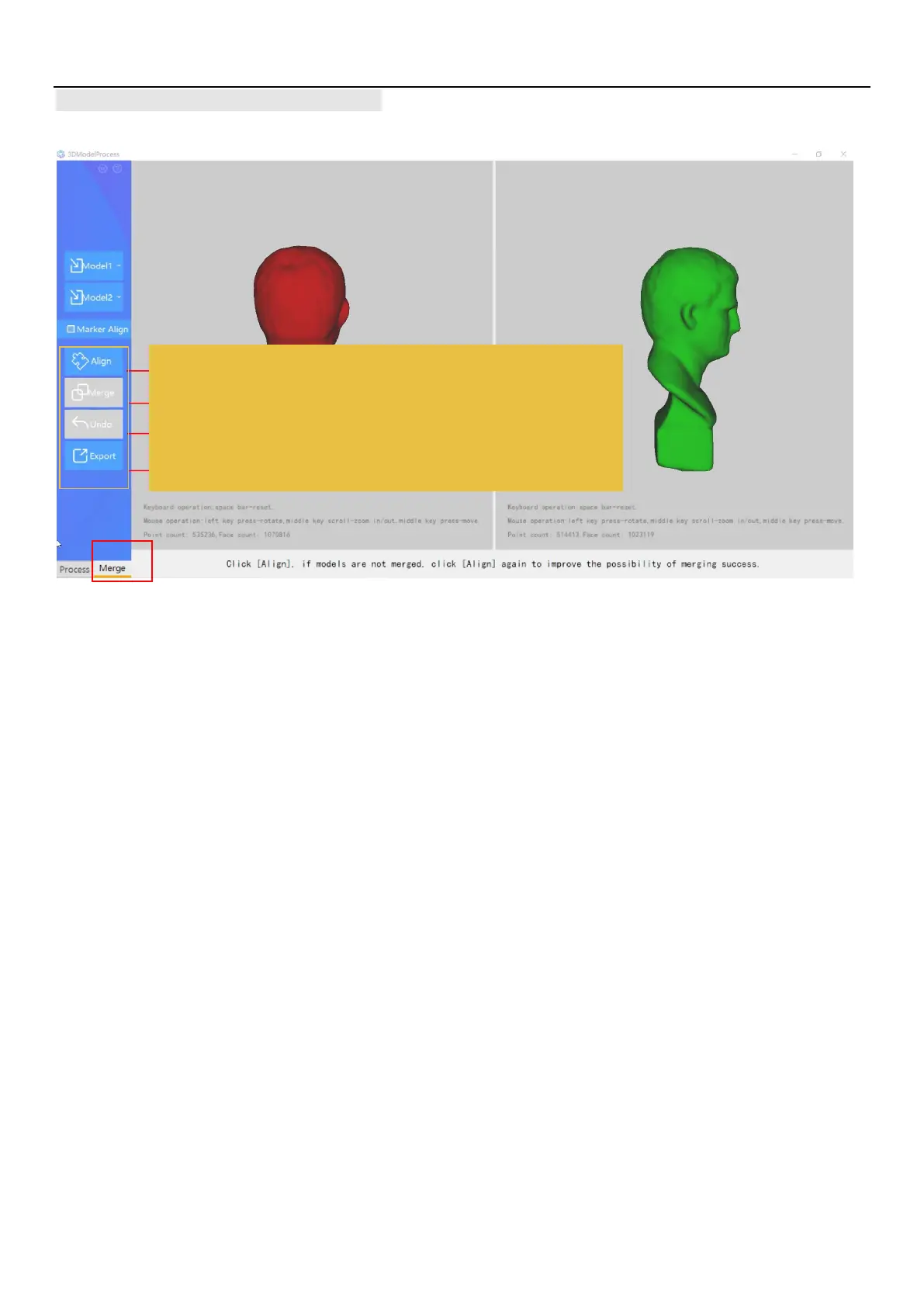
1. Click "Model 1" and "Model 2" to import 3D models into Handy Studio.
2. If there is sufficient overlap, the “Align” command will interleave the point clouds.
3. If the alignment is satisfactory, press the “Merge” button to join the two objects as a new 3D model and export it with a new file name.
4. If the alignment is unsatisfactory, press the “Align” button again to see if there is improvement.
5. If repeated use of the “Align” button produces nothing of value, press the “Undo” button to return to the original state.
6. At this point, the “Marker Align” option may be explored.
7. Adjust the orientation of the two objects so that the same points can be seen.
8. Identify three points on each model that should overlap and click on the same point on each model until the three points are identified
on each object.
9. Select “Align”.
10. If this technique fails, consider re-scanning one or more objects for a sequence of alignment operations.
Align two models
Merge the aligned models into one model
Undo the previous operation and revert to the previous state
Export models in PLY / OBJ / STL format


 To Next Page