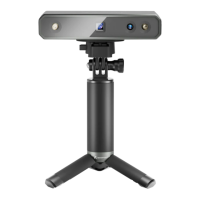
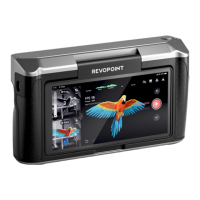
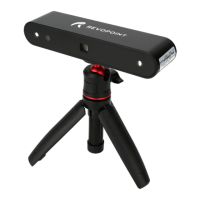
POP 3D Scanner User Manual
13 COPYRIGHT ©2021 REVOPOINT 3D ALL RIGHTS RESERVED
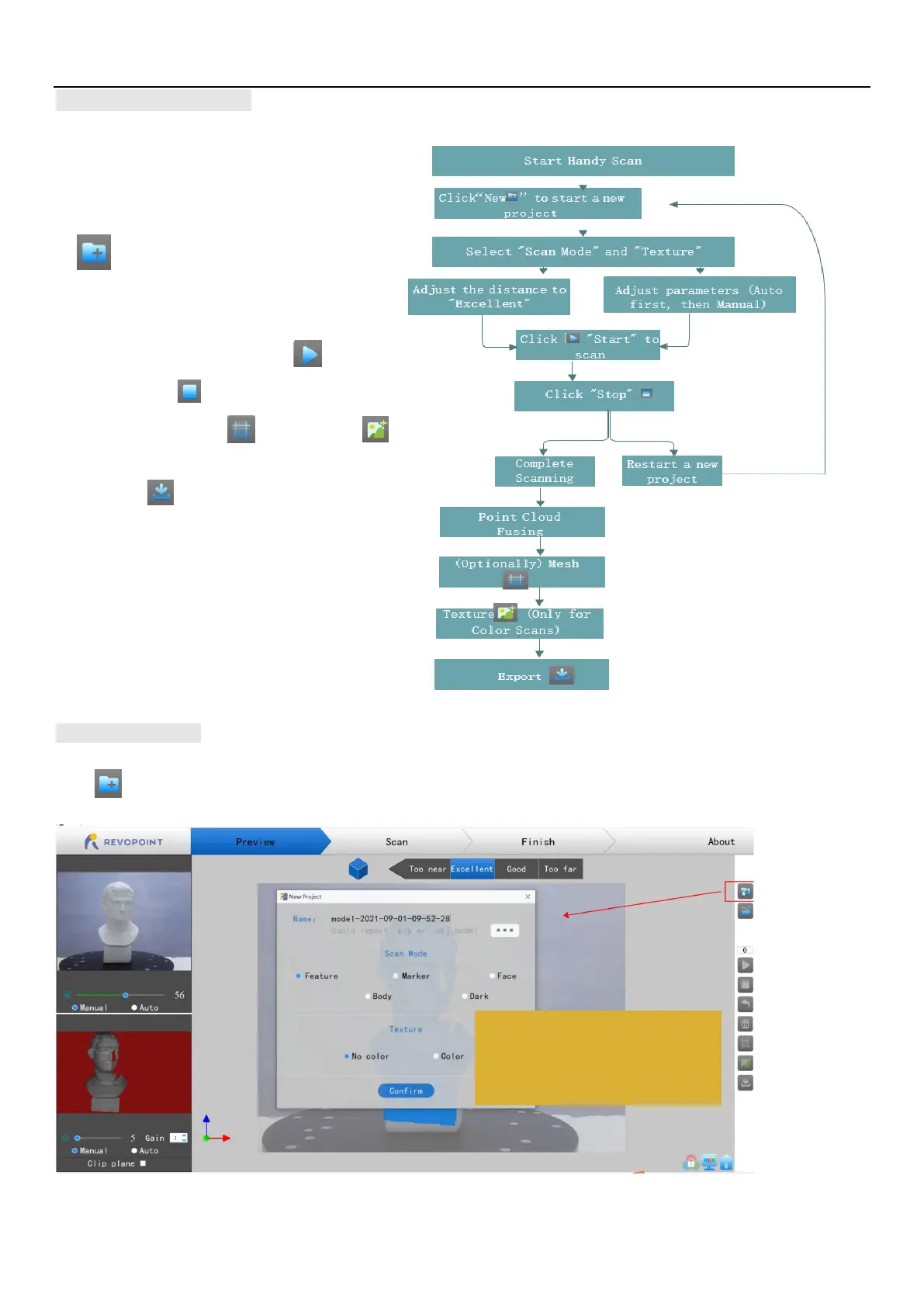
Operation Workflow
Start a New Project
Click to start a new project: Select the Scan Mode and
Texture
.
Place an object on a table → Connect POP to
your PC → Start
Handy Scan
→ Click "
New
"
to start a new project → Select "
Scan
Mode
" and "
Texture
" → Adjust the distance to
"
Excellent
" → Adjust parameters (
Auto first,
then Manual
) → Click "
Start
"
to scan →
Click "
Stop
"
to complete scanning →
(optionally) "
Mesh
"
→ "
Texture
"
(Only available for Color scans) → Click
"
Export
"
to output the 3D model (3 file
formats supported: .ply, .stl and .obj.)
Select the desired "Scan Mode" and
“Texture” according to object type.


 To Next Page