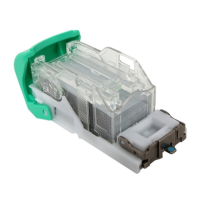
• USB 3.0/2.0 flash drive, at least 16GB capacity (Max: 32GB)
*1: The tools can be downloaded via the firmware download site.
Creating a bootable USB flash drive installed with the Fiery Clone Tool:
Download the Fiery Clone Tool from the firmware download site and extract it.
The Fiery Clone Tool file is provided in *.ISO format.
Install the USB Setup Tool on your client PC, if is not already installed.
1. Download the USB Setup Tool from the firmware download site and extract it.
2. Double-click the Fiery_USBSetupTool.exe to start the installer.
3. When the setup wizard is launched, click Next.
4. Accept the terms of the license agreement and then click Next.
Wait while the installer verifies the installation requirements.
• If the PC does not already have .Net framework installed, click Accept to accept the
terms of the license agreement that appears on the screen. Wait up to 10 minutes as
the .Net framework files are installed.
5. At the next screen, accept or change the destination location, and then click Next.
6. When prompted, click Install to begin the installation.
Wait while the application is installed on the PC.
7. At the InstallShield Wizard Complete screen, click Finish.
• The version information is displayed on the top-right corner of the Fiery USB Setup Tool
main window. More information about the Fiery USB Setup Tool version can be found in
Control Panel > Add or Remove Programs. In Windows 7, click Control Panel >
Programs and Features.
Create a bootable USB flash drive with the Fiery Clone Tool program included.
1. Start the USB setup tool application by clicking Start and choosing All Programs > EFI
> Fiery USB Setup Tool.
2. Insert the USB flash drive into a USB port of the Windows PC.
• All data on the USB flash drive will be erased when the drive is reformatted during the
preparation procedure. Make sure that no valuable data resides on the USB flash drive.
3. Follow the on-screen prompts.
•
Start screen - Specify the location from which to copy the Fiery Clone Tool software (the
drive letter of the media drive). Specify the drive to copy to (the drive letter of the USB
4. System Maintenance
144


 To Next Page