flash drive). Proceed when the Proceed button appears. Click OK to begin formatting the
USB flash drive and make the USB flash drive bootable.
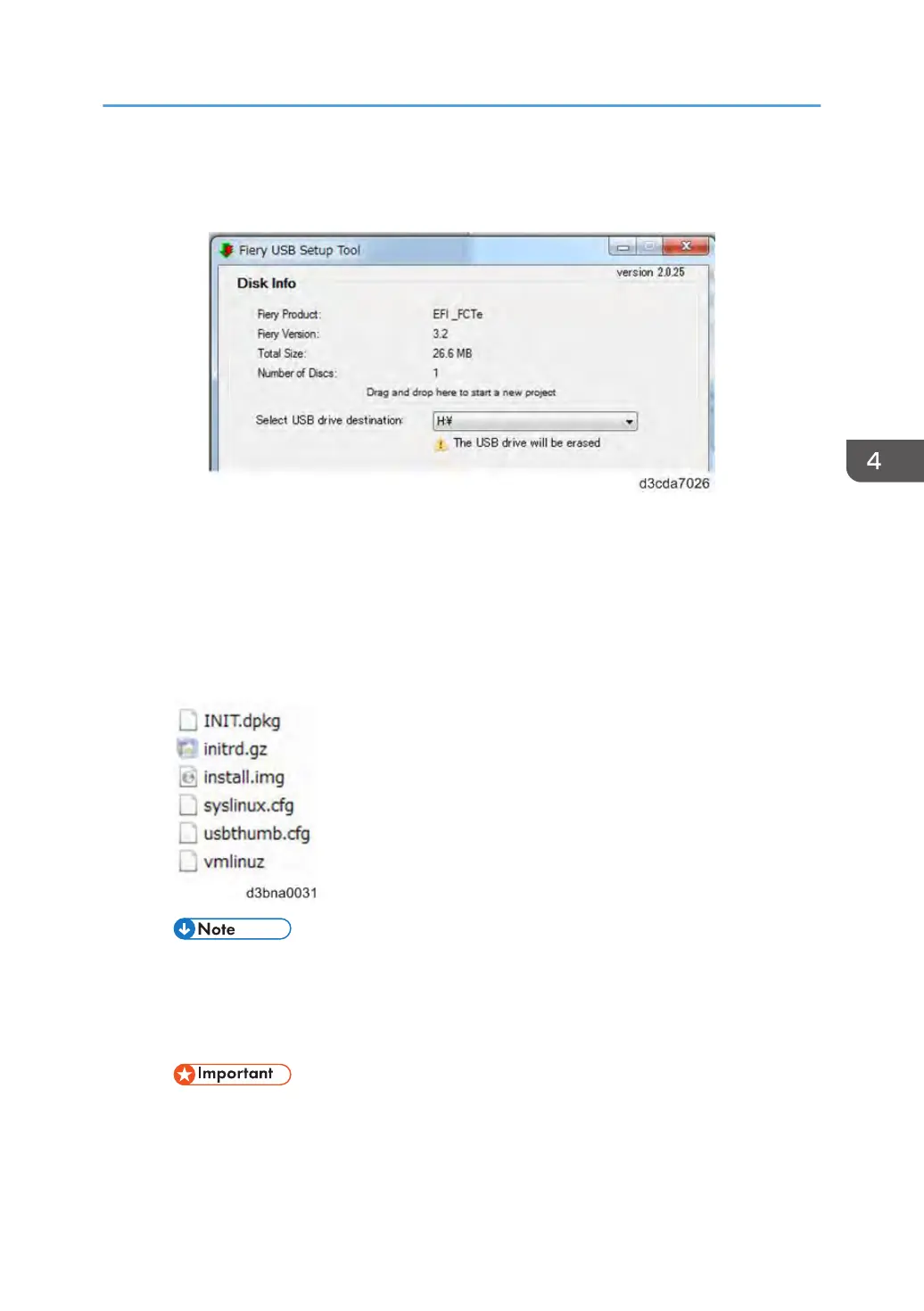
• Prepare screen - The progress bar shows that the contents of the software are being
copied. Do not cancel. After all of the contents have been copied, click the Proceed
button when it appears to continue.
•
Finish screen - Confirm that the contents of the software are being copied. Click Finish to
exit Fiery USB Setup Tool.
4. Confirm on the Windows PC that the USB flash drive has now the following files
included.
• Copying these files to an empty USB flash drive will not substitute Steps 3-1 through 3-3.
Always do Steps 3-1 through 3-3 for the bootable USB flash drive containing the Fiery
Clone Tool to work properly.
5. Remove the USB flash drive in a safe way from the PC.
• Do not leave the USB flash drive connected to the Windows PC. If the Windows PC starts
up or reboots with the USB flash drive connected, system corruption may occur.
Backup/Restore
145


 To Next Page