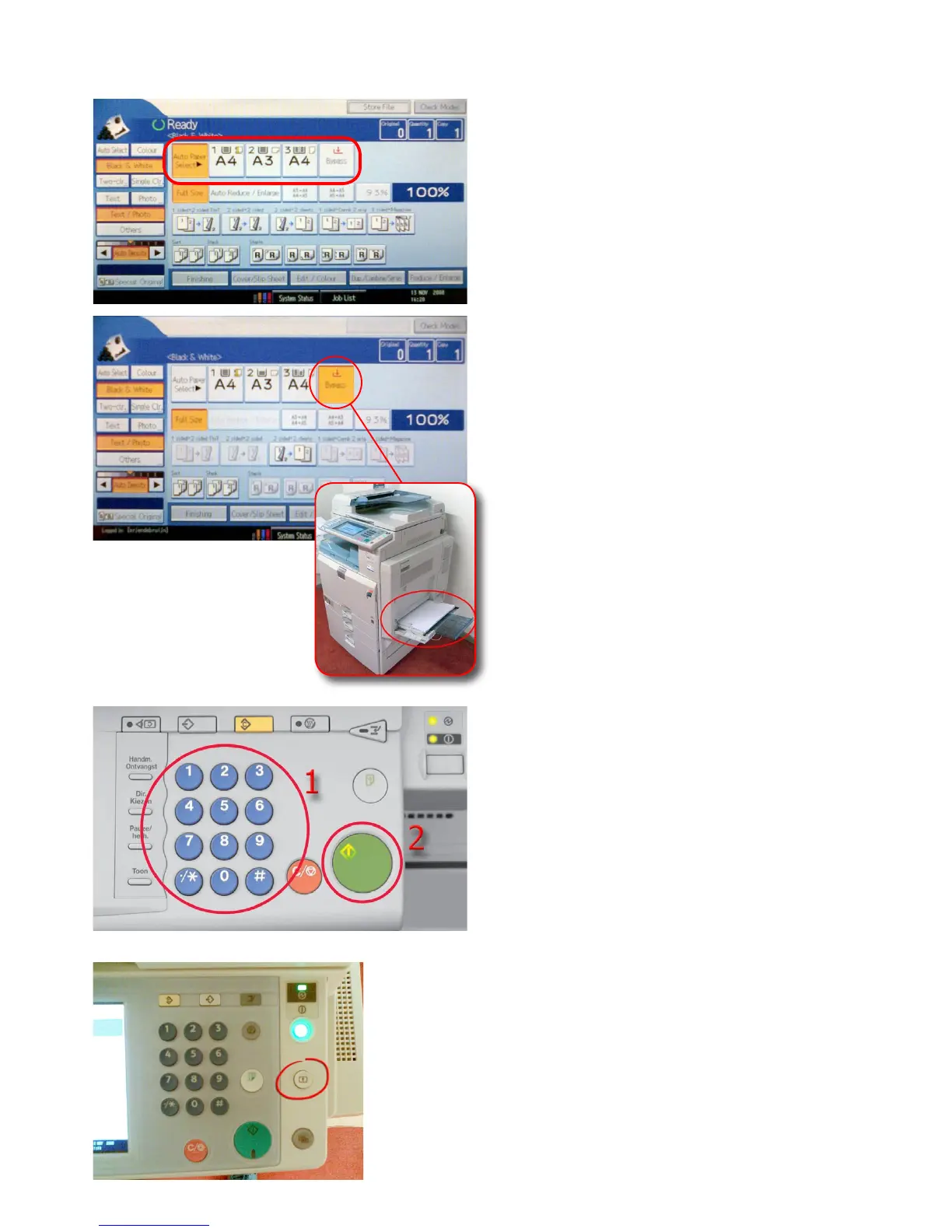
Choose the paper tray from where you want the printer
to print. If you know exactly which tray holds the paper
that you need to use, for instance if you placed some
pre-printed letter templates in a tray, select it here.
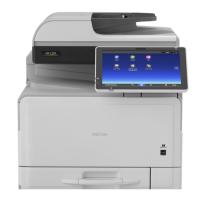
If you want to print on your own paper, for instance
transparant sheets, you can also place them in the by-
pass-tray. Select bypass-tray on the touchscreen to use it.
Note
If the paper that you want to use is already printed on
one side, place it in the bypass-tray with the printed side
facing down, because the printer will print on the side
facing upward.
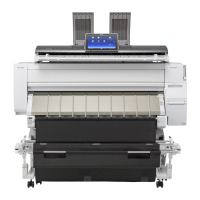
Enter the amount of copies that you want to make with
the numerical keypad right of the touch screen (1) and
push on the round green button (2) to start the copy
process.
2.2 How to make a normal print with default settings
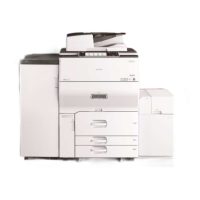
When you’re ready copying, press the ‘logout-key’ to log
off your NetID.



 To Next Page