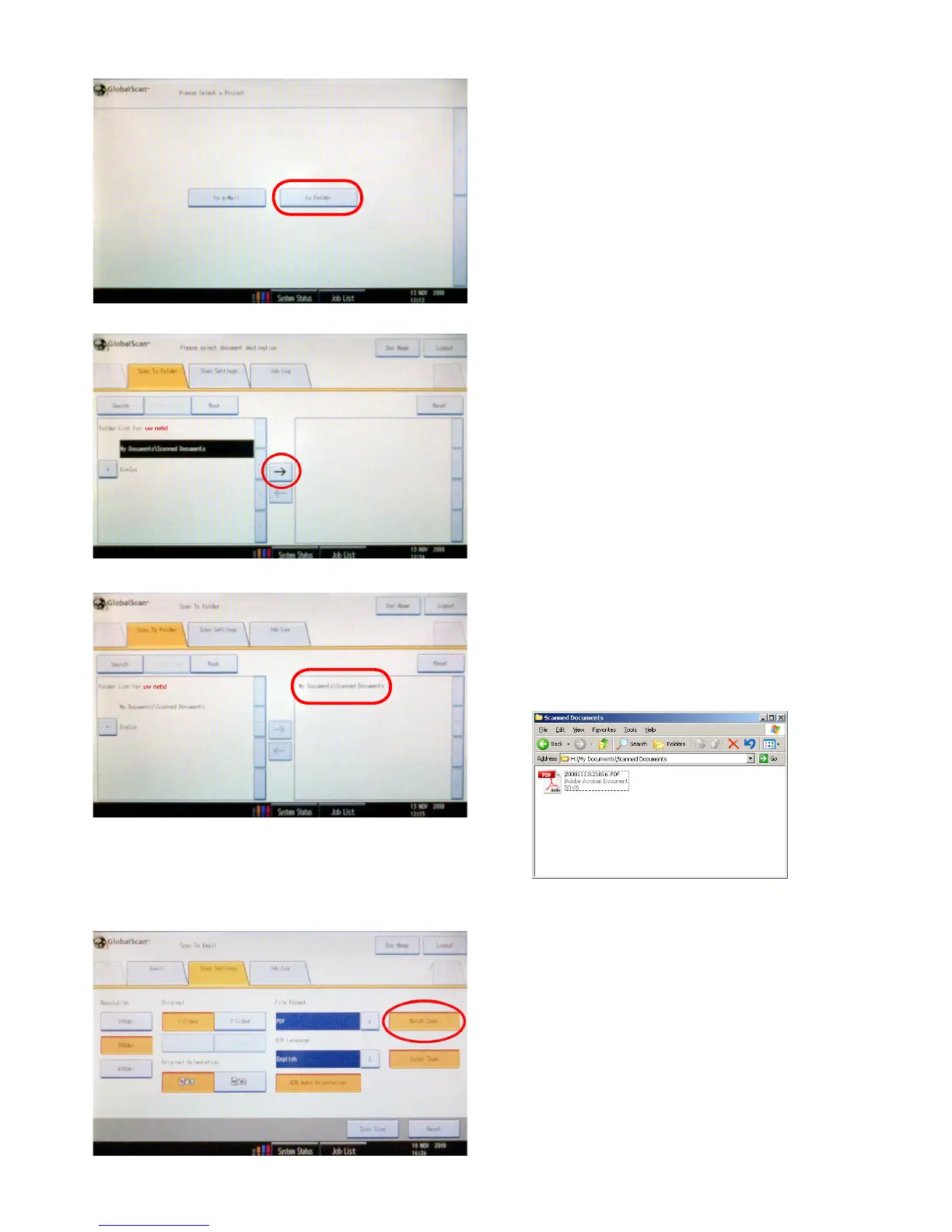
3.2 How to scan to your Home Folder (H:\-drive)
Select the scan mode with the function buttons to the left
of the touchscreen. Select the option: ‘to Folder’ and log
in with your NetID as described in 3.1.
The following screen will appear. Press the text ‘My
documents\Scanned Documents’ and then on the arrow
pointing right.
The location ‘My documents\Scanned Documents’ has
now been moved to the right column, which shows the
networklocationswherethescannedlewillbesavedto.
InthiscasethescannedlewillbesavedintoyourHome
Folder in the folder: H:\My Documents\Scanned Docu-
ments.
Using the batch scan button allows you to place large
documents in smaller, separate piles on the automatic
document feeder and have them send to you bundled
intoonele.
In case you scan from the glass plate, for instance when
you scan separate pages from a book one by one, this
function will be activated automatically.
3.3 Making batch scans



 To Next Page